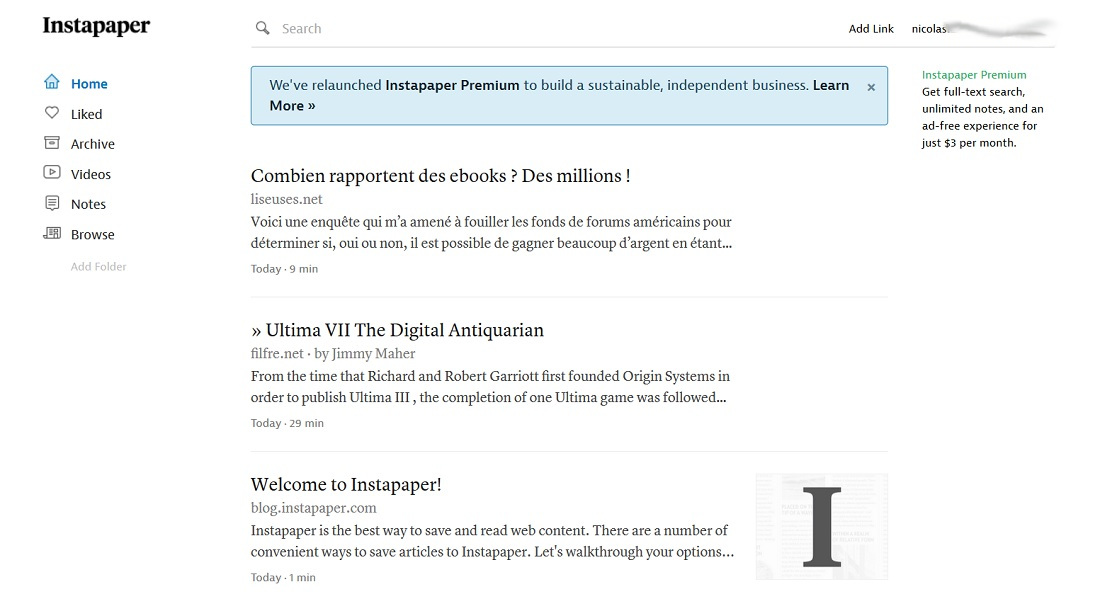
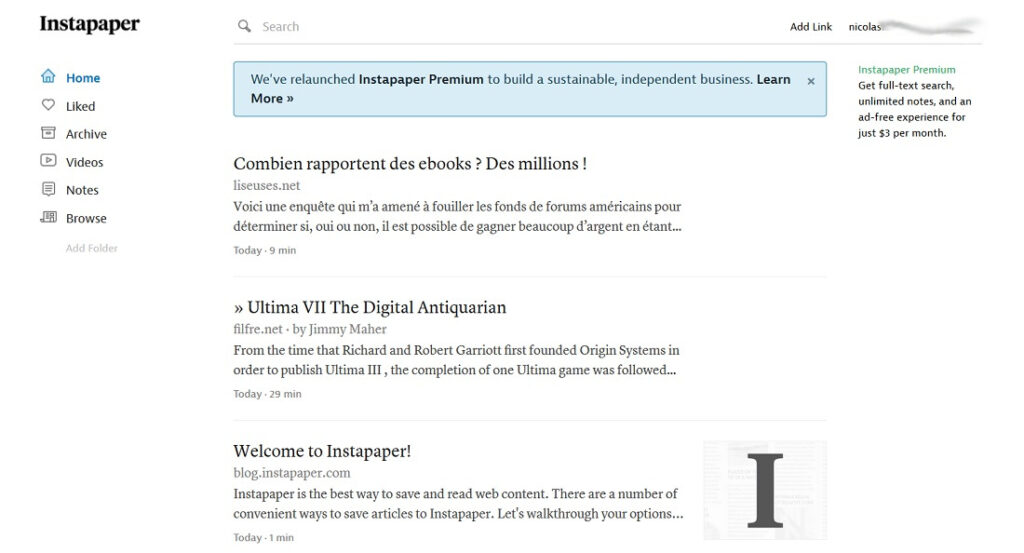
One handy feature of Kindle e-readers is their ability to work with Instapaper, a service that gives you access to web pages on your device. In this guide, we’ll walk you through how to set it up.
Note: Instapaper also works natively on Kobo e-readers.
The downside of e-readers is that they’re designed almost exclusively for reading e-books.
Sure, some models – like those from Pocketbook – let you do a bit more. But at the end of the day, e-readers shine when it comes to reading.
So some manufacturers came up with the idea of giving their devices access to web pages.
Two approaches have been adopted for this:
- Using a built-in web browser
- Using a third-party service
While using a web browser on an e-reader tends to be a pretty rough experience, a third-party service is usually the better option.
What Is Instapaper?
Instapaper is an online service launched in 2008 and acquired by Pinterest in 2018.
While a premium subscription is available, Instapaper’s core features are free for everyday use.
The service lets you save web pages for later. Articles are stored on Instapaper’s servers, and you can read them later on the Instapaper website, on the smartphone/tablet app, or on your e-reader (under certain conditions).
Web pages are stripped of clutter like ads, navigation menus, and other distractions. It’s a great tool for bookmarking things you want to read but don’t have time for right now.
Syncing Instapaper with Your Kindle
The great thing for Kindle users is that you can set up Instapaper to automatically deliver saved articles and web pages to your e-reader.
The connection isn’t automatic, though – it takes a little configuration on both your Instapaper account and your Amazon account.
The first step is to create an Instapaper account at: https://www.instapaper.com
Signing up is free.
How to Set Up Instapaper with Your Kindle
Once you’re signed up, you can link your Kindle to your Instapaper account.
Start by opening the content and devices management page on your Amazon account.
To do this, go to your browser (logged in to your Amazon account) and navigate to: https://www.amazon.com/hz/mycd/myx#/home/content/booksAll/dateDsc/
Then go to “Preferences” and scroll down to “Personal Document Settings”.
You’ll see two things:
- The email address associated with your Kindle
- The list of approved email addresses allowed to send personal documents
Now, open a new browser window (or tab) and go to your Instapaper account preferences (click your email address in the top right, then click “Settings”): https://www.instapaper.com/user
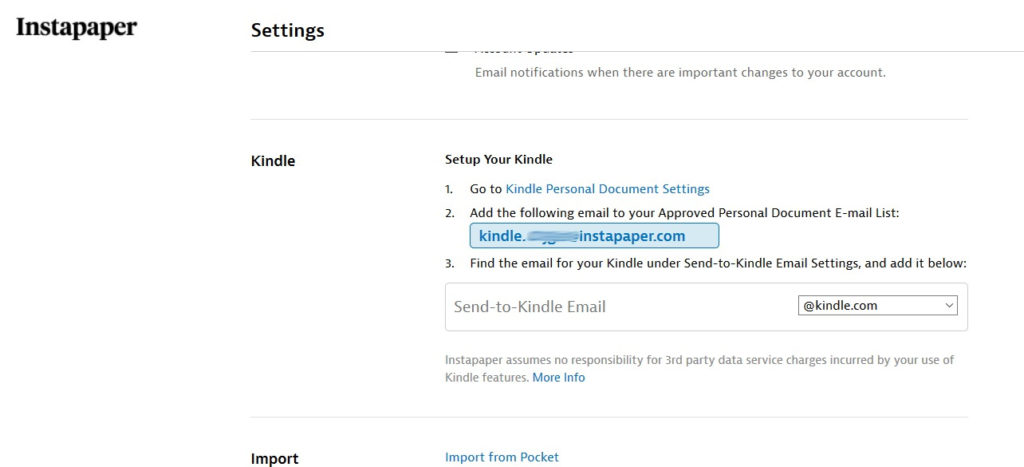
Scroll down the page and you’ll find options under the “Kindle” section.
You’ll need to enter your Kindle’s email address in the “Send-to-Kindle Email” field (the one you found on your Amazon page).
Then, in your Amazon account, you’ll need to approve the Instapaper email address shown in blue on your Instapaper settings page.
Finally, save your changes on both Amazon and Instapaper.
If everything is set up correctly, your two accounts are now linked. Let’s look at how to actually send web pages to your Kindle.
Sending Instapaper Web Pages to Your Kindle
If you haven’t already, you’ll need to save some web pages to your Instapaper account.
To save a page, click “Add link” on the Instapaper homepage (make sure you’re logged in).
Once you’ve saved a few articles, you’ll see them appear in your list.
Now head back to Instapaper’s “Settings” to manage how articles get sent to your Kindle: https://www.instapaper.com/user
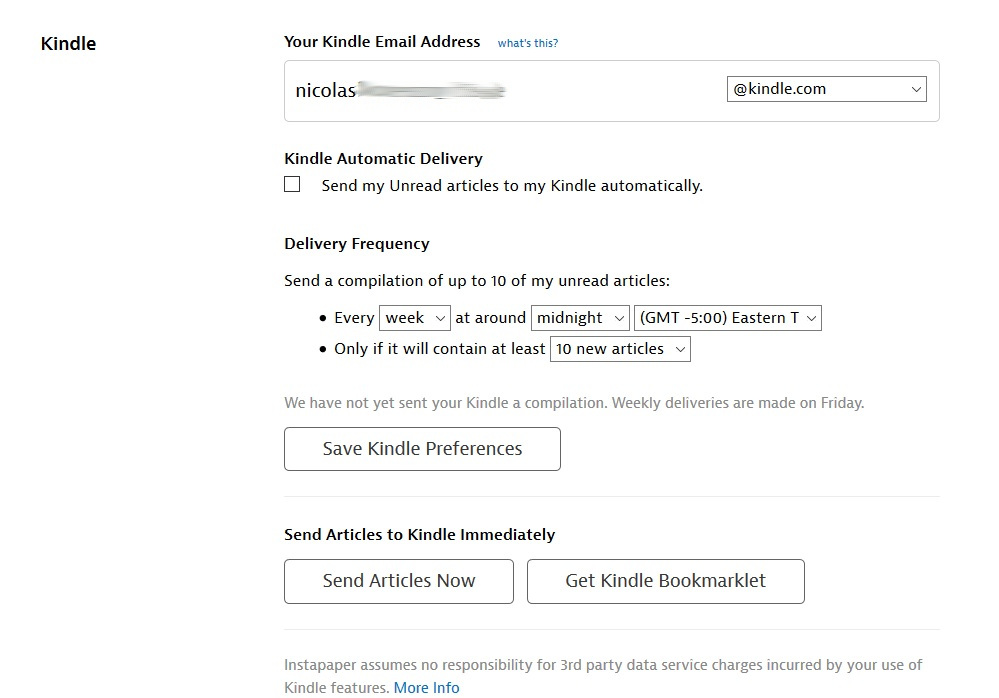
You have a few options:
- Check the “Send my Unread articles to my Kindle automatically” box to push every new article to your device.
- Or, set up a daily or weekly send at a specific time.
- Finally, the “Send Articles Now” button lets you instantly push your saved pages to your Kindle.
Reading Web Pages on Your Kindle
To receive Instapaper articles, your Kindle must be connected to Wi-Fi.
After triggering a send – for example, by clicking “Send Articles Now” in Instapaper – wait a few minutes for the articles to arrive.
When they do, a new e-book will appear in your library.
It contains all your saved articles, and you can read them just like any other book.
Images are preserved, and you get a clean, simplified version of the web page along with all your usual reading options: reading progress percentage, font adjustments, etc.
Conclusion: A Solid System
This works really well for longer reads and in-depth articles. A similar system is also available on Kobo e-readers, by the way.
The setup is a little fiddly, but it only takes a few minutes, and once it’s done, it works great.
I think it’s a genuinely useful feature since it lets you bring your saved web reading onto your e-reader. That said, it’s no replacement for a full web browser.
Either way, having this kind of integration built into e-readers is a real convenience.
Feel free to leave a comment below to share your thoughts or let other readers know about other ways you’ve found to read web content on your e-reader.