News

Ereader news from all over the world!

  • Xiaomi Moaan Air E-Reader

    Xiaomi Moaan Air e-reader

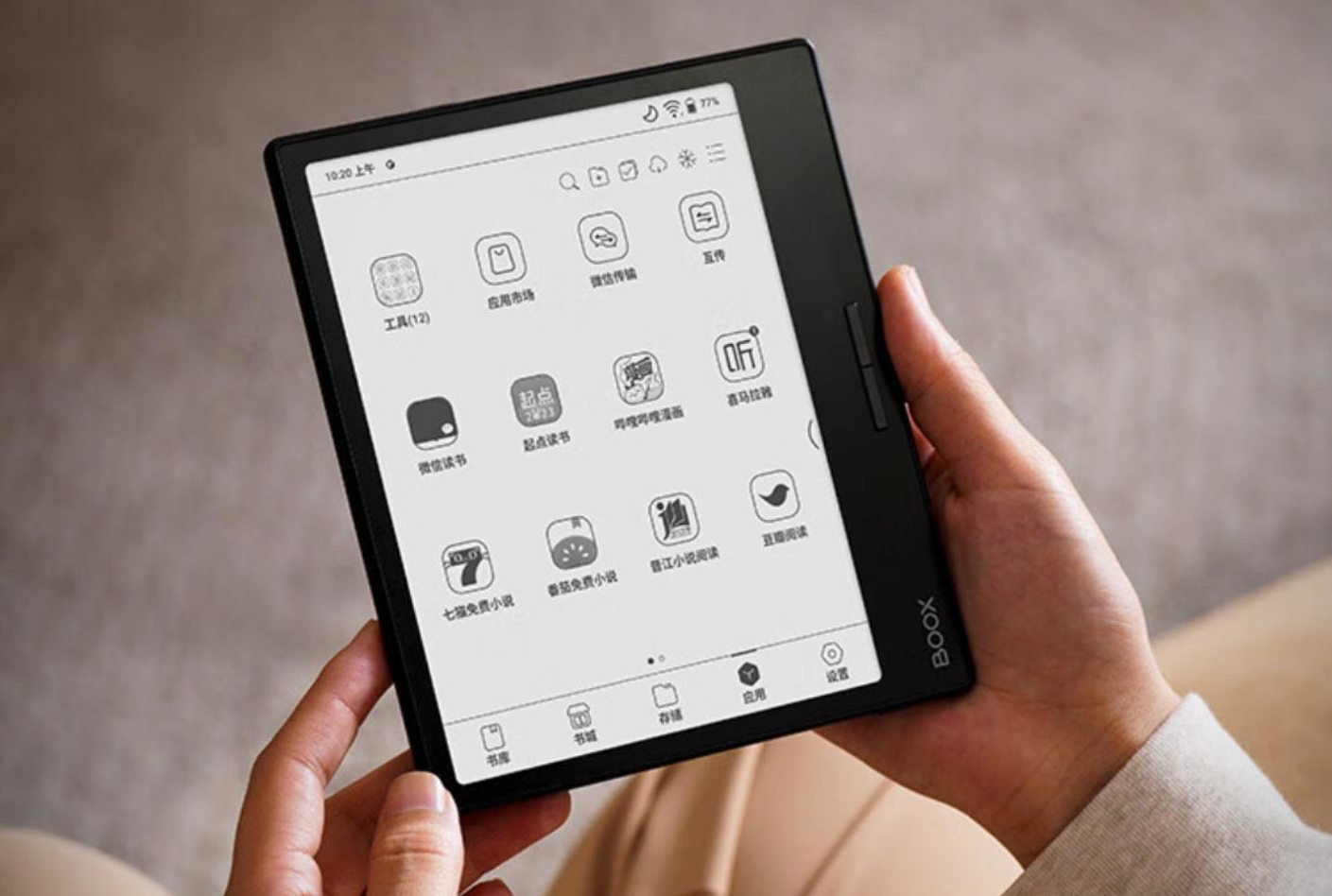
    Xiaomi continues to release e-readers for the Asian market, and in 2023 will be offering a new e-reader with an HD e-ink screen, the Xiaomi Moaan Air.

    Xiaomi has been active in the e-reader market for several years now, offering a variety of reading devices with advanced technical specifications.

    This Xiaomi Moaan Air e-reader is no exception, featuring a latest-generation high-definition e-ink screen: a 6-inch E Ink Carta 1200 display.

    The e-reader features a tactile layer and lighting, as well as a number of interesting options such as the ability to change contrast to make text darker or lighter.

    Apart from that, the system used is Android 12, which allows the addition of new reading applications to offer great variety in the choice of its digital library.

    Here are the specifications of this Xiaomi Moaan Air e-reader:

    • HD Carta 1200 e-ink screen, 300 PPI
    • Touch screen
    • Lighting with color temperature adjustment
    • ARM A53 quad-core 1.5GHz processor
    • 2GB RAM
    • 32 GB storage memory (for applications and ebooks)
    • Weight: 163 grams
    • 1800 mAh battery
    • USB-C port for fast recharging
    • Wifi
    • Bluetooth 5.1

    The presence of Bluetooth connectivity means you can enjoy music and audiobook playback via a Bluetooth speaker or headphones.

    The 163-gram weight makes this e-reader rather light, which no doubt explains the presence of the word "Air" in its name.

    As far as Android 12 is concerned, this e-reader doesn't appear to use Google services.

    So if you want to add new Android applications, you'll have to install them manually by downloading APK files. This is a disadvantage, since the applications available via download outside Google Play are often older, and updating them is less straightforward than with a more conventional system.

    With a price tag of around $150 and limited availability outside Asia, this Xiaomi Moaan Air e-reader is rather poorly placed in relation to the available competition.

    For the same price, you can buy a Kobo Clara 2E (same screen) or a Kindle Paperwhite with a 6.8-inch screen.

    Two reliable machines, available worldwide, and above all much simpler to use, with extensive digital book libraries.

    So I don't recommend this e-reader. Except, perhaps, for those who are comfortable with setting up the Android system and don't mind having to manually install new applications.

  • 8 tips to make your e-reader last longer and keep it safe

    Sometimes, when you buy an electronic e-reader, you want it to stay with you for a few years. But to do so, you need to be careful and protect your machine.

    Here are a few tips to help your e-reader last longer.

    1. Invest in a protective cover

    If your e-reader is well protected, it’s less likely to take knocks and get dust on it.

    In the end, you invest a few extra dollars (between $15 and $40) and you can make your e-reader last a very long time.

    That said, if your e-reader is a basic Kindle (sold on Amazon for less than $100, excluding special offers), it may not be worth the extra money. So it’s up to you.

    You should also check that your cover is compatible with your e-reader model, so that it fits perfectly.

    2. Add a protective film to the screen

    In the same way as for the cover, the screen can take a beating.

    If you have a small child, he or she may hit the screen with a toy or other object.

    So, by sticking a little protective film on the screen, you’ll be able to protect it a little more. Especially if the screen is touch-sensitive, you’ll be able to prevent a few scratches.

    Once again, you can find one on Amazon for around ten dollars.

    However, I think the price is a bit high and it’s not particularly useful. So it’s up to you…

    3. Beware of outdoor reading (sun and humidity)

    If you do a lot of reading away from home, remember to avoid damp places (unless, of course, you have a waterproof e-reader!).

    Electronics don’t really like humidity, which can infiltrate the whole device.

    Similarly, e-readers don’t cope well with long exposure to the sun (as is the case with most electronic devices), so avoid leaving them on a garden table or on the dashboard of your car.

    Personally, I avoid reading in my bathroom or leaving a e-reader in a place that could generate water vapor (bathroom but also kitchen).

    Of course, if you have a waterproof e-reader, you won’t have this problem.

    In the sun and on vacation, I always put my e-reader in a bag and in the boot of my car if I’m not using it. That’s still the place where there’s the least risk, as temperatures in the passenger compartment can reach very high levels in summer.

    4. Clean your e-reader regularly

    If you’ve left food marks on your e-reader, or put it in a dusty place, remember to clean it.

    Because, little by little, all this dirt risks attacking the electronics inside the e-reader. So a quick wipe down with a cloth is all it takes.

    The other point to consider is e-readers with buttons. There’s always a lot of dirt getting into all the holes on these devices.

    I regularly use a wooden or plastic (never metal) toothpick to clean these parts of the e-reader.

    You’ll find lots of things in the mini-USB cable slot!

    If your e-reader is waterproof, like the Kobo Libra 2 or Kindle Paperwhite, you can use a wet cloth to clean it too.

    5. Charge your battery regularly

    There’s no risk in regularly charging your battery. So remember to charge it regularly.

    The problem comes from inadvertently letting it discharge completely (see also the following tip).

    You can also save battery power by turning off your e-reader’s WiFi (or lighting) when you don’t need it.

    This way, the battery will discharge less quickly, you’ll need to charge it less often and it will last longer.

    Once again, remember that cold or intense heat is not good for the batteries of electronic devices.

    6. Don’t leave your e-reader discharged without using it

    If you have to put your e-reader in the cupboard, remember to recharge it (at least halfway) before storing it.

    If you store your discharged e-reader for too long, it could be damaged.

    7. Do not disassemble your e-reader

    If your e-reader has a problem, don’t dismantle it.

    Take it to the after-sales service and they’ll know what to do with it.

    And, if it really doesn’t work at all and the after-sales service can’t do anything, then yes, you can dismantle it or embark on a new purchase.

    If you’d like to know how long a e-reader can last, take a look at the video in this article: 8 years on, my Kindle still works!

    As you’ll see, a e-reader can run for many years without a hitch, much longer than any other electronic device!

    8. Handle USB ports with care

    Your e-reader is equipped with a charging port that also enables connection to your computer.

    There are two different ports depending on the e-reader:

    • Micro-USB
    • USB-C

    While the USB-C port tends to be more robust than the Micro-SD port, you still need to be careful to connect your e-reader to the cable without forcing it.

    It’s very important to handle the port of your e-reader carefully to avoid unsoldering, bending or unintentionally inserting crumbs or dust inside.

    You can share this image with your friends who owns an e-reader and want to keep it safe :

    how to keep your e-reader safe ?
  • Does the Kindle work without WiFi?

    kindle e-reader without wifi

    If you’ve got a Kindle e-reader, you’re probably keen to read away from home and without an Internet connection. But the Kindle works with WiFi. Is it possible to read books without Wifi enabled?

    The quick answer: yes, you can read books on your Kindle without WiFi. But there are some prerequisites.

    How do you read ebooks on your Kindle without Wifi?

    First of all, your e-reader must contain books. On Kindle, you can either download books from the Kindle library or load books from a computer.

    In the latter case, if you want to download ebooks, you’ll need to use the Wifi connection and your Amazon account to download the books to your e-reader.

    Once the books have been downloaded, you can turn off the Wifi on your Kindle e-reader and read without needing an Internet connection.

    If you don’t want to use your Kindle’s Wifi connection at all, you can turn it off and load books onto your Kindle using Calibre software, for example.

    If you’d like to find out more about your Kindle’s compatibility with EPUB ebooks, take a look at this guide.

    Why read ebooks on your Kindle without Wifi?

    There are several reasons why it’s a good idea to turn off the WiFi on your Kindle e-reader.

    The first is that you don’t send any information to Amazon about the books you’re reading or your reading habits.

    The second is just as interesting, since turning off the WiFi on your Kindle increases its autonomy, so you can read longer between battery recharges.

  • Can kindle read epub?

    Kindle e-readers

    Well, after all these years, I thought that by 2022 everyone had figured out that the Kindle e-reader could do a lot of things. But, in reality, it looks a lot more complicated than it sounds…

    That’s why we’re going to look at the different ways of adding ebooks to your Kindle e-reader, and in particular ebooks in ePUB format.

    Kindle e-readers compatible with EPUB ebooks ?

    Hardly a week goes by without a reader telling me about their dissatisfaction with Kindle e-readers and their closed ecosystem.

    There’s truth and falsehood in this complaint.

    First of all, Kindle e-readers are not fully compatible with the EPUB format. In fact, they are technically capable of reading them, but Amazon has chosen not to enable this compatibility directly.

    However, since August 2022, it has become much simpler to send EPUB ebooks to your Kindle e-reader, and it’s even Amazon that has implemented this new feature.

    Here’s what the official website says:

    1. It’s possible to send EPUB files to your Kindle e-reader using the Kindle smartphone app (Android or iOS)
    2. You can send EPUB files to your Kindle e-reader by e-mailing the file to your Kindle library using your Kindle e-mail address.

    In any case, as you’ll see, it’s very easy to read EPUBs on the Kindle e-reader.

    The official Kindle bookstore

    First of all, if you don’t know how to get started with Kindle ebooks, the easiest way is to take a look at the official Kindle bookshop.

    It’s directly accessible from your e-reader, but you can also browse it from a computer or smartphone, which I find easier.

    From the bookshop, you can buy or download free ebooks in a format 100% compatible with your Kindle e-reader.

    It’s really the easiest thing to do if you’re just starting out with your e-reader and are looking for ebooks to read. You’ll also notice that the latest literary releases are cheaper in digital format than in print.

    On the other hand, if you already have ebooks in a format other than the one supported by the Kindle, you’ll need to continue reading the article to see how to load them onto your e-reader.

    Using the Kindle application on your smartphone

    You can use the Kindle app on your smartphone to add an EPUB file to your e-reader.

    Here’s how:

    1. download the Kindle application
    2. log in to the Kindle application with your Amazon account (you should be able to find your library)
    3. download the Epub file to your smartphone
    4. add the ebook in EPUB format to your Kindle library

    Other ebook files : you can send a Kindle email

    The Kindle e-reader is compatible with a large number of files:

    • Microsoft Word (.doc, .docx)
    • Rich Text Format (.rtf)
    • HTML (.htm, .html)
    • Text documents (.txt)
    • Archived documents (zip , x-zip) and compressed archived documents
    • Mobi books (no longer possible by the end of 2022)
    • Epub (from end 2022)

    **If you want to send an ebook of this type to your Kindle, you can do so simply by e-mail.

    Your Kindle e-reader is associated with an e-mail address. You can find it by going to Settings > My Account.**

    Kindle e-reader email address

    All you have to do is send an e-mail with the EPUB file attached to the address indicated.

    If all goes well, you’ll then need to connect your Kindle e-reader to the Internet (Wifi), and a few minutes later, the book will appear in your personal library.

    Note that if you have several readers, the book will appear on all your readers connected to the same Amazon Kindle account.

    Using Calibre

    If you want to send an EPUB file to your Kindle e-reader without using Amazon tools, you need to use Calibre software.

    Indeed, Calibre is now the benchmark in ebook library management software.

    So you might as well use it right from the start to manage your digital books and send them to your Kindle e-reader.

    To install Calibre, go to: https://calibre-ebook.com/download

    As you can see, the software is free and runs on Windows, Mac OS and even Linux. The only constraint is that you’ll need a computer.

    After downloading, you can install the software and start using it for the first time.

    In most cases, your Calibre software will recognize your Kindle and you’ll be able to transfer your EPUBs directly to it.

  • Does Kindle and Kobo show real page numbers?

    annoying page numbers on kindle and kobo e-readers

    When ebooks first appeared on the market, many of us were confused by a curious fact about e-readers: page numbers have no equivalence between paper and digital books. If you think that page numbers don't work on your ebook or e-reader (Kindle or Kobo), this article may enlighten you.

    Short answer :

    1. Does Kindle show real page numbers : NO
    2. Does Kindleshow real page numbers NO

    What is the purpose of page numbers on paper books?

    In a paper book, each page is carefully numbered.

    This numbering is an ingenious system that allows you to do a number of things:

    • quickly assess the size of a book by its total number of pages, by looking at the number on the last page of the book,
    • find a page easily: in my paper edition of "American Psycho", I know that page 484 is the most interesting (it's true!),
    • create a glossary for the book,
    • create a table of contents,
    • evaluate the progress of a book: if I'm on page 100 of a 400-page book, I've read a quarter of it,
    • give someone a reference, e.g. "you'll find the information in the book on page 150 in the second paragraph".

    We invented this system on a paper book to make it easier to use this medium. And, as we can see, the system works very well, since it hasn't changed in years.

    In fact, the first known typographed book with page numbers dates back to 1470, and is called Sermo in festo praesentationis beatissimae Mariae virginis ( https://ilovetypography.com/2014/02/21/the-first-printed-page-numbers/ ).

    Interestingly, the numbers are on the sides of the pages, not at the bottom as they are today.

    What do the page numbers on a Kindle or Kobo ebook correspond to?

    But with a digital book (ebook) on a Kindle or Kobo e-reader, you have complete control over how a page is displayed.

    So, by modifying margins, line spacing, font and font size, your book can be displayed on your e-reader with a variable number of pages.

    This means you can no longer use the page number as a tool to make a reference to a passage in the book. Page numbers in ebooks are therefore meaningless.

    In practice, you can't tell someone that a piece of information can be found on page 55 of an ebook, as there's little chance of that person using the same display preferences as you when reading the ebook.

    This explains why the page number is not displayed by default (or rarely) on an e-reader.

    And, if you do display the page number, it doesn't change with every page you turn.

    This is the case with Kindle e-readers, for example, but also with other manufacturers.

    Amazon has chosen to match the page numbers of Kindle ebooks with those of the print edition from the same publisher.

    This makes it possible to find texts when moving from a paper edition to a digital one, but it doesn't solve all the problems…

    Because, if you buy an ebook and see that it's 500 pages long. This is in fact the number of pages communicated by the publisher for the paper version. And, once on your e-reader (or any other digital book-reading software), you may find that it's only 400 pages long, depending on how the software calculates this page count…

    There's more to ebooks than page numbers on Kindle and Kobo

    There are other ways to help us find our way around an ebook in the same way as with a paper book.

    First of all, there's the location.

    This is a number in the thousands that perfectly identifies each part of a digital book. It can be used to synchronize reading between different devices, or as a reference (like the page + paragraph number in a paper book).

    Then there's the percentage of progress in the book. This gives you an idea of how far you've progressed through the book or a chapter.

    There are also notes. With the quick-entry system and the ability to export notes, you can easily create references in an ebook to share with someone or on a website.

    Last but not least, there are the reading statistics, which are an added bonus compared to paper books. Statistics can do many things, but above all they let you know how long you have left to read a book or chapter.

    Why it upsets everyone

    The problem is that two systems coexist. Between ebook tools and paper book page numbers, it's sometimes impossible to match the two correctly.

    This makes it difficult for users of one system to communicate with users of the other.

    For example, if I send my Kindle notes to the owner of the same paper book, he'll still have trouble finding the information in his book.

    On the other hand, the text search capabilities of ebooks generally make it easier to find what you're looking for.

    So, while ebooks and e-readers offer more ways of navigating through a book, the simplest system remains that of page numbers, which, unfortunately, can't work completely on an e-reader.

    Of course, all this is just a detail, but if you come across people who are struggling to understand the whole issue of page numbers on e-readers, you can pass this article on to them.

  • Fire Max 11: a great discount !

    Amazon Fire Max 11 tablet

    Amazon recently announced its new Fire Max 11 touchscreen tablet, and behind this novelty lies a wager: to convince people that the tablet still has a future in the world of entertainment and work.

    Introducing the Fire Max 11 tablet

    🔥 You can buy this Fire Max 11 with a discount on Amazon.com (click here)

    The Fire Max 11 is an 11-inch diagonal Android tablet that competes with the iPad, which has a diagonal of just 10 inches.

    The Fire Max 11’s screen is a conventional tablet screen with a resolution of 2000 x 1200 pixels.

    So it won’t be a dedicated reading device, but neither is Amazon looking to make its tablet a direct competitor to the Kindle Scribe.

    Fire Max 11 technical specifications

    Here are the specifications of this Fire Max 11:

    • 2000 x 1200 pixel screen with 410 nits brightness and 60 hz refresh rate
    • 2.2 GHz MediaTek MT8188 octa-core processor
    • 4 GB RAM memory
    • 64 GB to 128 GB storage memory
    • Fire OS system, derived from Android, but without Google services
    • microSD extension
    • Wifi 6
    • Bluetooth 5.3
    • Fingerprint sensor
    • 8 MP photo sensor (front and rear) up to 1080p video
    • Dolby Atmos-certified speakers
    • 14-hour battery life

    The Fire Max 11 tablet: for work too!

    Amazon Fire Max 11 tablet keyboard and stylus

    The Fire Max 11 is a full-featured tablet for entertainment.

    But for the first time, Amazon is also offering two game-changing optional accessories:

    • A keyboard to protect the screen when folded up
    • A stylus

    Coupled with compatibility with Microsoft tools such as the Office suite, Microsoft Teams, not to mention Email and Zoom services, it’s clear that Amazon is aiming to establish itself with this Fire Max 11 as an interesting alternative to the iPad, and to make this tablet much more than a simple family entertainment center.

    Fire Max 11: price and availability

    The Fire Max 11 should be available at around $229 in June 2023.

    If you want to buy the package with the stylus and special keyboard, you’ll need to spend around $329.

    For the moment, Amazon is not offering pre-orders for this device, but you’ll find out more when the page is available on the site.

    Fire Max 11 or Kindle Scribe?

    In recent years, the trend has clearly been towards large-format e-readers with productivity features.

    These devices all offer a large screen and a stylus for entering notes and working on digital documents:

    Just as Amazon released its Kindle Scribe a few months ago, the company is going to offer a competing product with the Fire Max 11 tablet.

    In fact, this Fire Max 11 could well overshadow the Kindle Scribe.

    Amazon Fire Max 11 tablet

    Firstly, the Fire Max 11 is more complete thanks to its robust app ecosystem (there are numerous apps available on the Amazon Store, and Microsoft apps are announced).

    The tablet also provides entertainment with video and a few video games.

    The tablet is also less expensive and offers a physical keyboard and stylus, with an overall system that will undoubtedly be much more responsive.

    However, the Kindle Scribe also has a major advantage: better battery life and an e-ink screen that will enable you to read for much longer without tiring your eyes.

    I think the match will be close, and we’ll know more when the Fire Max 11 is officially available.

    My feeling is that with such a low price for such a complete 11-inch tablet, Amazon could be shooting itself in the foot and making the Kindle Scribe much less attractive!

    🔥 You can buy this Fire Max 11 with a discount on Amazon.com (click here)

  • How to convert handwritten notes to text with a Kindle Scribe?

    convert handwritten notes to text with a Kindle Scribe

    Released a few months ago, the Kindle Scribe has just received a nice software update that offers many additional possibilities and makes it a strong competitor to the Kobo Elipsa 2E.

    Kindle Scribe handwriting to text

    Kindle scribe andwriting to text

    The Kindle Scribe is a fairly expensive e-reader that is equipped with a stylus. It allows you to access your library of Kindle books and offers features that also allow you to use it for work.

    But when it was released, it lacked something that is essential on this type of machine today: handwriting recognition.

    That's now history as the Kindle Scribe can be used to capture notes by hand with the stylus that will be converted into typed text ready to be reworked on a computer into a more formal document (or to be emailed to your collaborators). Yes ! you can now convert handwriting to typed text on your Kindle Scribe.

    How to enable the option to convert handwritten notes to text with a Kindle Scribe ? You simply must install the latest software update for the Kindle Scribe, to enable the conversion of handwritten notes to text.

    This option will be available in the Share menu, “Convert to text and quick send” and “Convert to text and email”. The converted text will be available as TXT (\*.txt) file.

    New features for PDF documents on Kindle Scribe

    But the updates are not limited to that. The new software comes with additional features to support PDF documents:

    • Crop margins,
    • Text selection,
    • Lasso" function to select a handwritten note to transform it (size and position for example)

    Regarding the support of ebooks, it will also be possible to take notes directly on some ebooks (still using the stylus) but in a very limited way. Some Sudoku or crossword books would be concerned and Amazon indicates that this function will be extended to more books (without specifying which ones).

    As for taking notes on ebooks like novels, there is no news for the moment. But, if it happens, it seems unlikely to have a book export function for copyrights reasons: it would be like making a copy of the book! But, I could be wrong about that…

    In any case, these announcements are great news for owners of the Kindle Scribe e-reader that you can find on Amazon.

  • How to read a Kindle book without a Kindle e-reader ?

    read kindle book on computer, tablet or smartphone

    Can I read a Kindle book without a Kindle ? Yes, but you’ll need a computer or a smartphone or a tablet of some sort with the right software.

    If you go to the Amazon website, you can buy digital books (ebook) to save money. But how to read a Kindle book without a reader?

    Digital books are generally cheaper than paper books. Although there are exceptions (paperback or used books), you can save money by reading ebooks.

    There are also some books that are only available digitally. This is the case for some self-published authors or for books in foreign languages. In the same spirit, there are some books that are only available in paper format, but that’s another story.

    The problem is that you need a device to read a Kindle book. The best known device is the Kindle e-reader and Amazon offers a range of e-readers for every budget (read here).

    But if you have to buy a reader just to read a Kindle digital book, it’s not worth buying a digital book.

    Read a Kindle book on your computer, PC or Mac

    If you want to read the book on your computer running Windows or MacOS, you can use the official Kindle application available on the Amazon website.

    This application is free and you just need to download the software and install it on your computer.

    Then you need to set it up with your Amazon account – the one with which you bought the Kindle book.

    After a quick sync, you can access the book from the library and start reading.

    Read a Kindle book on your Android or iPhone smartphone

    Reading on a computer is not very comfortable, it may be wise to use a smartphone to read your Kindle books.

    The smartphone is also always in our pocket or bag and it provides constant access to your Kindle digital books.

    So you need to install the official Kindle application on your smartphone. There is an application that works with Android and a version for iPhones (iOS).

    The easiest way is to search the App Store (iPhone) or Google Play (Android) for the Kindle application and let yourself be guided through the installation.

    The application is called "Amazon Kindle" and is designed by "Amazon Mobile LLC".

    Next, open the application and enter the login information: this is your Amazon account with which you purchased the Kindle book.

    Your books will then appear in the Library of the Kindle application and you can start reading.

    Read a Kindle book on your Android tablet or iPad

    If you need a bigger screen and more comfort, you can opt for an Android tablet or an iPad on which you can read your Kindle books.

    As with the smartphone, you’ll need to download the "Amazon Kindle" tablet app from Google Play or the App Store.

    Then you will need to enter your Amazon login information (the account with which you purchased the Kindle book) and you can go to the library section of the app to start reading.

  • Color e-reader: everything you need to know in 2025

    e-readers with color screen

    The color e-reader is now on the front of the scene and represents a viable alternative to black and white e-readers.

    New models of color e-readers are regularly released in the world but in a confidential way. Some of them are interesting enough for me to dedicate this article about the best color e-readers for the year 2025.

    > Summary if you don't want to read : > > The new color e-readers from Kobo or Pocketbook (and other) are good if they have a Kaleido 3 screen > The colors are not as good as printed comic books (you will see pictures below) > You must choose a 7" color e-reader (at least) to fulkly enjoy the electronic in k display > If you just want to read novels, you can use a black and white e-reader

    The best color e-reader in 2025

    The Pocketbook InkPad Color 3 is the best color e-reader available now.

    It has a reputable brand, a large 7,8" color e ink screen and the new Kaleido 3 color technology.

    Here is a complete article about it: Pocketbook Inkpad color 3.

    The color e-readers available in 2025

    This year marks a real renewal in terms of color readers since the democratization of the new technologies of color screen Kaleido 3 and Gallery 3.

    Here are some very interesting new color readers.

    Kobo Libra Colour

    Kobo Libra colour

    The Kobo Libra Colour is a new e-reader featuring a 7-inch color screen with Kaleido 3 technology. This is Kobo's first large-format color e-reader.

    The Kobo Libra Colour inherits the design of the Libra 2, including its comfortable grip and side buttons.

    It's also waterproof (IPX8 rating) and can read audio books.

    I think it is one of the better option if you want a new color e-reader.

    Kobo Clara Colour

    Kobo Clara colour

    The Kobo Clara Colour as a great choice for a budget-friendly color e-reader. The best features from Kobo are preserved: Inherits audiobook playback, USB-C charging, Wi-Fi, Comfortlight Pro, and waterproofing.

    In my opinion the screen size is a bit small to fully showcase the Kaleido 3's potential. But, overall, my review is positive, especially considering the price point.

    The Kobo Clara Colour is the most afforable color e-reader available now.

    Onyx Boox Note Air3 C

    Onyx Boox Note Air3 C

    The Onyx Boox Note Air3 C is a very large 10.3-inch e-reader with a Kaleido 3 color e-ink screen (the latest generation).

    It is first and foremost a professional tool (a stylus is supplied for note-taking and work) that runs on Android 12. Google Play is installed, and it is possible to add new Android compatible applications.

    With its large screen diagonal, it's also an excellent e-reader for reading PDF documents, mangas or comics, thanks to its excellent color screen.

    Bigme S6 Color+

    Bigme S6 Color+

    The Bigme S6 Color+ is an Android e-reader with a beautiful Kaleido 3 color e-ink screen.

    With its 7.8-inch diagonal and the ability to install Android applications, it's a beautiful, versatile e-reader that can be used for both reading and working. In fact, it can be used with a stylus.

    Bigme inkNoteX Color

    Bigme inkNoteX Color

    The Bigme inkNoteX Color boasts a large 10.3 inch color E Ink Kaleido 3 display with sharp black and white text (300 ppi) and decent color viewing (150 ppi). It offers adjustable warm and cool front lighting with blue light reduction for comfortable reading in various environments.

    Under the hood, a powerful octa-core processor paired with 6GB RAM ensures smooth performance. With 128GB of storage expandable via a microSD card, you have ample space for books, documents, and apps. The 4000 mAh battery promises long reading sessions.

    Running Android 13, it allows installation of third-party apps, making it versatile for various tasks. A pressure-sensitive stylus (4096 levels) enhances note-taking and drawing. Additional features like an infrared pointer, voice remote control, speakers, and dual cameras expand its functionality. Wi-Fi, Bluetooth, and USB connectivity options provide easy access to information and file transfer. For security, a fingerprint sensor is integrated into the power button.

    Mobiscribe Wave Color with Kaleido 3

    Mobiscribe Wave Color

    The MobiScribe Wave Color is a new e-reader featuring a 7.8-inch screen with Kaleido 3 e-ink color screen technology.

    Also note that the same brand is also selling a Mobiscribe Wave Color with a Kaleido Plus screen. The Kaleido Plus screen is a second-generation color screen similar to that of the Pocketbook Inkpad Color 2. So it's not the most recent technology (which is Kaleido 3), but it's not the oldest either.

    The big advantage of this e-reader is the Android 12 system, which enables new applications to be installed.

    The Mobiscribe Wave Color with Kaleido 3 should be available in April 2024.

    See the Mobiscribe Wave Color e-readers range on Amazon.com

    Hyread Gaze Mini C

    Hyread Gaze Mini C

    The Hyread Gaze Mini C is one of the first ereader with a 6 inch Kaleido 3 e ink screen.

    It comes with an Android 11 operating system and will be released in 2024 for $239.

    You can read this article if you want to know more about this color ereader : Hyread Gaze Mini C: a new 6-inch color ereader.

    Pocketbook InkPad Color 3

    pocketbook inkpad color 3 e-reader

    This is a color reader with a 7.8 inch Kaleido 3 screen.

    As it is a model from Pocketbook, it has a great compatibility with file formats and the reader is also able to read audio books.

    Here is a complete article about it: Pocketbook Inkpad color 3.

    Pocketbook InkPad Color 2

    pocketbook inkpad color 2 ereader

    This is a color reader with a 7.8 inch Kaleido Plus screen that is quite affordable.

    As it is a model from Pocketbook, it has a great compatibility with file formats and the reader is also able to read audio books.

    Here is a complete article about it: Pocketbook Inkpad color 2.

    Pocketbook Viva

    pocketbook viva color e-reader

    The Pocketbook Viva is a new model with a nice Gallery 3 screen and a more recent technology than the Pocketbook Inkpad Color 2.

    Unfortunately, this innovation comes at a price (about $500)!

    You can learn more about the Pocketbook Viva by reading this article.

    Mobiscribe Wave Color with Kaleido 3

    Mobiscribe Wave Color

    The MobiScribe Wave Color is a new e-reader featuring a 7.8-inch screen with Kaleido 3 e-ink color screen technology.

    Also note that the same brand is also selling a Mobiscribe Wave Color with a Kaleido Plus screen. The Kaleido Plus screen is a second-generation color screen similar to that of the Pocketbook Inkpad Color 2. So it's not the most recent technology (which is Kaleido 3), but it's not the oldest either.

    The big advantage of this e-reader is the Android 12 system, which enables new applications to be installed.

    See the Mobiscribe Wave Color on Amazon.com

    Readmoo MooInk Plus 2C

    color e-reader by readmoo

    The Readmoo MooInk Plus 2C e-reader features a beautiful Kaleido 3 screen. This is the latest version of this technology.

    As for the Pocketbook Viva, we have a beautiful 7.8 inch screen but a price just as high. You can find out more on this page about the Readmoo MooInk Plus 2C.

    TCL NXTPAPER 11

    TCL NXTPAPER 11 color tablet

    The TCL NXTPAPER 11 is not quite a e-reader! It is an Android touchscreen tablet that uses a new LCD screen technology to reduce its illumination.

    If the rendering is not up to the level of an e-ink screen, this machine is interesting for comic book lovers.

    Full article: TCL NXTPAPER 11.

    Old color e-reader

    Since 2020, many models of color readers have appeared. Here are some interesting reading machines.

    Onyx Boox Nova Air C reader

    Available in March 2022, this reading machine does not bring much new except a stylus and a well studied price for a 7,8 inches reading machine with color screen.

    Pocketbook Color reader

    Pocketbook has launched the marketing of a new generation color reader in many countries (including the USA and some European countries).

    Pocketbook InkPad Color

    This is a color reader released in 2021 in some (few) countries.

    The InkPad Color has the particularity to have a 7.8 inches color screen with a second generation technology (the screen displays colors a little more defined than on the Pocketbook color).

    There is a new version available since 2023 : Pocketbook InkPad Color 2 & 3.

    iReader C6 color reader

    The iReader color reader, "iReader C6" (for "C" color and "6" 6 inches diagonal) is the first to be released.

    It is a rather classic color reader with a 6 inch touch screen that allows a display of up to 4096 different colors on the screen.

    Onyx Poke2 Color reader

    Onyx has released a color reader in a 6 inch format that proved to be a real hit (out of stock in less than 24 hours).

    The reader works with the Android system and has been available only in small numbers in Asia.

    iFlytek Reader color

    This machine signed iFlytek looks like the iReader C6.

    The machine also offers software and speakers that will allow text-to-speech.

    Bigme S3

    The Bigme S3 color e-reader is a new e-reader with a diagonal of 7.8 inches for the Asian market. The screen is identical to that of the InkPad Color and is therefore said to be of "second generation".

    Unfortunately, this e-reader is marketed in a very confidential way.

    Onyx Boox Nova 3 Color

    The Onyx Boox Nova 3 Color is a reader with a diagonal of 7.8 inches with E Ink Carta HD screen (black and white) and color overlay Kaleido Plus.

    As for the Onyx machines, it is a machine that runs on an Android system and can therefore accommodate new reading or productivity applications.

    Smartbook V5 Color

    The Smartbook V5 Color is another machine equipped with a 7.8-inch color screen with Android system and reserved for the Asian market.

    Color e-reader or black and white e-reader? How to make the right choice?

    color or black and white e-readers

    While common sense might suggest that a color e-reader is the obvious choice, it's worth taking a moment to consider whether a black and white e-reader might be a better option for you.

    When purchasing an e-reader for reading ebooks (digital books), you now have the choice between different categories of e-readers:

    • Budget e-readers
    • Mid-range e-readers
    • High-end e-readers
    • Color e-readers

    While budget e-readers do the job just fine, they are generally intended for readers who want to try out digital reading without spending a lot of money (there are e-readers available for under $100).

    However, if you are serious about digital reading or are a heavy reader (you read more than one book per month), investing a little more will promise a better reading experience and better comfort thanks to an e-reader with a better electronic ink screen with a higher resolution.

    After looking at the best e-readers available, one question quickly comes to mind: should you buy a color e-reader?

    After all, why not just get a color e-reader right away?

    I will try to answer this question, at least partially, by taking the example of the Kobo Clara Colour e-reader (released in 2024) and the Kobo Clara 2E (black and white, released in 2022).

    kobo clara 2E vs Kobo Clara Colour

    Picture: Kobo Clara 2E (left) and Kobo Clara colour (right) with the same brigthness parameters

    As you can see in the photo above, color e-readers are not necessarily the best for reading plain text (such as novels or essays, without illustrations, photos, or images).

    The screen appears darker with less contrast.

    This is because the technology that makes color e-readers possible is still relatively young. As a result, it has some drawbacks, the first of which is that it renders text slightly less well than a black and white e-reader.

    The second drawback is the lighting: it is more powerful, and the color e-reader, without lighting, is less readable than a black and white e-reader.

    Finally, even if it is difficult to perceive, black and white e-readers are a little faster to use. In other words: electronic ink displays text pages more quickly with a black and white screen.

    So you have to ask yourself if you really need color for your reading. If that's the case, then there's no need to hesitate: you need to switch to a color e-reader!

    Otherwise, you can save a few dozen dollars by settling for an e-reader with a black and white screen. This will allow you to get an e-reader with a beautiful high-definition e-ink screen for less money.

    I also invite you to consult the buying guide for the best e-readers available on the site (click here). It will allow you to make the right choice and enjoy many hours of digital reading in the best possible conditions, wherever you are.

    The technology behind e-reader color screens

    Kaleido 3: a revolutionary new color screen

    bigme s6 color+

    E Ink and Wacom have worked together on the new color screens that equip these new color readers (for all manufacturers). They're called "Kaleido" and there is multiple version :

    • Kaleido
    • Kaleido Plus
    • Kaleido 3 (newer improved color)
    pocketbook color e-reader kaleido e ink screen

    The companies E Ink and Wacom are already well known to e-reading and dematerialization enthusiasts.

    On the one hand, we have E Ink, a company that has been working since the early 2000s in the research and creation of low-power screens based on electronic ink technology.

    On the other hand, there is Wacom, which specializes in pressure-sensitive touch pens and other input devices.

    Contrary to what one might think, this is not the already known Advanced Color E-Paper (called "Gallery 3" now), but a completely new type of screen called Print Color ePaper.

    Unlike previous E Ink screens, this one does not use electronic ink. It is based on an old technology called TFT which allows to display pixels of red, green, blue, black or white color.

    These colors can then be mixed to obtain the other colors.

    There are two screens: a first one in black and white (below) and a second one in color (above)

    Even if it does not contain electronic ink, the new screen retains some interesting properties: lower energy consumption and a screen that produces a display close to that of paper.

    For its part, Wacom has created a new "overlay" that allows touch functions.

    I guess that this type of display will be rather useful for note taking and displaying color documents.

    Should you buy a color e-reader in 2025?

    pocketbook viva color e-reader

    We are going from surprise to surprise with this technology in 2025 and the first devices that have been released and reviewed are very interesting.

    The question to ask is: is it better to buy a color reader or a black and white reader?

    We can start by saying that I've been dreaming for years about less dangerous tablet screens for the eyes.

    It is therefore logical that we welcome these color readers with benevolence.

    But, even if great progress has been made in recent years, I remain skeptical.

    Today, it seems difficult to use one of these e-readers to comfortably read a magazine or a comic book – either because of the low number of pixels, or because the machine does not display very bright colors, even if the colors are now close to a paper print (see photo below):

    color e-reader and paper print

    The introduction of color e-readers in 2024 has marked a significant turning point in the e-reading landscape, offering a noticeable enhancement in color display at an attractive price point (starting as low as $150!).

    While these new devices offer an exciting advancement, it's important to consider your specific needs and preferences when making a decision.

    I prefer color e-readers if the screen is about 7" or larger (7.8" is best of course). I think a smaller screen, like 6" for the Kobo Clara Colour is too small to read comic books or magazines.

    And, if you only want a good e-reader to read novel, I still think you should stick with a black and white e-reader for now.

  • How do you unlock a frozen Kobo e-Reader? (frozen screen)

    How do you unlock a frozen Kobo e-Reader?

    Sometimes your Kobo e-reader can be locked, frozen or not responsive. Indeed, like any electronic device with software, there are cases where the e-reader can get stuck or stop working normally.

    In this article, we will see how to solve the usual problems related to Kobo e-readers: blocked or locked device, frozen screen reset, reset, various repairs, etc.

    This article is intended for owners of Kobo Libra 2, Kobo Nia, Kobo Sage, or Kobo Clara 2E readers.

    However, it is also useful for owners of older readers: Kobo Touch, Kobo Aura, Kobo Aura One, Kobo Forma, Kobo Clara HD, Kobo Aura H2O, Kobo Aura Edition 2, Kobo Mini or Kobo Glo HD.

    If your Kobo e-reader is not listed (even if it's not a Kobo), it may still be of interest to you to understand the different options available to you in case of problems with your favorite reading machine.

    <iframe width="1897" height="751" src="https://www.youtube.com/embed/e7O9dikkQ44" title="Your KOBO e-reader screen is FROZEN? How to unlock your Kobo e-reader?" frameborder="0" allow="accelerometer; autoplay; clipboard-write; encrypted-media; gyroscope; picture-in-picture; web-share" referrerpolicy="strict-origin-when-cross-origin" allowfullscreen></iframe>

    Blocked / frozen Kobo E-reader screen: What to do first?

    Kobo Clara 2E e-reader

    First of all, the most common case is this: you turn on your e-reader to finish reading a book and the Kobo e-reader seems to be stuck.

    It simply won't respond. This issue is often discussed by email or on forums.

    The first thing to do is to check that the e-reader still has battery power. You can then simply plug your Kobo into your computer or mains with the USB cable provided.

    Sometimes, just plugging it in is enough to make your e-reader work and unlock it.

    If that doesn't work, you can try one of these solutions to unlock the e-reader:

    • turn off and on the e-reader by pressing the on/off button on the e-reader for about ten seconds (up to 30 seconds)
    • locate a small hole behind the machine (or on the edge) and insert a paper clip to restart the reader (on some new models, this is not possible)

    If this does not work, you may have to move on to the next step.

    Resetting a Kobo ereader

    Kobo e-readers can be reset. It's like taking the e-reader out of the box and making it brand new again.

    The consequence is that you will lose all your preferences and ebooks. After resetting the e-reader, it will be necessary to download or transfer books again, log into your Kobo account, connect to Wifi, etc.

    To launch a complete reset of your Kobo e-reader, you have to go to the settings, go to technical information and select "factory reset".

    Of course, this only works if you can navigate the menus of the reader. If the screen is blocked, you will not be able to do so.

    In this case, you have to try a forced restoration in this way: plug in your e-reader to charge it, press the on/off button until the e-reader turns off, press the button again as to turn on the e-reader but keep the button pressed for at least 30 seconds until a reset screen appears, only then you can release the on/off button of the Kobo e-reader.

    Repairing a Kobo E-reader

    repair kobo e-reader

    If your Kobo e-reader is out of order and out of warranty, there's often no point in taking it to the service department, because the cost of repairing it will be almost the same as a new e-reader.

    However, if you are a bit of a handyman, you can try to repair it. The only problem is that you'll need to buy spare parts on Ebay or other e-commerce website.

    Change the screen of your Kobo e-reader

    Opening a Kobo e-reader is not that complicated if you follow a good guide.

    The screen of the e-reader is often the most delicate thing to change. Indeed, the screen is often touch-sensitive and you have to proceed methodically to know if the problem comes from the display or the touch (or both).

    In any case, you can find a repair kit on Asian websites like Ali Express.

    Then, it is for the replacement that it will be more delicate since you will have to improvise a little or follow a guide on the Internet like those of iFixIt.

    Nevertheless, it's better not to get involved in this kind of repair if you're not comfortable with electronics.

    Changing the battery of your Kobo e-reader

    For the same reason as for the screen, changing the battery of your Kobo e-reader requires some knowledge in electronics.

    But, if you're brave, you can easily do this kind of repair.

    You can find batteries for e-readers on the Internet on sites like Ali Express or Ebay.

    Your Kobo e-reader won't connect to your computer

    Here's something that happens to me quite often with my Windows 10 computer: when I plug in my e-reader, it's not recognized right away.

    Usually, I just have to plug and unplug the USB cable for it to work. Kobo e-readers seems to have problems with USB Hub, so it is better to plug your e-reader in a USB port directly on the computer.

    Sometimes, it is necessary to wait a few seconds before the reader appears.

    If it still doesn't work, you can restart your computer and your e-reader, this can solve many problems.

    Finally, it is also possible that an update is necessary for your Kobo e-reader.

    Indeed, with the numerous updates of the Windows 10 operating system, Kobo sometimes needs to update the software of its readers for a perfect compatibility.

    Kobo e-reader does not work with Calibre software

    calibre software for ebook on Kobo

    In the same way, it happens that an e-reader doesn't work right away with the Calibre ebook management software.

    First of all, it is necessary to make sure that the e-reader is well recognized by your Mac or Windows computer. If it is not, please refer to the previous section.

    If your Kobo e-reader is recognized, then there is a problem with Calibre. You can start by restarting the software (you never know).

    If it still doesn't work, you can install the latest software update.

    If the problem persists, you can go and ask a question on the help forums or see if other users have the same problem as you.

    Other problems with kobo e-readers

    Here are some other problems you may encounter that work with the solutions described above:

    • Kobo Clara HD frozen
    • Kobo Aura frozen
    • Kobo Libra 2 frozen
    • Kobo Nia frozen
    • Kobo Sage frozen

    To solve these problems you can turn off and on the e-reader by pressing the on/off button on the e-reader for about ten seconds.