
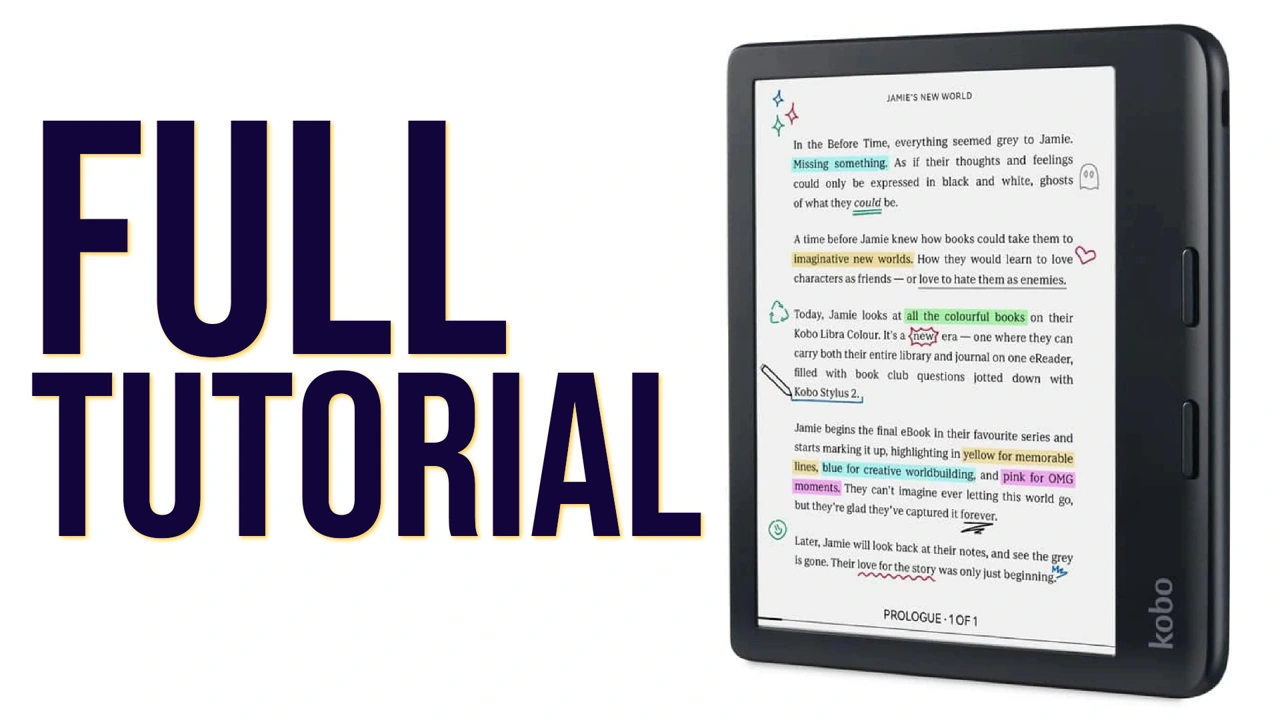
The Kobo Libra Color e-reader offers an incredible blend of features to enhance your literary adventures.
In my Youtube video, I dive deep into everything this e-reader has to offer, from navigating the home screen to customizing your reading preferences and discovering hidden functionalities that can truly transform the way you read ebook on your Kobo e-reader.
Don’t forget to check out the video linked below for a step-by-step tutorial on how to use your Kobo e-reader, and if you find the content helpful, be sure to subscribe to our YouTube channel.
Topics Covered in this Kobo Libra Color E-Reader Video Tutorial:
- How to turn on the e-reader
- Home screen overview
- Accessing books in progress
- Accessing stored books
- Discover button for Kobo library
- Configuring brightness
- Natural light option or ComfortLight Pro
- Adjusting brightness for night reading
- Connecting to Wi-Fi
- Checking battery level
- Energy-saving settings
- Using the sleep cover to power off the screen
- Using touchscreen and physical buttons for navigation
- Locking the e-reader with a PIN
- Accessing recently viewed ebooks
- Synchronizing Kobo account information
- Search features across books and annotations
- Filtering and organizing books and audiobooks
- Creating collections and series
- Reading settings: turning pages, highlighting text, and taking notes
- Using search for definitions and external resources
- Table of contents, annotations, and navigation tools
- Changing fonts, sizes, spacing, and justification
- Settings for reading time, progress bars, and orientation
- Dark mode feature
- Utilizing zoom and brightness settings for comics and mangas
- Connecting Bluetooth devices for audiobooks
- Wishlist and note-taking features
- Connecting to Dropbox, Google Drive, and Pocket
- Reading statistics and activity tracking
- Beta features overview
- Configuring the Kobo account and device settings
- Adding dictionaries and parental controls
- Managing downloads and imports
- Checking for software updates and factory reset option