Nick

  • Is it worth buying a Kindle if I have an iPad?

    woman with kindle cartoon

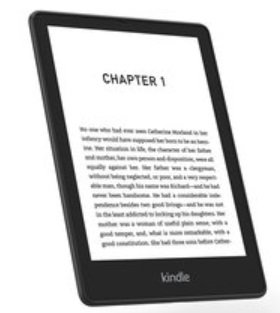
    A Kindle is simply a reading device that does just one thing: let you read ebooks. But the Kindle does that very well. However, the iPad lets you do more things, like read emails, chat with friends, play games, watch videos and work.

    Do you need a Kindle when you have an iPad?

    Yes, if you want to read in the best possible conditions, you need a Kindle in addition to an iPad (if you already have one). The Kindle has better battery life, is lighter and has an e-ink screen that makes reading easier on the eyes.

    The question boils down to this: do you want the best possible device for reading ebooks, or do you want a more versatile device that lets you do many things?

    The Kindle has the advantage of being a device that lets you read without distraction. With a Kindle e-reader, you’ll never be interrupted by a message, email or notification – unlike the iPad.

    The e-reader also gives you better battery life, with an e-ink screen that brings you a reading comfort close to the experience of a printed book.

    There’s no doubt that the Kindle is better for your eyes. Long reading sessions on the iPad also lead to eye fatigue, sometimes accompanied by (admittedly mild) migraines.

    If you’re looking for a e-reader, we have a guide to the best e-readers available on the site.

  • The new E Ink Carta 1300 screen for faster e-readers

    ireader smart X carta 1300 e ink screen

    E Ink, the company that produces the vast majority of e-ink screens, is offering a new screen for e-reader manufacturers: the E Ink Carta 1300 screen.

    The E Ink Carta 1300 screen

    Today, high-definition e-readers mainly use the E Ink 1200 screen, which offers a high pixel density.

    E Ink recently launched the Carta 1300 version, which offers a number of interesting advances, including:

    • 27% faster response time,
    • 20% improvement in contrast.

    These data are provided by the manufacturer and, even if in practice they will probably be less visible than advertised, they may provide relevant improvements for notebook e-readers and note-taking devices.

    As far as reading is concerned, the contrast of the Carta 1200 screens is already sufficient to provide very good reading comfort.

    But as the Carta 1300 screen is almost 1/3 as fast, it could make note-taking e-readers more efficient and more responsive for all pen-based note-taking.

    The iReader Smart X3 reader

    To my knowledge, the first device to use this E Ink Carta 1300 screen is the iReader Smart X3.

    ireader smart X carta 1300 e ink screen

    The iReader Smart X3 features a 10.65" screen with an excellent resolution of 2560 x 1920 pixels (i.e. 300 PPP).

    This machine has a quad-core processor, 4 GB RAM and 64 GB storage. Naturally, an X-Pen3 stylus is available for this iReader machine.

    To make the most of the Carta 1300 screen’s performance, this iReader Smart X3 uses a specialized computing algorithm (and optimized with artificial intelligence) to achieve faster screen refresh.

    ireader smart X carta 1300 e ink screen

    Of course, all this remains to be proven, since the information is provided directly by the iReader brand. But, if the results are there, this machine could seriously compete with the Kindle Scribe, Kobo Elipsa 2E and other ReMarkable e-reader.

    Carta 1300 screen: the future of e-readers?

    For the moment, we have little information on the Carta 1300 screen. The E Ink website does not communicate on the subject. So it’s hard to say whether this evolution will eventually replace the Carta 1200 screens.

    One thing seems certain: the Carta 1300 screen enables devices with a diagonal of more than 10 inches and a resolution of 300 PPP, while at the same time improving display speed.

    We can therefore assume that this technology will be found at least in future evolutions of the Kindle Scribe, ReMarkable or Kobo Elipsa 2E e-readers.

    As for the 6", 7" or 8-inch e-readers, it doesn’t seem technically necessary to use this new screen, especially as it’s more expensive than the old version.

    For example, the iReader Smart X3 will be available for around $500 to $600, a higher price than competing readers of the same screen size.

  • How to use a Pocketbook e-reader?

    how to use a pocketbook e-reader

    Although e-readers are easy-to-use devices, you’re more likely to come across a Kindle or Kobo model. That’s why we’re focusing on Pocketbook e-readers in this tutorial.

    This page will help you get the most out of your e-reader, and is therefore a quick guide for beginner Pocketbook users.

    How do I get back to home screen on Pocketbook?

    To return to the home screen on your Pocketbook ereader, open the menu by pressing the physical button at the bottom right of the screen.

    Then, once the menu is displayed, press the small button at the top left of the screen.

    How to exit book on Pocketbook?

    To exit a book on Pocketbook, you need to :

    • open the menu : tap the physical button at the bottom right of the screen
    • tap the back button on the top left of the screen

    How do I get my Pocketbook to go back to library?

    If you are reading a book, you first need to exit (see before).

    Then, on home screen, you need to click to the "Library" button at the bottom of the screen.

    How to delete books on Pocketbook?

    You need to go to the library. (see before)

    Then, press down on the cover of the book you want to delete from your Pocketbook e-reader.

    A menu appears : you can delete the ebook from your Pocketbook.

    How to change font size on Pocketbook?

    You need to open a book.

    Open the menu by pressing the physical button at the bottom right of the screen.

    Then tap on the icons at the bottom of the screen. You can now change the font, thefont size, the margin, etc.

    To exit the font menu, you must tap on the screen anywhere above the menu on the text of the ebook.

    How to add books on Pocketbook?

    There are several ways to add books to your Pocketbook e-reader.

    The first is to use the bookstore to buy or download free books. These will be transferred directly to your Pocketbook e-reader. You’ll find the library directly on the e-reader.

    The second option is to download free books from other sites: you can find a selection of the best sites for downloading free ebooks here.

    Then you need to transfer these ebooks to your Pocketbook e-reader using the Calibre software.

    How do I add free books to my Pocketbook library?

    You can add free ebooks to your Pocketbook library.

    You can download free books from other sites: you can find a selection of the best sites for downloading free ebooks here. Then you need to transfer these ebooks to your Pocketbook e-reader using a software like Calibre.

    How do I put EPUB books on my Pocketbook?

    Pocketbook e-readers support the EPUB file format very well.

    To transfer an EPUB file to your Pocketbook, you can connect the e-reader to your computer and simply copy and paste the EPUBS onto your device.

    Can I add a PDF to my Pocketbook?

    Yes, it works the same as the EPUB files.

  • Changes to EPUB and Mobi files on Kindle

    mobi ebook format on Kindle

    After months of updates and dithering at Amazon over the ebooks formats supported by Kindle e-readers, things will become clearer from next month.

    Amazon has announced that a major update will take place in November 2023.

    This change concerns the "Send to Kindle" service, which enables you to send an ebook to your e-reader from the email address generated e associated with your e-reader. You can find this address in your e-reader's settings.

    The system is simple: you send an ebook file to an email address, and the book is sent directly to your Kindle e-reader's library.

    Until now, this system has supported the MOBI file format, which has been compatible with Kindle readers since their launch.

    A web interface for this service is available here (you need to be logged in to your Amazon account for it to work): Send to Kindle Web

    In a few months' time, MOBI ebook files will no longer be compatible with this "Send to Kindle" system. You will no longer be able to email MOBI files to your e-reader.

    Amazon now recommends using the EPUB format.

    This is rather good news, since this ebook format is widely used and standardized. In fact, it's the preferred ebook format for e-readers from other brands: Kobo, Nook and Pocketbook.

    So if you have a large library of MOBI format ebooks, you're likely to be bored. Fortunately, it is possible to convert MOBI files to EPUB format with appropriate software such as Calibre.

    So it's not a big deal and, apart from the inconvenience of having to convert files and adopt a new habit, it's rather good news for the mass adoption of the EPUB format by all e-reader manufacturers.

    Here are all the ebook file formats supported by "Send to Kindle": PDF, DOC, DOCX, TXT, RTF, HTM, HTML, PNG, GIF, JPG, JPEG, BMP and EPUB.

    If you're looking for a e-reader, check out our guide to the best current e-readers here.

  • How to use a Kindle?

    How to use a kindle tutorial

    Even if a ereader is very easy to use, you may sometimes wonder how to perform certain actions on a Kindle.

    This page will help you get the most out of your e-reader, and is therefore a quick guide for beginner Kindle users.

    How to use a Kindle: video tutorial

    How do I get back to home screen on Kindle?

    To get back to home screen on Kindle when reading an ebook you need to tap the top of the screen and then tap the back button (on the left of the screen).

    How to exit book on Kindle?

    To exit a book on Kindle, you need to :

    • open the menu : tap the top of the screen
    • tap the back button on the left of the screen

    How do I get my Kindle to go back to library?

    If you are reading a book, you first need to exit (see before).

    Then, on home screen, you need to click to the "Library" button at the bottom right of the screen.

    How to delete books on Kindle?

    You need to go to the library.

    Then, press down on the cover of the book you want to delete from your Kindle.

    A menu appears : you can delete the ebook from your Kindle.

    Note: you can download later the book if you want to read it again.

    How to change font size on Kindle?

    You need to open a book.

    Then tap at the top of the screen and tap the button "aA" on the menu.

    You can now change the font, thefont size, the margin, etc.

    To exit the font menu, you must tap on the screen anywhere above the menu on the text of the ebook.

    How to add books on Kindle?

    There are several ways to add books to your Kindle e-reader.

    The first is to use the Kindle bookstore to buy or download free books. These will be transferred directly to your Kindle e-reader.

    You’ll find the Kindle bookstore on the home screen of your ereader. You’ll need a Amazon account.

    The second option is to download free books from other sites: you can find a selection of the best sites for downloading free ebooks here.

    Then you need to transfer these ebooks to your Kindle e-reader using a software like Calibre.

    How do I add free books to my Kindle library?

    You can add free ebooks to your Kindle library.

    You can download free books from other sites: you can find a selection of the best sites for downloading free ebooks here. Then you need to transfer these ebooks to your Kindle e-reader using a software like Calibre.

    You can also use your Amazon account to download free ebooks from the bookstore.

    How do I put EPUB books on my Kindle?

    You’ll need to send the EPUB file to your Kindle with your Kindle email address or use Calibre. You’ll find more informations in the guide.

    Can I add a PDF to my Kindle?

    Yes, it works the same as the EPUB files.

    How to adjust brightness on Kindle?

    To adjust brightness, you’ll need to tap on the top of the screen.

    If you are reading an ebook, You’ll need to tap a second time at the top of the screen, on the "v" button to get the the brightness settings.

    How to set and manage bookmarks on Kindle?

    Bookmarks are specifics to ebooks.

    So, when your are reading an ebook, you can open the Kindle bookmarks menu by tapping the top right corner of the screen (see the video in this article).

    How to enlarge text on Kindle?

    You need to open a book.

    Then tap at the top of the screen and tap the button "aA" on the menu.

    You can now change the font size to enlarge the text of the book.

    To exit the font menu, you must tap on the screen anywhere above the menu on the text of the ebook.

    How to factory reset a Kindle? (and restart)

    You can factory reset a Kindle, but you’ll lose all your books and configurations.

    To reset your Kindle, you must:

    • Go to home screen,
    • Tap the top of the screen,
    • Tap the "All settings" button (with a wheel)
    • Tap "Device Options",
    • Chose "Reset",
    • Confirm that you want to factory reset your Kindle.

    On the same screen you can also restart your Kindle.

  • Kobo vs Kindle in 2024: comparison of e-reader brands

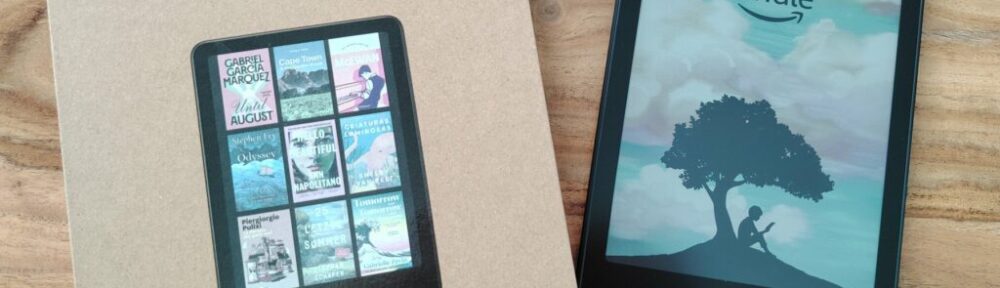
    kobo vs kindle best ereader

    Many of you are wondering whether you should buy a Kobo or Kindle e-reader. In this article, we’ll look at the advantages and disadvantages of each brand of e-reader: Kobo vs Kindle.

    (more…)
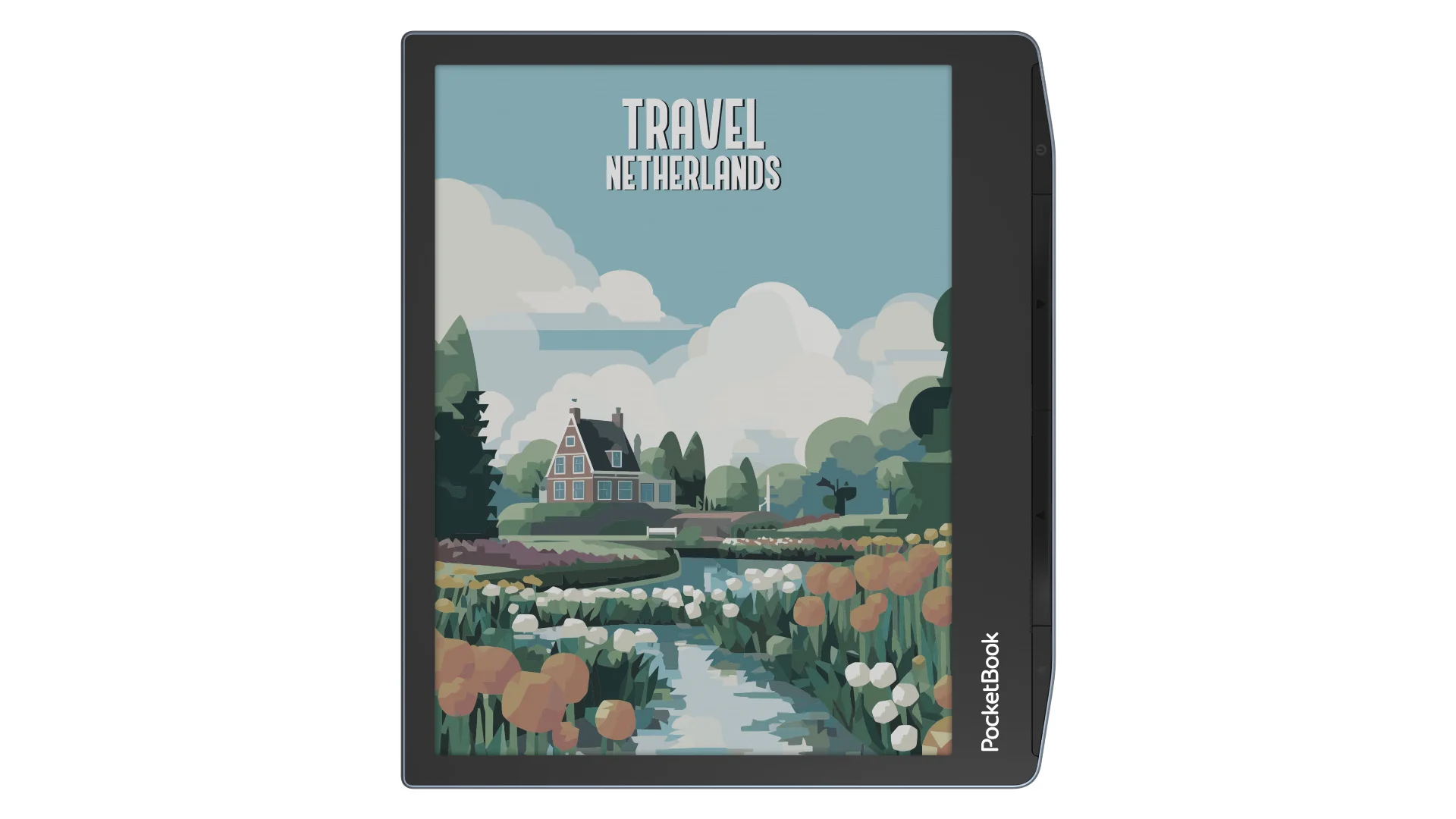
  • Pocketbook Era: a good, but expensive, e-reader

    Pocketbook era ereader

    Pocketbook is offering a new e-reader called Pocketbook Era. And there's going to be some change!

    With its 7-inch screen, this new Pocketbook Era e-reader will go head-to-head with the new Kindle Paperwhite and Kobo Libra 2.

    The screen features the very latest in electronic ink (E Ink Carta 1200), and special attention seems to have been paid to integrating the screen into the case, and to the lighting, which features color temperature adjustment (blue light filter).

    The Pocketbook Era's new design is reminiscent of the Kobo Libra 2, with buttons on the side and a grip that suits both right- and left-handed users.

    The e-reader is also waterproof, which already makes it an excellent alternative to the two competing e-readers.

    But Pocketbook has finally integrated something really useful in its Pocketbook Era e-reader: speakers.

    These speakers let you take advantage of the text-to-speech function to transform a classic ebook into an audio book! In addition, it is also possible to listen to audiobooks directly from the Pocketbook Era.

    You can still use the Bluetooth function to connect headphones, speakers and even use your e-reader in a car.

    Pocketbook Era technical specifications

    Pocketbook era ereader

    Two options are available for the Pocketbook Era e-reader:

    • A version priced at around $200 with 16 GB storage
    • A version at around $250 with 64 GB storage

    Technical specifications :

    • 7-inch E Ink Carta 1200 display, color temperature-controlled illumination, touchscreen
    • Storage: 16GB to 64GB
    • Voice synthesis
    • Loudspeaker
    • Bluetooth
    • Wifi
    • Waterproof with IPX8 certification
    • 1700 mAh battery
    • Supported ebook formats: EPUB, PDF, FB2, FB2.ZIP, TXT, DJVU, HTM, HTML, DOC, DOCX, RTF, CHM, TCR, PRC (MOBI), JPEG, BMP, PNG, TIFF
    • Audiobook formats: as yet undisclosed (probably MP3)

    My opinion of the Pocketbook Era e-reader

    Pocketbook era ereader

    For the moment, it's difficult to give an opinion on this e-reader until I've had it in my hands.

    But knowing the history of Pocketbook and its products, it seems clear that we have a fine e-reader that will undoubtedly be listed among the best e-readers of the year.

    This Pocketbook Era is more complete than the Kindle Paperwhite and Kobo Libra 2, the two flagship e-readers of 2022 and 2023.

    My only downside comes from the price, which at first glance seems a little high ($200) compared with the competition for the addition of speakers.

    But speakers with a waterproof e-reader must represent an additional technical difficulty that may justify the price.

    All in all, it's a good e-reader, and only the Pocketbook InkPad 4 overshadows it with its larger screen and similar features at a similar price.

    You can find all e-readers reviews on this page and a guide for the best ereaders available here.

  • Pocketbook InkPad 4 Review: one of the best new e-reader of 2023

    pocketbook inkpad 4 ereader review

    The Pocketbook InkPad 4 is Pocketbook’s new large-format e-reader with a 7.8-inch screen. It’s a “top-of-the-range” e-reader, with a beautiful screen and advanced features for demanding ebook lovers.

    (more…)
  • Boox Palma 2 Review: The Powerful E-Reader That Fits in Your Hand

    Boox Palma 2: The Powerful E-Reader That Fits in Your Hand

    Boox returned in late 2024 with a new iteration of its compact e-reader: the Boox Palma 2, an E Ink reading device designed to easily slip into any pocket. So, while this is indeed a review, the Boox Palma 2 isn’t strictly just an e-reader – it’s much more than that!

    (more…)
  • Kaleido 3: E-Ink color screen for ereaders

    kaleido plus vs kaleido 3 color e ink screen

    Kaleido technology has been around for a few years now. While it still holds real promise for color e-readers, we’ve yet to get a real glimpse of this future. Will the Kaleido 3 color screens finally revolutionize the e-reader market?

    One thing seems certain: the future of the e-reader will involve color.

    Indeed, it’s the last great technological wall separating digital reading from a reading experience superior to paper.

    Without true color as vivid as a paper print, it’s currently impossible to consume comics, photography books and magazines without the need for a color tablet and its rapidly eye-weary screen.

    E Ink was the first company to offer e-ink screens for e-readers. It has therefore been working for years on adding color to its screens.

    One of the major advances was the arrival of Kaleido technology. This made it possible to add color rapidly, while retaining the advantages of electronic ink (energy savings, reading comfort, reading without lighting).

    How does the Kaleido screen work?

    E-readers are able to display colors with a Kaleido screen, which is the name of the screen sold to device manufacturers by E Ink.

    First of all, the technical basis of the Kaleido (or Print Color) device is indeed a Carta-generation e-ink black and white screen. This is the screen used in today’s black and white e-readers.

    The innovation comes from the addition of a Color Filter Array (FCA), which adds color.

    This FCA is well known to screen designers, and its French name is "Matrice de filtres colorés". It’s a mosaic of colors (red, green and blue) on top of the black-and-white screen.

    Each point (or pixel) on the screen can then take on the color white, black, blue, green or red.

    kaleido color screen explained

    To obtain different shades of color, the screen then combines different colors to obtain the desired hue from among 4096 possibilities.

    This technique makes it possible to add color to an existing e-ink screen. You’ll learn more about electronic ink (e-ink) screen technology in this article.

    The Kaleido screen has since been updated with Kaleido Plus technology, then Kaleido 3 to improve color display.

    The need for a Kaleido 3 screen

    Kaleido technology is not without its drawbacks. The main one is that color reproduction is paler than on paper, LCD or LED screens.

    For this reason, new versions of these screens have been appearing over the past 4 years.

    After a Kaleido 2 (or Kaleido Plus) version that was ultimately rather confidential (there’s the Pocketbook Inkpad Color, which seems to be equipped with such a screen), the E Ink Kaleido 3 technology is now available.

    Yes, this screen is now available for e-reader brands who want to embed it in a machine.

    Here’s what’s new in Kaleido 3:

    • 30% more vivid colors than the Kaleido 2/Plus version
    • E Ink ComfortGaze lighting technology, which promises a significant reduction in blue light emission
    • A diagonal available in 7.8", 10.3" and 13.3" sizes
    kaleido plus vs kaleido 3 color e ink screen

    This all sounds very pleasing, but I do have a few technical concerns, and there are always some annoying limitations.

    Firstly, I haven’t found any information about 6- to 7-inch screens using Kaleido 3. Does this mean that this technology will be reserved for larger screens and, therefore, more expensive e-readers?

    If so, that’s a real shame, because I think a 6-inch Pocketbook Color with an up-to-date screen and a price still under $200 would be a really good e-reader.

    On the other hand, one of the limitations of these color screens is the lower resolution for color display. It seems that this is still the case with Kaleido 3, and we’re still limited to 4096 colors.

    This aspect of the technology can be annoying when displaying photographs and pictures – for example.

    E-readers using this screen are mainly designed by Asian brands, and are not widely distributed worldwide.

    It is worth noting, however, that the recently released Pocketbook InkPad Color 2 still uses an E Ink Kaleido™ Plus screen, which seems to indicate that the price of Kaleido 3 screens is too high, or that the quantities manufactured are too low, for these screens to be integrated into e-readers distributed widely around the world.

    More on the E-Ink website : https://www.eink.com/brand/detail/Kaleido3