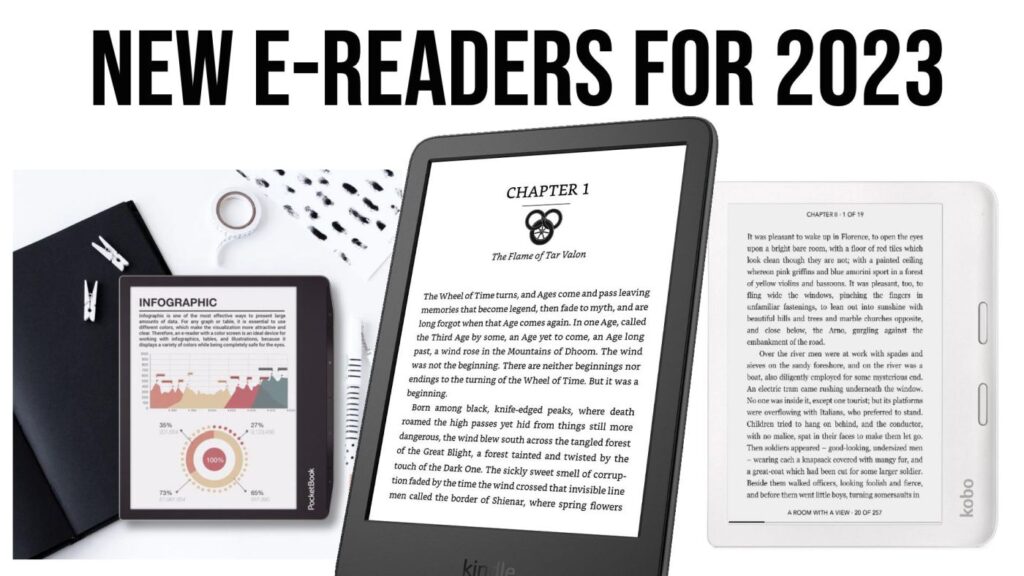
The year 2022 has been rich in new hardware (Kobo Clara 2E and new Kindle to name a few) and the year 2023 also promises some nice things. The opportunity to see what we can expect as new readers…
Continue reading
The year 2022 has been rich in new hardware (Kobo Clara 2E and new Kindle to name a few) and the year 2023 also promises some nice things. The opportunity to see what we can expect as new readers…
Continue reading
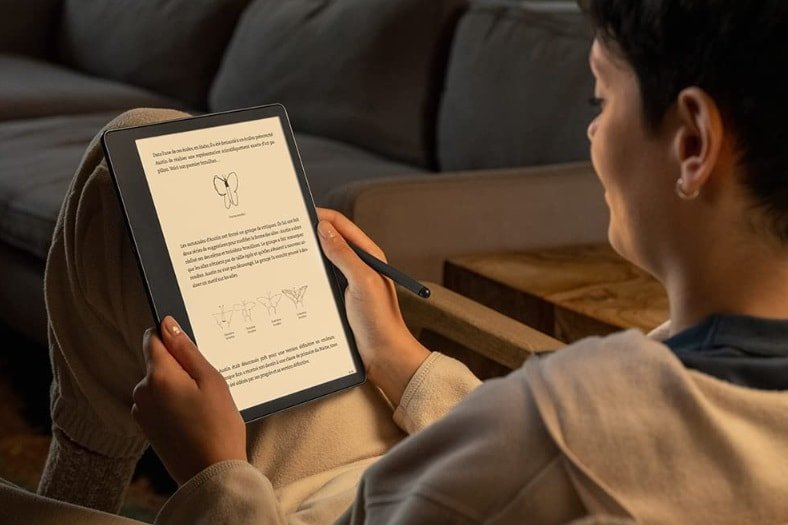
It was bound to happen: Amazon is also launching a large-format e-reader with a note-taking function with the Kindle Scribe and its large 10.2-inch screen.
Continue reading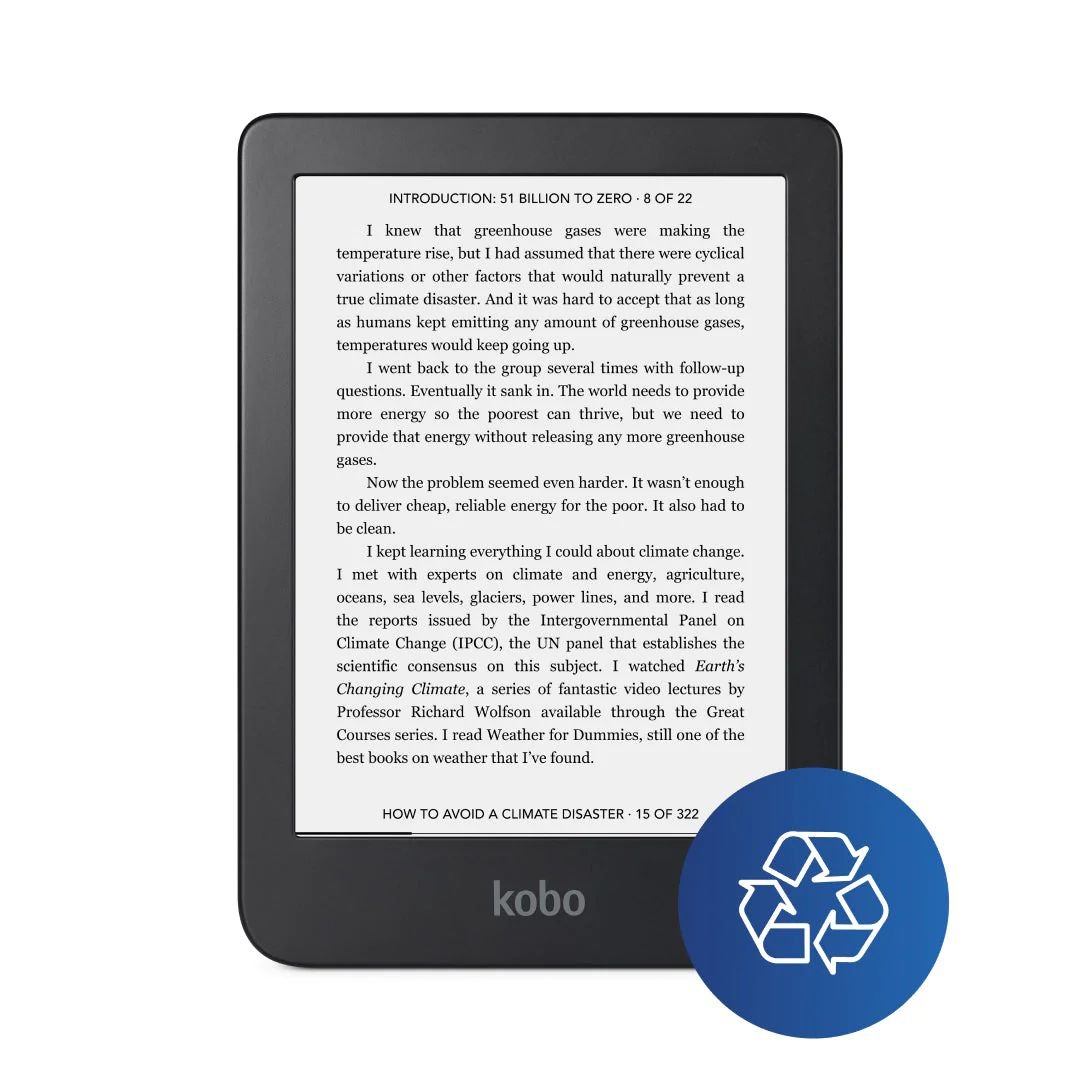
Kobo e-readers are already provided with various dictionaries that allow you to get definitions of words in English, but also English translations from other languages.
Unfortunately, some of the dictionaries used are not sufficient for the taste of some Kobo users. We can often see these defects:
If the role of Kobo (and other e-reader manufacturers) is first and foremost to provide a reliable material for displaying pages of text, it is true that this defect may bother some people.
Fortunately, there is now a solution! It is indeed possible to change the default dictionary and we will see how to add a new dictionary with many more definitions.
The first thing to do is to download this new dictionary.
For French, English, German, Spanish, Italian or Portuguese, I found this project which proposes a dictionary based on Wiktionary, a collaborative site close to Wikipedia: https://github.com/BoboTiG/ebook-reader-dict
We will download (in our case), the French dictionary at this address : https://github.com/BoboTiG/ebook-reader-dict/releases/tag/en (the file to download is called dicthtml-en.zip – you can download it here if the link does not work anymore)
I also found dictionaries for translations in this folder: https://download.wikdict.com/dictionaries/kobo/
Now you have to transfer the file to your Kobo e-reader. First of all, you have to connect it to a computer with the USB cable provided with the e-reader.
Then, you have to validate the file transfer on the screen of the Kobo e-reader. In your operating system, you should be able to see the e-reader using a file explorer (keyboard keys "Windows + e" in Windows).
You have to go to the files of your e-reader and find the ".kobo" folder. This folder is special and hidden, so you will need to set the folder view to show this type of file in Windows (or Mac).
All you have to do is copy the new downloaded file into the ".kobo/dict" folder of your Kobo e-reader to install the new dictionary.
Now that you've done that, you can disconnect your e-reader from your computer ("eject" in Windows or Mac) and restart your Kobo.
To use the new dictionary, you'll first need to make sure it's installed properly by going to your Kobo e-reader settings.
It should be called "English – English".
Then, you can use it directly from an ebook by underlining a word.
As we can see the result is much better with this dictionary!
Don't hesitate to leave a comment under this article if you want to bring more details about adding new dictionaries on your Kobo e-reader.
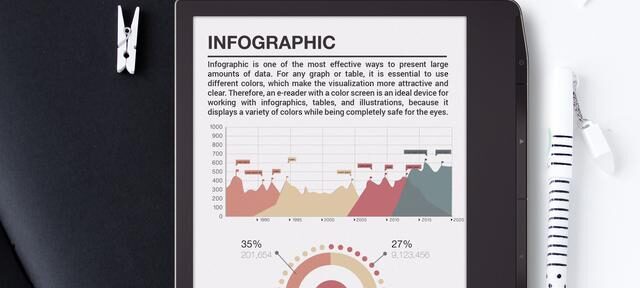
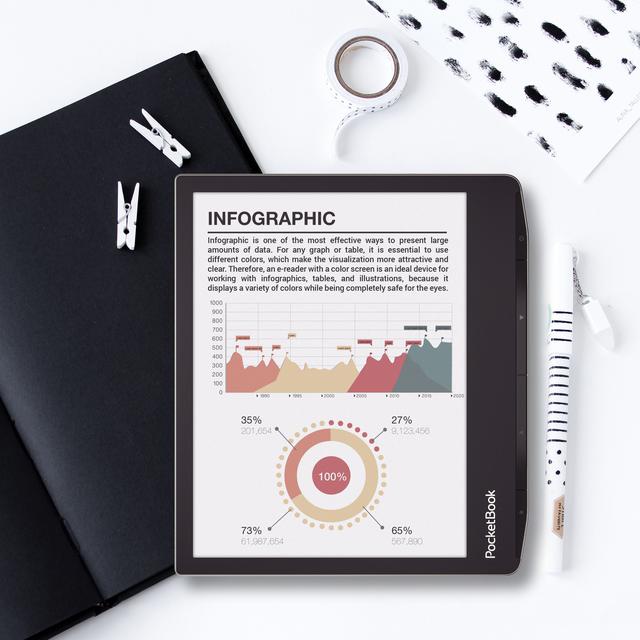
Pocketbook continues to release innovative models and the announcement of the Pocketbook Viva e-reader will delight fans of high-end reading material and those who have been waiting for a new generation color e-reader.
Continue readingYou can find a lot of informations about e-Reader from all brands on this website.
Here is all the latests news, articles, reviews and guides about e-readers:
!LISTE!