
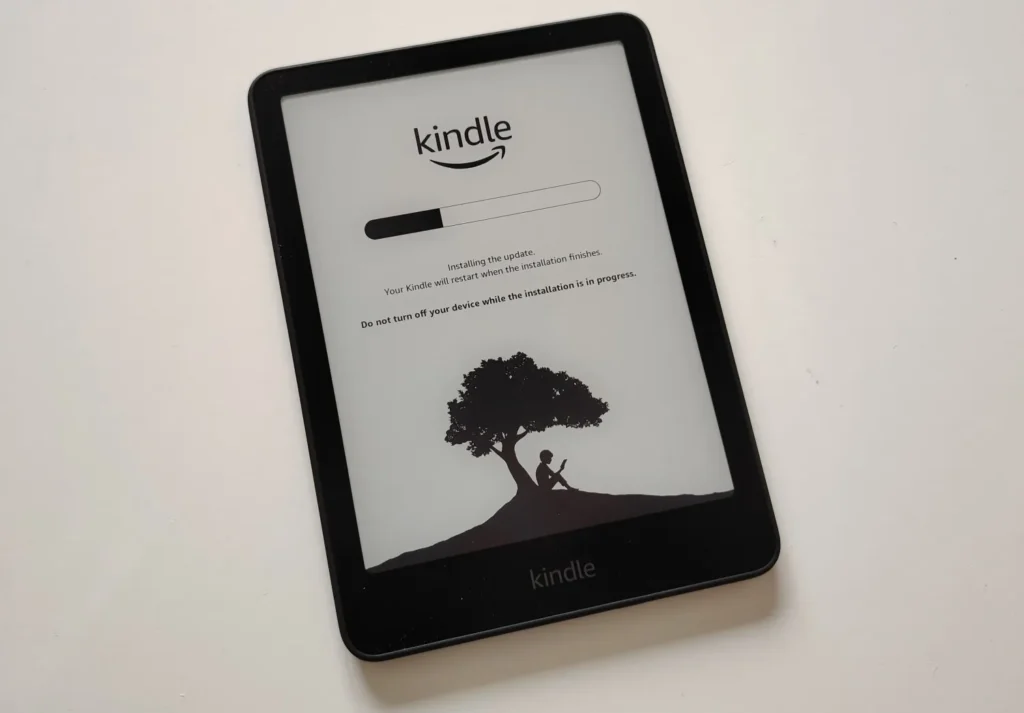
So your e-reader – maybe a Kobo, maybe a Pocketbook – is frozen. No luck: you tap the screen and nothing happens. This can happen on a Kindle, a Kobo, a Pocketbook, or even another brand. I’ve owned e-readers for 12 years. I’ve spent 12 years looking for ways to unfreeze them. And this article is basically the ultimate guide on the topic.
TLDR: Your e-reader (Kindle, Kobo, or Pocketbook) is frozen and won’t respond? Don’t throw it away – it’s probably not broken. This guide walks you through every fix, from a simple long-press restart to connecting via USB and reinstalling firmware. Follow each step before giving up.
So if your e-reader is frozen, don’t throw it away. It might not be broken.
In this article, we’ll go through every solution I’ve found to try to unfreeze your device. Read the whole article and follow the steps all the way through.
Sometimes it’ll work, sometimes it won’t. Either way, until you’ve tried every step for your brand, you won’t actually know whether your e-reader is truly broken, whether it needs to be replaced, or whether it can be repaired – because repair is also an option.
Why does an e-reader freeze?
E-readers use e-ink screens, and an e-ink screen works differently from a smartphone screen.
A smartphone screen only displays something when power is running through it – meaning if the battery dies, the screen goes blank. An e-ink screen, on the other hand, keeps displaying whatever was on it even without power.
That’s why it can look like the e-reader is stuck on a page or won’t wake from sleep – the device itself has crashed and just hasn’t refreshed the display. That’s why we say the e-reader is “frozen.”
Now, why does this happen?
It can be a software bug; it can be a battery issue, meaning you left the device discharged for too long and now it won’t wake up even after charging; or it can be physical damage – the e-reader was dropped, or crushed inside a bag. In that case, you’ll often see lines or marks on the screen.
I’ve dropped a Kindle once. It stayed stuck on the last page. I knew what had happened – it was my fault, and I couldn’t get it back. So think carefully about when and how the e-reader froze. If it was dropped, someone once told me “my e-reader is frozen, this is terrible” – and as we talked, it turned out it had tumbled down a full flight of stairs. Not much we can do there.
Step 1 – Charge it overnight
The first thing to do is charge your e-reader with a USB wall adapter overnight.
But before plugging it in, grab a small pin or toothpick and clear out any dust from the USB port to make sure you get a solid connection. Let it charge overnight and clean everything up.
If your e-reader has an indicator light – on a Kobo Libra 2, for example, a small white LED lights up when plugged in – that’s a great sign.
If it doesn’t light up, that’s less encouraging, but it’s not necessarily over.
Step 2 – Turn off your Wi-Fi
Once your e-reader is charged, turn off your home Wi-Fi. Yes, completely.
Here’s why: when you try to restart the e-reader, if it tries to connect to your network and there’s a software bug related to Wi-Fi, it will crash again instead of restarting. So disconnect your router or unplug your internet box to prevent the e-reader from connecting wirelessly.
Step 3 – Hold the power button for 20-30 seconds
This is a tip many people already know – I’ve covered it before.
Press and hold the power button on your e-reader for 20 to 30 seconds. On the Kobo Libra 2, it’s on the side. On the Pocketbook Verse, same thing. On the Kindle, the power button is on the bottom.
If you’re lucky, the screen will refresh almost immediately.
Holding the button forces the software to shut everything down – Wi-Fi, the e-book display, all of it – and restart from scratch. You won’t lose your books, don’t worry. Count to 30, use a watch if needed.
If nothing happens, don’t panic – press the button again for 3 seconds to try to power it back on, since it may have turned off without restarting.
If you’ve followed these steps, this resolves roughly 80-90% of frozen e-reader problems.
If your e-reader keeps freezing repeatedly
If the device keeps freezing over and over, that’s a different issue.
I dealt with this recently. Someone had a Kobo that kept locking up constantly – for context, my own Kobo freezes maybe once a year, if that.
Turned out this person was loading e-book files downloaded from sketchy sites. That was the problem.
Kobo, Pocketbook, and Kindle software works great with their native formats, but not as well with files from random sources. If this sounds like you, stay tuned – I’m working on an article specifically about that, including how to fix those files.
If nothing has worked so far
If you’ve reached this point, the e-reader still hasn’t restarted.
Step 4 – Try connecting via USB to a Windows PC
This tip was shared with me by several people – it never personally worked for me, but others have confirmed it did for them.
Once the e-reader is fully charged, connect it via USB to a Windows computer. If the computer recognizes the device and you can browse its files through File Explorer, that’s a good sign.
Eject it (the e-reader) properly, and that action alone may sometimes kick the e-reader back to life.
If that doesn’t work, try opening Calibre (a free e-book library management app for desktop) and see if you can send an e-book to the device.
Again, it’s never worked for me personally, but it has for others – so it’s worth a try.
Step 5 – Factory reset guides
If none of the above works, there are detailed reset guides available for each brand and model – I’ll link them in the description. Since you can’t access the manual stored on the device itself, you’ll need to find it online.
The procedure varies slightly depending on the model, so check the specific guide for yours:
Kobo: https://help.kobo.com/hc/en-us/articles/360017765713-Manual-reset-your-Kobo-eReader
Kindle: https://amzn.to/4uySv50
Pocketbook: https://pocketbook.ch/en-ch/support
Step 6 – Opening the device and replacing the battery (last resort)
If nothing else works, there are guides online for physically opening certain e-readers. I don’t recommend this unless it’s truly a last resort.
On some models, you can replace the battery – you’ll find the battery reference printed directly on the old one, and you can order a replacement on Amazon or AliExpress. At that point, we’re talking repair, not just troubleshooting.
Special case: Kobo frozen after a software update
If you have a Kobo that froze following a recent software update (this happened to many users after an update released around late August or early September), there’s a specific fix for that.
Here’s a summary of what that process looks like:
A Kobo H2O was loaned to me by a friend who had this exact problem after that update. The process is a bit involved, but it works.
First, go to the Kobo reset page (link), select your specific model, and follow the factory reset procedure. After the reset, your Kobo may restart but then fail to connect to Wi-Fi or log back into your Kobo account – meaning it’s still stuck in a half-working state.
Second step: download Kobo Desktop on your computer (link). This is the official Kobo app for managing your library and setting up the device. Install it, connect your Kobo via USB, open the software, and it should offer to initialize your e-reader. If it doesn’t, uninstall and reinstall the software – or try it on a friend’s computer.
Follow the on-screen steps. Your Kobo’s screen will also update as the process runs.
In my case, I hit an error saying the software had lost the internet connection – which was false, it was just a bug.
I closed the software, safely ejected the Kobo via Windows, and the device was still stuck. At that point, I held the power button for 30 seconds to force a full restart – and it came back to life.
Note: this article is heavily inspired by my in-depth French video on the topic