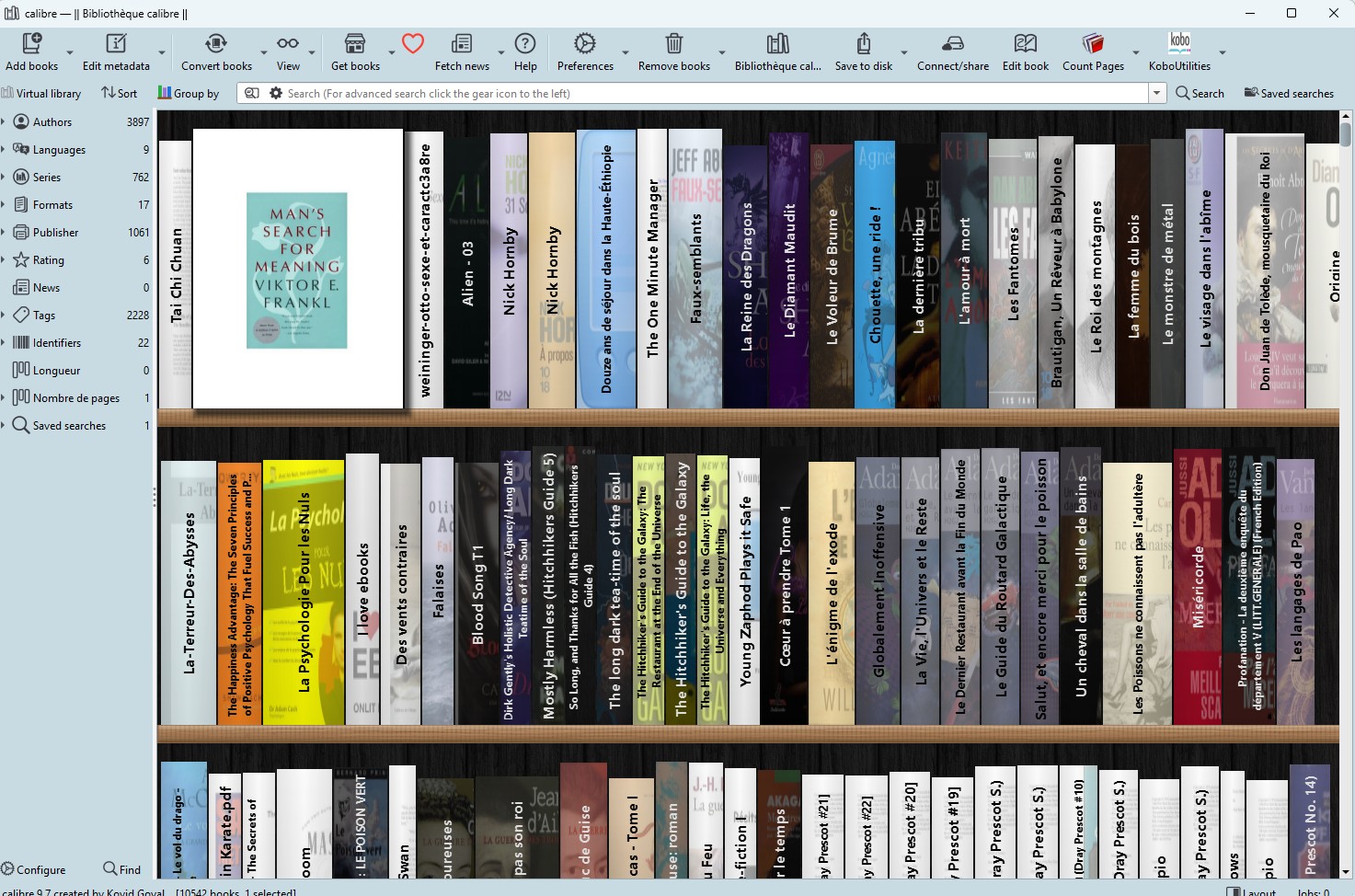
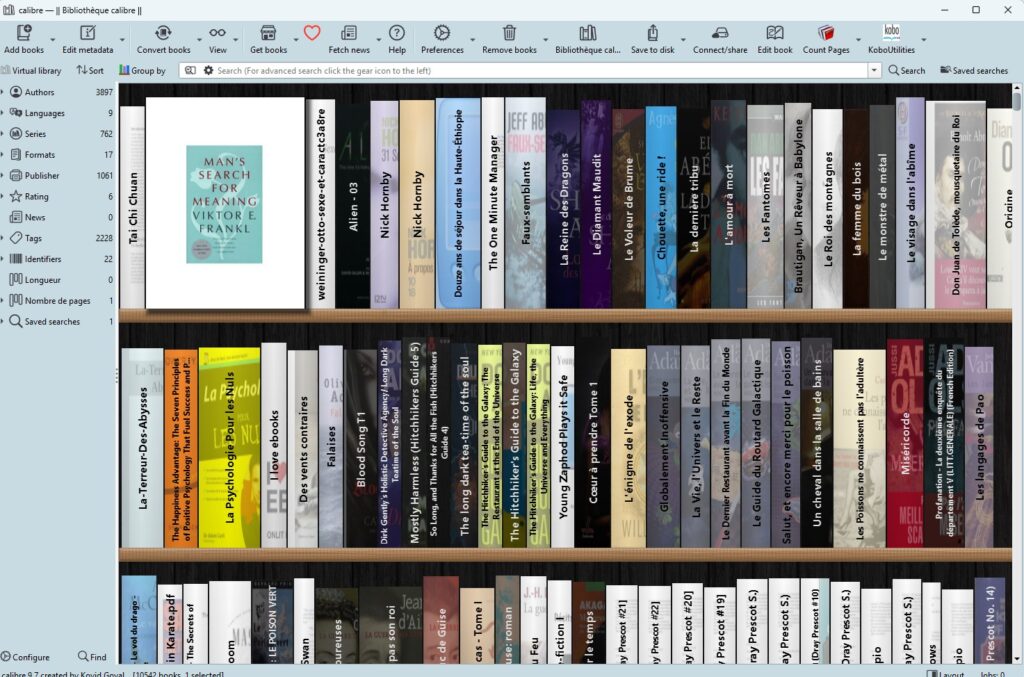
Do you have hundreds, or even thousands, of ebooks in Calibre? The problem is that scrolling through an endless list of titles is far from the most enjoyable experience. Good news: Calibre is introducing a brand-new view called the Bookshelf view, and it’s going to change the way you browse your collection.
A Physical Bookshelf… on Your Screen
The idea is simple but brilliant: instead of displaying your books as a table or a grid of covers, a new Bookshelf view shows your calibre library as rows of books on shelves. You see the spine of each book, exactly as if you were standing in front of your bookcase at home.
And here’s the cherry on top: hovering over the spine of a book shows the full book cover. Handy for finding a title without having to open it.
How to Access It?
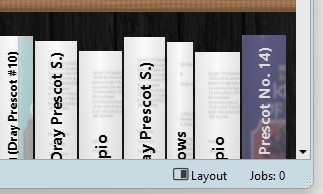
Nothing complicated. You can access the new view by clicking the Layout button in the bottom right corner of the calibre window. The Bookshelf view activates in seconds.
Organize Your Books Your Way
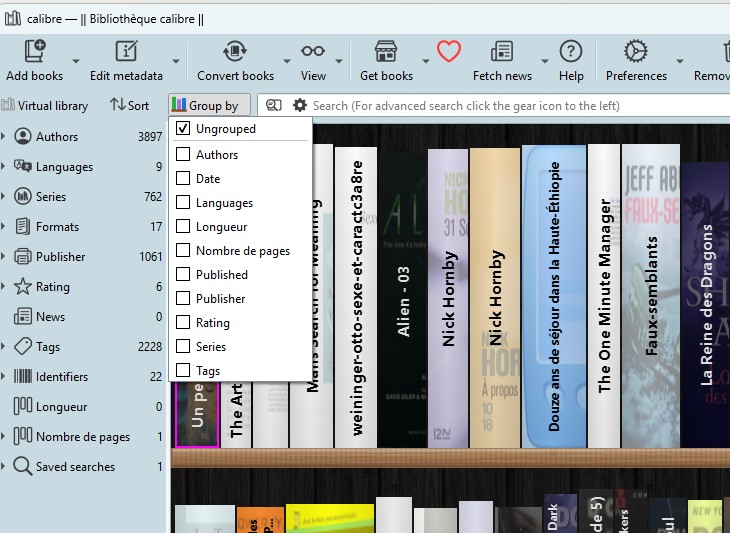
Once the view is active, you can group the books on the shelves by clicking the Group by button that appears to the left of the search bar when the Bookshelf view is active. You can group books by Authors, Series, or other criteria.
It’s great for quickly finding all the volumes in a series, or all the books by a given author – they’ll line up on the same shelf!
Highly Customizable, in True Calibre Fashion
Calibre is well known for its rich configuration options, and in fine calibre tradition, the new view is highly customizable so you can configure it to look just how you like. You can personalize:
- The font used to display the title on the spine
- How cover thumbnails are displayed on the spine
- The thickness of the books, automatically calculated using a new built-in column called Pages
A Smart New “Pages” Column
This is one of the hidden little innovations in this update. By default, the thickness of the books is calculated based on a new built-in Pages column. Calibre automatically adds this Pages column to your library as soon as you activate the Bookshelf view.
This column uses a content-based estimate of the number of pages in each ebook, which allows books to appear thicker or thinner on the shelf – just like in real life. If you prefer to use another column for thickness, you can do so as well. The new built-in column is automatically maintained once you activate the Bookshelf view.
Download link for Calibre: https://calibre-ebook.com/