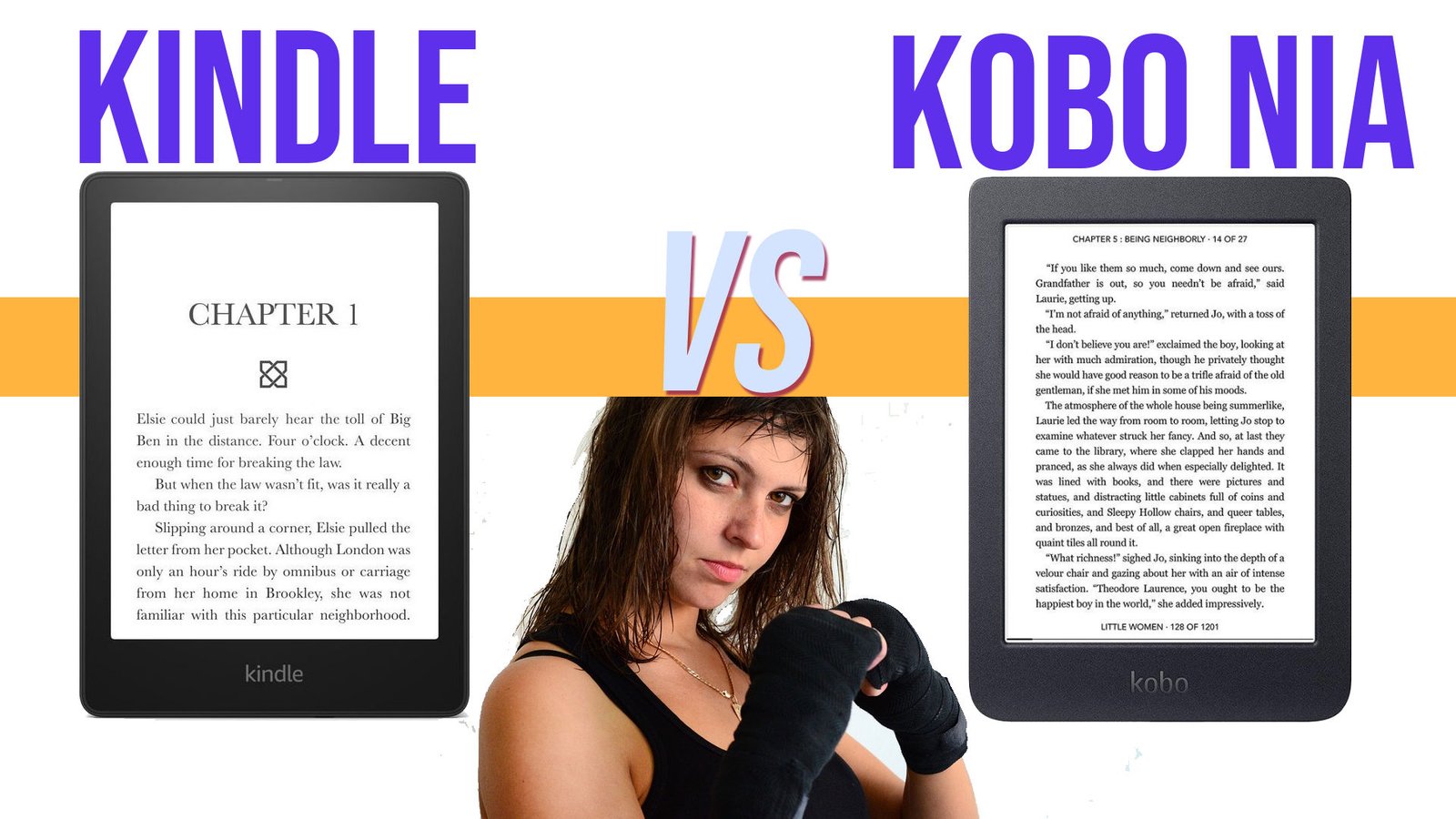
The Kobo Nia is the new entry-level e-reader from Kobo that replaces the previous range called “Kobo Aura”. Here is the complete review of the Kobo Nia.
(more…)Nick
-
Kobo Libra 2 e-reader review

Available since October 2021, the Kobo Libra 2 e-reader features an all-new 7-inch screen for improved reading comfort. Here is the full test of this e-reader.
(more…) -
Kindle Paperwhite review (6.8 inches – 2021 model)

Amazon returns in 2021 with a new version of its best-selling Kindle Paperwhite. This new version brings a major new feature: a bigger and better screen.
(more…) -
Kobo Clara 2E e-reader review

The Kobo Clara 2E is the latest Kobo e-reader. It offers a beautiful high definition screen of 6 inches and little extras that could make the difference. Here is the complete review of this e-reader.
(more…) -
Kindle e-reader review (2022 model)

Amazon has been offering a new Kindle e-reader since the fall of 2022, which is the new entry-level e-reader for under $100. The reader offers a new HD screen, but is it up to expectations?
(more…) -
Kindle or Kindle Paperwhite? How to choose wisely?

The two cheapest e-readers in the Kindle range both offer very good reading experiences. Yet, there are some notable differences between these two e-readers. So, should you buy a Kindle e-reader or a Kindle Paperwhite e-reader?
(more…) -
ReMarkable 2 reader: the tablet that imitates paper is very expensive!

After months of waiting, people who ordered the reMarkable 2 reading device will finally receive it. It’s the opportunity to see what this machine offers and if lessons have been learned from the first version.
The reMarkable 2 was one of the most anticipated e-readers of the year 2020.
With its large format and its stylus, it promises much broader uses than simply reading ebooks.
However, the business was not going well. After a successful crowdfunding campaign, the company had trouble communicating about the repeated delays in the production of the reMarkable 2.
Technical specifications of the reMarkable 2

The main asset of this machine is indeed its capacitive E ink touch screen in black and white with a diagonal of 10.3 inches.
The screen has been improved thanks to the Canvas 2.0 system, which promises a faster refresh rate and better contrast.
However, the resolution remains the same with 1872 × 1404 pixels (226 pixels per inch).
Here are all the technical specifications:
- 10.3-inch E Ink Canvas 2.0 screen
- touch screen
- dual-core processor at 1.2 Ghz
- stylus
- 1 GB RAM memory
- 8 GB of memory for storage
- USB-C port
- 3,000 mAh battery (the e-reader should be able to stay on standby for about 3 months)
- Wifi
- weight: 403 grams
- dimensions: 188 × 246 × 4.7 mm
In terms of differences with the first machine we find in addition to a more powerful screen, a faster processor, more RAM and a larger battery that promises about 2 weeks of autonomy. The reMarkable 2 is also about 1/3 thinner.
Overall, this machine is more attractive since its design has also been revised. We note, for example, the removal of physical buttons.
Software on the reMarkable 2

We remember the difficult beginnings of the first reMarkable as far as reading is concerned.
But, with the latest updates, we must admit that things are working better.
This new version uses the same software and will not disconcert those who are used to the first machine.
You have access to your notebook and you can consult PDF and EPUB files.
Overall, the software does the basics and does not offer several applications for one task.
So, if you want to read your ebooks on the reMarkable 2, you will have to use the software provided for this purpose.
The advantage is that the machine is very easy to use and allows you to be more productive. The problem is that if we don’t like the default application, we will have to stay with it.
This is also the case with e-readers. But, e-readers are designed specifically for reading, while this reMarkable 2 is more comfortable with note taking (see the paragraph on EPUB ebooks below).
There is an option that allows the machine to recognize your handwriting and transform it into typographical characters.
This reMarkable 2 follows the same path as its sister: it is first and foremost a tool for working and not for reading.
The objective of this machine is to offer a device that allows you to annotate and work directly on your PDF and EPUB documents.
In this respect, the application that allows you to take notes in a free way, like in a notebook, seems very efficient and responsive. You can choose the style of line (felt-tip, pen, pencil), its size and the level of gray to use for writing.
We note a disappointment: it is necessary to go through a special software to be installed on its computer to access the internal memory of the reader reMarkable 2 and to deposit documents.
See also : best alternatives to the reMarkable
Two styluses are better than one?

As the machine is designed for typing, it is interesting to take a closer look at the stylus offered with the reMarkable 2.
Or should I say pens, since it comes in two versions: a classic version and a so-called “Pro” version (and more expensive) with an eraser that we imagine to be quite practical.
In both cases, the pen seems to be perfectly functional and offers no less than 4096 pressure levels.
You can also tilt the pen to obtain a different writing style.
Great care has been taken with the stylus and it is possible to replace the “leads” which will tend to wear out if you use this machine a lot.
If you plan to use the pen a lot, you will have to buy the more expensive version which also contains an eraser. It will still be possible to erase with the simple version, but you will have to change the “brush” in the software, as you do today with Paint or Photoshop.
Epub only
It goes without saying that the reMarkable 2 is still lacking in terms of supported formats for reading ebooks.
In addition to PDF, only EPUB can be used on the reMarkable 2.
The reader does not support EPUB protected with Adobe DRM either. So you won’t be able to read your Kobo or Bookeen ebooks on it.
The e-reader offers some reading customization options:
- 6 font sizes
- 6 fonts
- 2 text justification options
- 3 sizes of margins
- 3 different spaces between lines
It’s not much, but it should be enough for most uses.
The very good news is that you can intervene on the EPUB ebook with the stylus like on a PDF: you can underline words, cross them out, add small handwritten notes, etc.
I think that proofreaders and editors of manuscripts and texts will find this a very interesting use.
ReMarkable 2: a disappointing subscription system

If technically the reMarkable 2 seems to be up to scratch, one marketing aspect is very bad: the reader is sold with a paid subscription to access some features.
If you buy a ReMarkable 2 today, these features will no longer be available:
- storage of notes in the cloud
- integration with Google Drive
- integration with Dropbox
- handwriting recognition
- Screen Share
Conclusion

There is an undeniable evolution that shows that the reMarkable 2 is very interesting for certain uses.
People who do a lot of proofreading or editing should find it a great tool.
But, readers who just want to read a good book on their couch on a 10.3 inch e-ink screen will probably be frustrated by the lack of options. I’d recommend a Kobo Elipsa or Kindle Scribe instead if they want a large e-reader.
All this probably explains the success of this machine: by addressing a small community, they have created a product that fills 100% of an obvious need.
I find this reMarkable 2 very interesting for this precise use: note taking and document correction.
Unfortunately, the subscription system makes it very disappointing since you will have to pay a few euros each month to enjoy all the features.
At this price, we will probably prefer to turn to a competing machine like the Kindle Scribe or the Kobo Elipsa!
The website : https://remarkable.com/store/remarkable-2
-
E-reader Trends for 2023

The year 2022 has been rich in new hardware (Kobo Clara 2E and new Kindle to name a few) and the year 2023 also promises some nice things. The opportunity to see what we can expect as new readers…
(more…) -
Kindle Scribe: not that great…

It was bound to happen: Amazon is also launching a large-format e-reader with a note-taking function with the Kindle Scribe and its large 10.2-inch screen.
(more…) -
How do I add a new dictionary to my Kobo?

Kobo e-readers are already provided with various dictionaries that allow you to get definitions of words in English, but also English translations from other languages.
Unfortunately, some of the dictionaries used are not sufficient for the taste of some Kobo users. We can often see these defects:
- A lack of definition
- A lack of freshness
If the role of Kobo (and other e-reader manufacturers) is first and foremost to provide a reliable material for displaying pages of text, it is true that this defect may bother some people.
Fortunately, there is now a solution! It is indeed possible to change the default dictionary and we will see how to add a new dictionary with many more definitions.
Download a new dictionary for Kobo e-reader
The first thing to do is to download this new dictionary.
For French, English, German, Spanish, Italian or Portuguese, I found this project which proposes a dictionary based on Wiktionary, a collaborative site close to Wikipedia: https://github.com/BoboTiG/ebook-reader-dict
We will download (in our case), the French dictionary at this address : https://github.com/BoboTiG/ebook-reader-dict/releases/tag/en (the file to download is called dicthtml-en.zip – you can download it here if the link does not work anymore)
I also found dictionaries for translations in this folder: https://download.wikdict.com/dictionaries/kobo/
Transfer your dictionary to the Kobo e-reader
Now you have to transfer the file to your Kobo e-reader. First of all, you have to connect it to a computer with the USB cable provided with the e-reader.
Then, you have to validate the file transfer on the screen of the Kobo e-reader. In your operating system, you should be able to see the e-reader using a file explorer (keyboard keys "Windows + e" in Windows).
You have to go to the files of your e-reader and find the ".kobo" folder. This folder is special and hidden, so you will need to set the folder view to show this type of file in Windows (or Mac).
All you have to do is copy the new downloaded file into the ".kobo/dict" folder of your Kobo e-reader to install the new dictionary.
Now that you've done that, you can disconnect your e-reader from your computer ("eject" in Windows or Mac) and restart your Kobo.
Setting up the e-reader to use the new dictionary
To use the new dictionary, you'll first need to make sure it's installed properly by going to your Kobo e-reader settings.
It should be called "English – English".
Then, you can use it directly from an ebook by underlining a word.
As we can see the result is much better with this dictionary!
Don't hesitate to leave a comment under this article if you want to bring more details about adding new dictionaries on your Kobo e-reader.