News

Ereader news from all over the world!

  • InkBOOK Focus : a dated Android e-reader

    inkbook focus e-reader

    After the presentation of the Inkbook Calypso Plus, it’s time to take a closer look at the InkBook Focus. With its 7.8-inch screen and Android system, it’s an alternative to the great Pocketbook InkPad 4.

    InkBook is an asian brand. The InkBook Focus has a large 7.8-inch screen (e-ink with a resolution of 1872 x 1404 pixels – 300 dpi) and offers an attractive reading surface.

    It can also read audiobooks. For the moment, it’s hard to say what types of audiobooks are compatible, but it’s a safe bet that it supports the MP3 format, since the e-reader uses an InkBook OS operating system based on Android 8.

    The presence of an Android-derived system should also enable the installation of additional Android applications, presumably with direct loading of an APK file since Google Play doesn’t appear to be available on the InkBook Focus e-reader.

    We also note the presence of 16 GB of storage memory, which may seem a little light when the competition doesn’t hesitate to offer 32 GB to load thousands of ebooks and hundreds of mangas.

    When you consider the weight of an audiobook or manga file, I think that 16 GB is going to be a bit cramped.

    Here are the technical specifications of the InkBook Focus e-reader:

    • 7.8-inch Carta screen, 1872 x 1404 pixels (300 dpi)
    • Touch screen
    • Blue light filter illumination
    • Quad-core ARM Cortex-A35 processor
    • 16 GB storage capacity
    • Dimensions: 192 x 140 x 9mm
    • Li-ION polymer battery, 2900 mAh
    • Supported formats: EPUB, PDF (reflow), ADE, MOBI, TXT, HTML, RTF, DOC.
    • USB-C (recharges in 5 hours)
    • Wi-Fi (802.11b/g/n)

    We also note a limited autonomy of one week of reading, whereas e-readers like the Pocketbook InkPad 4 (7.8") can last a month.

    This point remains to be verified, but it seems logical given the use of the Android operating system, which is known to consume more energy than a custom-built system adapted to e-readers.

    All in all, the InkBook Focus is not a great e-reader. With a dated Android 8 OS and a price of $229, there are better alternatives on the market, including color e-reader models.

    To find out more, take a look at our guide to the best e-readers.

  • Hyread Gaze Mini C: a new 6-inch color e-reader

    Hyread Gaze Mini C color e-reader kaleido 3

    The Asian Hyread brand has just announced the future release of a new-generation color e-reader with a 6-inch screen: Hyread Gaze Mini C.

    Hyread is a little-known brand that is looking to make a name for itself by rapidly offering one of the first e-ink color e-readers with a 6-inch screen using Kaleido 3 technology.

    Kaleido 3 is the latest in color screen technology. It aims to display full-color pages with paper-like quality.

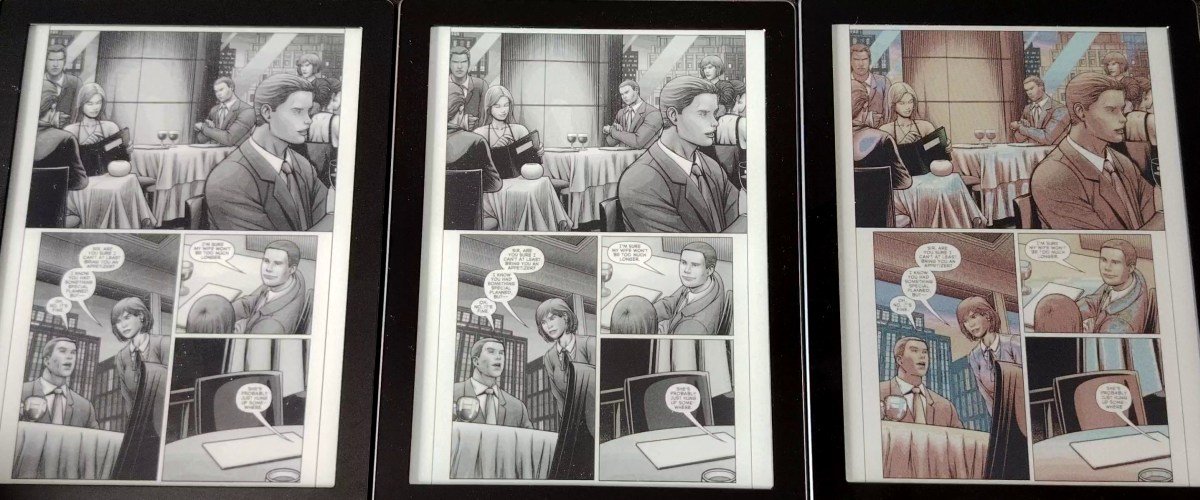
    The advantage of Kaleido 3 screens is that they offer brighter colors, which comic book fans should appreciate.

    But there’s a problem: with a 6-inch screen diagonal, reading comics isn’t made any easier on a screen of this size. My article on e-readers for manga actually mentions this point.

    A screen size of at least 7.8 inches seems more coherent to me.

    Still, it’s nice to have color, if only to appreciate book covers and to be able to underline passages of text in color.

    Here are the technical specifications for this Hyread Gaze Mini C e-reader:

    • Kaleido 3 electronic ink screen: 300 PPI in black and white, 150 PPI in color
    • Color touch screen (4096 different colors)
    • Physical buttons for page turning
    • 1.8 Ghz quad-core processor
    • 3 GB RAM memory
    • 32 GB storage (expandable to 1 TB with SD card)
    • Wi-fi
    • Bluetooth 5
    • Speakers
    • Microphone
    • USB-C
    • Android 11 system
    • File formats supported: EPUB, PDF, MOBI, DOC, TXT, FB2, RTF, HTML/HTM, DJVU/DJV and CBZ

    The presence of an Android operating system makes it possible to install new applications. However, e-ink e-readers with Android often have shorter battery life than classic e-readers from leading brands.

    With an advertised price of $239, this Hyread Gaze Mini C e-reader is aimed at the more affluent and adventurous readers who want above all to enjoy a good color e-ink screen coupled with an Android system.

    In theory, it’s possible to enjoy all your Kindle, Kobo or Pocketbook digital books on the Hyread Gaze Mini C by installing these booksellers’ applications.

    But, for a reader simply looking for a simple e-reader, the price is clearly too high compared to affordable models from Kindle, Kobo or Pocketbook.

  • inkBOOK Calypso Plus e-reader

    inkbook calypso plus

    The inkBook brand offers an InkBook Calypso Plus e-reader, so you can enjoy the ebooks on all plateforms on a 6" e-reader. Let’s take a look at what this new e-reader has to offer.

    InkBook is an Asian e-reader brand with a 6-inch e-ink screen that uses Android version 8 – which is therefore quite old.

    The InkBook Calypso Plus uses a screen with a resolution of 1024 x 758 pixels (212 DPI) – which isn’t high-definition (like the recent Pocketbook Verse) – with a touch-sensitive layer and lighting with adjustable color temperature management (and therefore blue light filtering).

    We note that the e-reader uses an operating system based on Android 8 and called InkBook OS. It seems like it will be possible to add applications to the e-reader (like Kindle, Kobo or Pocketbook android apps). I imagine it will be possible to do so by loading APK files directly onto the machine.

    Compatibility with file formats is limited, with support for EPUB, PDF, ADE (i.e. EPUB protected by Adobe DRM), Mobi, Txt, HTML, RTF and Doc.

    I think it will still be possible to load EPUB and PDF files directly, either by copying and pasting the file after connecting the e-reader to the PC, or by using the Calibre ebook management software.

    Where there seems to be a problem is with battery life. The manufacturer’s data sheet gives an autonomy of 7 days, which is 4 times less than the competition.

    If this measurement is accurate, it’s probably due to the system used (based on Android), which is necessarily more power-hungry than an optimized system found on other e-reader brands such as Kobo, Kindle or Pocketbook.

    Here are the technical specifications of the inkBOOK Calypso Plus e-reader:

    • 6-inch Carta screen, 1024 x 758 pixels (212 DPI)
    • Touch screen
    • Blue light filter illumination
    • Quad-core ARM Cortex-A35 processor
    • 16 GB storage capacity
    • Dimensions: 159 x 114 x 9 mm
    • Li-ION polymer battery, 1900 mAh
    • Supported formats: EPUB, PDF (reflow), ADE, MOBI, TXT, HTML, RTF, DOC.
    • USB-C (recharges in 5 hours)
    • Wi-Fi (802.11b/g/n)
    • Android Os 8 (under the name inkBook OS)

    With a price tag of $129, this e-reader’s main appeal lies in its compatibility with Android Apps, which will make it attractive if you already have a large collection of digital books purchased on several service like Kindle and Kobo Books.

    Website : https://inkbook.eu/products/inkbook-calypso-plus

  • Bigme InkNote S: a e-reader with ChatGPT?

    bigme inknote s

    Asian manufacturers have been releasing numerous note-taking and productivity tools in recent years. The Bigme InkNote S is no exception to the rule, and seems to follow a familiar recipe without much innovation. And yet, there’s an interesting twist!

    In addition to the market leaders Kobo Elipsa 2E, Kindle Scribe and ReMarkable, there are many other productivity devices on the market that use an e-ink screen in conjunction with note-taking software and a stylus.

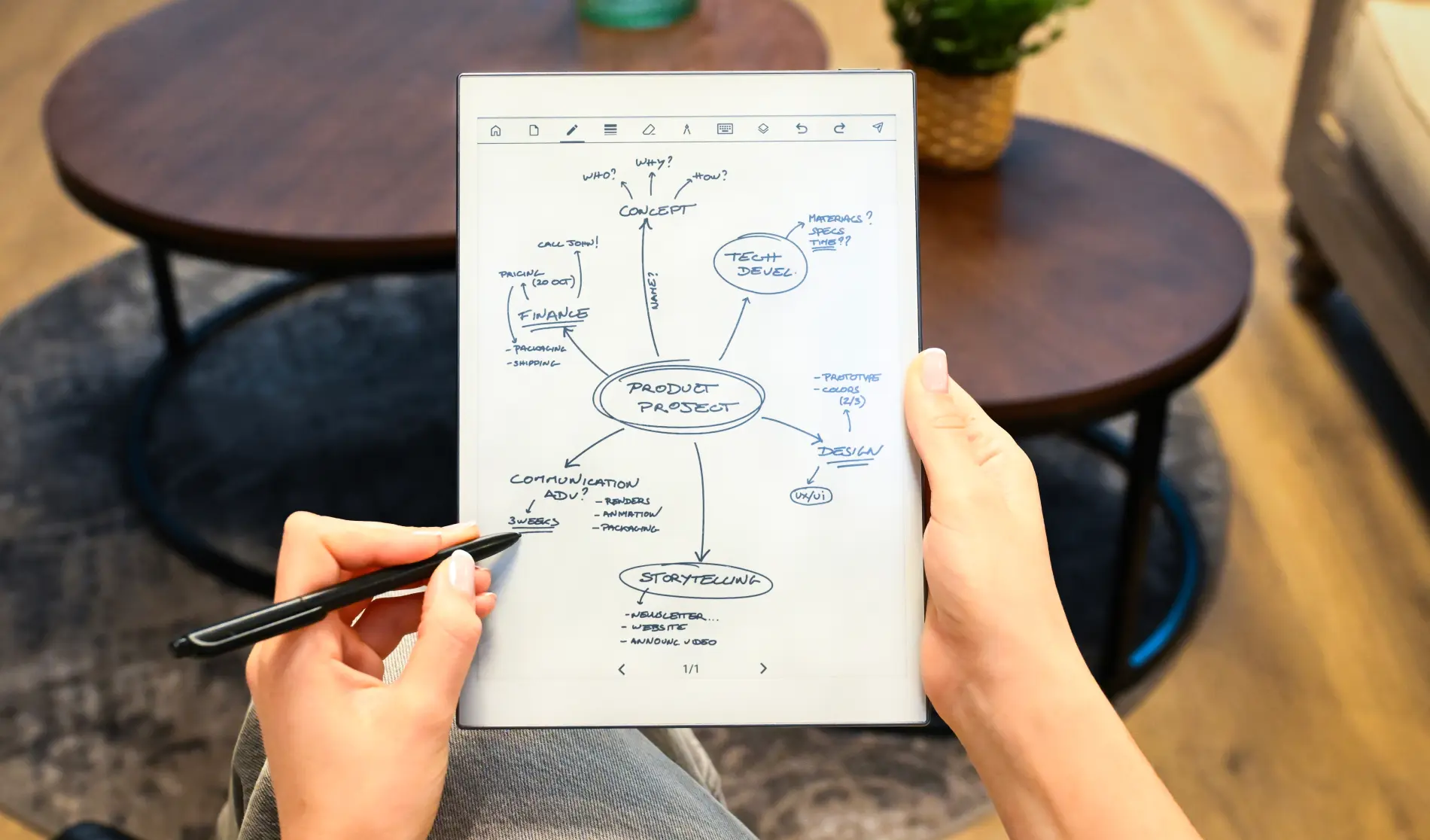
    All these machines have one ambition: to make you forget pen and paper. Their aim is to use these devices as digital note-taking tools on which you can work.

    The Bigme InkNote S follows in this tradition, with its 10.3" diagonal e-ink screen, stylus and Android 11 operating system.

    bigme inknote s

    While there’s nothing original about the hardware, there are some innovative additions to the software.

    Of course, there’s also a tool that converts your handwritten notes into typed text. But there’s also a system that lets you dictate text (as you can already do with more mainstream tools such as Microsoft Word or Google Docs).

    bigme inknote s chatgpt

    Better still, Bigme is announcing integration with ChatGPT via an application to be downloaded from its "App Center" (which is a kind of Google Play for Bigme-branded devices).

    This chatbot uses artificial intelligence to provide answers to your questions. While it’s hard to know exactly what benefits there are to having ChatGPT on your e-reader, Bigme suggests these usecases:

    • You can have ChatGPT rewrite your texts.
    • You can ask ChatGPT to summarize your documents
    • You can ask ChatGPT to take meeting minutes for you.

    There’s no mention of whether you need a subscription to ChatGPT+ to use it with this Bigme InkNote S e-reader, but it’s an interesting new use that brings additional features that seem useful (for once).

    If the handwriting recognition functions work with ChatGPT, we can imagine that this machine will be able to produce very correct texts quickly and effortlessly.

    To complete this presentation, here are the technical specifications of the Bigme InkNote S:

    • 10.3-inch (227 PPI) black and white e-ink display
    • 2.3 GHz octa-core processor
    • 4 GB RAM memory
    • 64 GB storage
    • USB-C
    • Stylus with wireless charging (A5)
    • 8MP camera (rear)
    • 5MP camera (front)
    • 2.4G/5G WiFi
    • Bluetooth 5.0
    • 4000mAh battery
    • Android 11

    With a price tag of around $399, we have what appears to be an interesting alternative to the leaders in the field. It’s enough to seriously worry ReMarkable, which has been struggling to come up with interesting new features for the past year or two…

    You can find out more by visiting Bigme’s ereaders at Amazon.com (click here).

  • How to change the language on a Kindle e-reader?

    change language kindle ereader

    E-readers support different languages, allowing you to change the interface text. Let’s take a look at how to change the language of a Kindle e-reader.

    On a Kindle ereader, you can change the language of the interface (texts in menus), change the keyboard layout (from qwerty to azerty, for example) and add dictionaries.

    To manage these options, go to Settings. Unfold the menu at the top of the home screen and press "All Settings":

    change language kindle ereader

    Next, go to Languages & dictionaries:

    change language kindle ereader

    In this new screen you can change the language of the Kindle e-reader, but also modify the keyboard layout and add dictionaries (beware, for some modifications you’ll need a Wifi connection).

    To change the language, click on Languages:

    change language kindle ereader

    The new screen lets you choose the language from among these:

    • English,
    • German,
    • Italian,
    • Spanish,
    • Dutch,
    • Portuguese,
    • French,
    • Polish,
    • Chinese,
    • Japanese
    change language kindle ereader

    You can now select the language of your choice. Sometimes you’ll need to choose a language variant (for French, you’ll need to choose between France and Quebec/Canada, for example).

    change language kindle ereader

    For your Kindle’s new language to take effect, you’ll need to restart your e-reader (this will be done automatically).

    change language kindle ereader

    In addition, you can choose your keyboard layout (although this will be automatically selected with the Kindle language):

    change language kindle ereader

    As you can see from the screen above, you’ll need to download some keyboards that are stored in the Amazon cloud. You’ll also need to connect your Kindle to the Internet via Wifi.

    You can also add dictionaries:

    change language kindle ereader
  • Configure the Pocketbook e-reader touchscreen

    pocketbook touchscreen settings

    Pocketbook e-readers have the most comprehensive software available. It’s so complete that you often miss out on some very interesting features. In this article, I’ll explain how to set and customize the touchscreen on your Pocketbook ereader.

    On Pocketbook e-readers, you can configure the touch screen in reading mode to add actions to be performed when you touch it.

    For example, you can tell the ereader to display the next page of the ebook if you touch the right-hand side of the screen. You can also tell it to display the text settings menu when you touch the bottom of the screen – and so on.

    It’s even possible to deactivate the reader’s touch functions, which can be interesting since Pocketbook ereaders have buttons underneath the screen.

    So, to adjust the touch screen, you first need to go to Settings and display this screen:

    pocketbook touchscreen settings

    Then press Personalize to display this new screen:

    pocketbook touchscreen settings

    Select Gestures in Reading mode:

    pocketbook touchscreen settings

    This is where you can assign actions for all the Pocketbook eReader’s touch capabilities in reading mode (i.e. when you’re reading an ebook).

    You can change the swiping behavior.

    But even more interestingly, you can change all gestures on different parts of the screen by selecting Configure Tap Gestures:

    pocketbook touchscreen settings

    Each area of the screen can then be configured to suit your needs.

    To change the behavior of any area of the screen, simply press on it and select the option that suits you best:

    pocketbook touchscreen settings

    You can then totally modify the behavior of the e-reader’s touch functions!

    As you can see, Pocketbook e-readers are very complete and well thought-out.

    A word of warning: even if your e-reader has physical buttons and you want to deactivate the touchscreen, I recommend that you leave a touch zone active so that you can quickly access the home screen.

  • The best apps for reading books on tablets

    The best apps for reading books on tablets

    You don’t need a e-reader to read books – all you need is a smartphone. But with a bigger screen, it’s a little better! Here are the best apps for reading on a tablet.

    Which app for reading books on a tablet? The best apps for reading books on a tablet are: Aldiko, Moon Reader, Amazon Kindle, Kobo Books, Lisa, Bluefire Reader, KoReader and FBReader.

    Let’s take a closer look at each of these applications.

    Aldiko Next

    Aldiko next

    For me, Aldiko (or Aldiko Next) is the best application for reading on a tablet.

    It offers a wide range of settings, and you can download free books directly from the public domain.

    What’s more, it’s fully compatible with EPUB and PDF formats (with and without Adobe DRM protection).

    With Aldiko, you can customize the way text is displayed (typeface, size, font, margins, etc.), which makes it really handy even on small screens.

    With some 20 million users, Aldiko is also without doubt the most popular application for reading ebooks on tablets. It’s the application I use on my smartphone.

    Aldiko is free, but a paid version offers extra features such as the ability to annotate books or highlight certain passages. Aldiko on Android. Aldiko on iOS (iPad).

    Moon Reader

    Moon Reader

    Another classic, the Moon Reader application offers comprehensive functionality, with excellent support for a wide range of ebook formats: epub, pdf, mobi, chm, cbr, cbz, umd, fb2, txt, html, rar, zip.

    The quality is top-notch, and the Moon Reader app also has the most comprehensive settings for those who like to read in the dark: fine-light management, blue-light filter and tint, night mode, and more.

    There are, of course, the usual functions for managing characters, fonts, line spacing and so on.

    The application is only available for Android tablets, and can be downloaded free of charge. There is also a paid version which removes advertising and adds other functions, including text-to-speech.

    Amazon Kindle

    Amazon Kindle app

    If you want to read a book that’s only available on Kindle, you have a number of options: read on your computer, buy a e-reader or use a Kindle book-reading app on your smartphone or tablet.

    The Amazon Kindle app is available free of charge on Android and iOS, and does exactly what it’s supposed to do: read Kindle books.

    It’s fast and allows you to do almost everything a reading device can do in terms of text configuration: font, text size, margins, line spacing, etc.

    Kobo Books

    kobo books app

    Just like Kindle, the Kobo Books application is available to enable you to read your ebooks purchased on the Kobo platform if you don’t have a reading device at hand.

    You’ll find everything you need to read the ebooks in your possession without a hitch.

    The app is free and available for Android tablets and iPads.

    The app has recently been enhanced with a potentially interesting additional feature: you can buy and read audiobooks with the Kobo Books app.

    Lisa ("Lis-A")

    lis-a lisa reading app

    Lisa is a very recent application for reading digital books, which has one advantage: it’s compatible with Readium LCP DRM.

    Otherwise, it’s an application with a rather strange ergonomics that won’t suit everyone, but it has a very nice appearance.

    It is compatible with the following file formats: PDF, EPUB2, EPUB3. Lisa can also be used to read comics or ebooks containing multimedia content (sound, images or video).

    Lisa is available free of charge for iOs and Android.

    Bluefire Reader

    bluefire reader app

    This selection is coming to an end, and if you still haven’t found the tablet book-reading app that’s right for you, you can try Bluefire Reader.

    Available for free download on iPad and Android tablet, this application is based on a simple proposition: allow you to read digital books protected with Adobe DRM (EPUB and PDF formats).

    Beyond that, the application is fairly generic, offering nothing that really sets it apart from the competition.

    In fact, it’s less comprehensive than Moon Reader or Aldiko, but it also has the advantage of being very easy to use.

    Other interesting applications

    This selection is obviously not exhaustive, and here are a few Android and/or iPhone smartphone applications worth mentioning:

    • KoReader: this is a rather special program, designed for hobbyists, since it can even be installed on certain e-readers (official website). It offers many customization options.
    • FBReader: a full-featured program for Android, iPhone and PC that supports a wide range of file formats.

    I also invite you to take a look at our e-reader buyer’s guide if you want to take your digital reading more seriously, with a device specially designed for the purpose.

  • How to read PDF files on the Amazon Kindle? (and the Best Kindle for PDF)

    how to read pdf on kindle

    In this short tutorial, you’ll see how easy it is to read a PDF file on your Kindle, Kindle Paperwhite, Kindle Scribe, Kindle Voyage or Kindle Oasis e-reader.

    (more…)
  • How to install KOReader on your Kobo ereader?

    how to install koreader on your kobo ereader

    KOReader is a free software package that installs on your e-reader to provide additional functionality. In this article, we’ll look at how to install KOReader on a Kobo e-reader.

    The only two things you need to know about KOReader on Kobo are the following:

    1. Installing KOReader on Kobo is free of charge and should not harm your e-reader.
    2. Installing KOReader on your Kobo e-reader changes the way it works: if you need to invoke your e-reader’s warranty, this could be a problem.

    If anything happens to your e-reader, it’s your fault. I can’t be held responsible for any problems that may arise.

    Warning before installation

    According to my information, installing KOReader poses no risk to your Kobo e-reader. In fact, you can continue to use the old Kobo interface if you don’t like KOReader.

    ⚠️ But I wouldn’t recommend installing KOReader on a recent e-reader or one still under warranty.

    KOReader is very interesting software, but if you’re happy with your Kobo e-reader, there’s no reason to install new reading software on it.

    If, on the other hand, you have a Kobo e-reader in a drawer, then this software could well give your e-reader a facelift, and you should consider installing it.

    Installing KOReader on a Kobo e-reader

    For the purposes of this tutorial, I installed KOReader on a Kobo Nia e-reader.

    I also use a PC with Windows 10.

    You can find the installation procedure I used at this address: https://github.com/koreader/koreader/wiki/Installation-on-Kobo-devices

    install koreader on your kobo ereader

    Preparing for installation

    You need to download the latest version of the KOReader bundle, which you can find here: Preparing for installation

    You need to connect your Kobo e-reader to your Windows 10 PC with the USB cable and enable file sharing on your e-reader’s screen.

    You need to download the latest version of the KOReader bundle (a .zip file), which you can find here: https://www.mobileread.com/forums/showthread.php?t=314220 (at the end of the first message) (at the end of the first message)

    If you want, you can install Plato reader for your Kobo ereader.

    Plug your Kobo eReader to your computer over USB

    You need to connect your Kobo e-reader to your Windows 10 PC (or Windows 11) with the USB cable and enable file sharing on your e-reader’s screen.

    Download the installation script

    You will need to download this installation script for Windows: https://github.com/NiLuJe/kfmon/raw/master/tools/install.ps1

    Copy this script in the same folder of your Kobo (where the ZIP file is located).

    Now right-click on the "install.ps1" file and click on "Run with Powershell".

    A window will open asking for the KOReader version to be installed (the "package").

    Normally, the installation program should find only one file, so enter "0" ("zero") and press the "enter" key on your keyboard:

    install koreader on your kobo ereader

    A new message with a progress bar will appear, showing the progress of the installation.

    install koreader on your kobo ereader

    ⚠️ Wait a few minutes and do not disconnect your Kobo e-reader.

    A new message appears, indicating that you need to eject your e-reader.

    install koreader on your kobo ereader

    Restarting the Kobo e-reader

    Once the installation is complete, your e-reader should restart itself.

    **If it doesn’t, that means there is a problem. You can restart it and try to install KOReader again.

    After a short wait, you’ll be back on your e-reader’s usual screen.

    Enjoy KOReader on your Kobo

    KOReader is now installed and all you have to do is launch this new reading software using the new button that has appeared in the bottom right-hand corner of your Kobo e-reader.

    Conclusion

    As we’ve just seen, installation is fairly straightforward, taking just a few minutes at most.

    Bear in mind, however, that this software is primarily designed for people who are comfortable with computers.

    However, I think its existence is very interesting, as it offers numerous possibilities for customizing your Kobo ereader.

    install koreader on your kobo ereader

    If you’ve had your e-reader for a while and don’t use it anymore, this software can give it a facelift.

    It changes a lot of things on your e-reader, and the new interface takes some getting used to. For example, I’ve seen it improve the speed of the interface on my Kobo Nia e-reader.

  • What new e-readers and trends for 2024?

    new ereaders in 2024

    As the year starts, it’s time to focus on what’s in store for 2024 in terms of e-readers, with new models expected soon.

    Two new Kobo e-readers

    It’s no secret that Kobo will soon be offering a new e-reader.

    From what little information has leaked out, it’s likely to be two e- readers to replace the Kobo Sage and the Kobo Libra 2.

    But the Kobo Nia is an aging e-reader (released 3 years ago) that will need updating to compete with the much better Kindle and the new Pocketbook Verse.

    Read more here :

    New color e-readers

    Color e-readers were the talk of the town in 2023, and we can expect new releases in 2024.

    On the one hand, new e-ink color displays have only just arrived on the market. These include the Pocketbook Viva (with its Gallery 3 screen) and the very recent Pocketbook InkPad Color 3 with its latest-generation Kaleido 3 screen.

    On the other hand, several color e-readers announced for 2023 have had very limited releases, and we can expect some of these models to be available again in 2024 (I’m thinking of e-readers from the Onyx and iReader brands, for example).

    As usual, innovation will undoubtedly come from Asian brands, who won’t hesitate to offer new e-readers with the latest-generation color screens.

    A new Kindle?

    It seems appropriate for Kindle to release one or more new e-readers in 2024.

    The Kindle Oasis is quite old, and it would be interesting to propose a new version with a better screen and, why not, a color screen. However, I think it unlikely that this will happen (a color screen for a Kindle) for cost reasons.

    Another possibility: a new Kindle Paperwhite with a newer screen or more storage is also on the cards, although this hypothesis seems less likely to me.

    Productivity machine: a growing trend

    Like every year, we can expect to see the arrival of *new ebook reading machines for the workplace with productivity tools.

    As with the Kindle Scribe, the ReMarkable 2 or Kobo Elipsa 2E, these machines feature large 10-inch screens (sometimes up to 13.3 inches), a stylus and the tools to work with them.

    These machines use an e ink screen and sometimes an Android system that enables the installation of third-party reading or productivity applications.

    The year 2024 should once again bring us interesting new models in this product range.

    New Pocketbook e-readers

    Like every year, Pocketbook is going to offer us new e-readers.

    These will undoubtedly be models with color screens or top-of-the-range models. It should be noted that the recent Pocketbook Viva is not yet available. It could therefore arrive in early 2024.

    To find out more, take a look at our guide to the best e-readers, our guide to the main color e-readers and our article on e-readers discounts.