News

Ereader news from all over the world!

  • How eco friendly are eBooks?

    ebook or paper books?

    There’s a lot of information all over the Internet about the so-called polluting nature of ebooks. Quite simply, the figures are announced at the drop of a hat. It’s time to find out how eco friendly are eBooks!

    TLDR: it’s much better (eco friendly) to read an ebook than to buy and read the paper version if you already own hardware capable of reading the ebook.

    What is the carbon footprint of an ebook?

    There are studies on the carbon footprint of e-readers and paper books, but not ebook reading alone.

    Moreover, not all sources agree, since the studies are commissioned by e-reader manufacturers (Kindle) or paper book publishers (Hachette french publisher). And I think it’s all more or less false – but you can read it here if you’re interested: https://reporterre.net/Livre-papier-ou-liseuse-electronique-qui-est-le-plus-ecolo – French link.

    Of course, the media pick up on all this without paying any attention to the fine print.

    So let’s start again with what an ebook is.

    > An ebook is a computer file of a few hundred Kb to a few Mb in size.

    > This file is transmitted by an Internet server to your e-reader when you download it.

    To take into account everything that goes into reading an ebook, we also need to take into account the download when calculating the carbon footprint of an ebook.

    Note that this mode of operation is simple and corresponds almost identically to the way a web page is retrieved from a web server by your Internet browser.

    We can therefore rely on existing studies on the subject to calculate this.

    A study that seems to me to be fairly serious and reliable arrives at an average carbon footprint of 5 g of CO² for a web page. And therefore, for an ebook too. See here: https://en.reset.org/whats-carbon-footprint-your-website/

    An ebook can be read, with a carbon footprint of around 5g of CO² on a smartphone, tablet, e-reader or computer! After all, it’s just a file downloaded onto a device.

    On the other hand, the carbon footprint of a e-reader is undoubtedly greater, at around 100 to 200kg of CO² (compared with less than 100kg of CO² for a smartphone).

    If you already own a device that allows you to read books, the most eco-friendly thing to do is to use the equipment you have at your disposal to read your digital books (ebooks), giving priority to the most energy-efficient devices:

    • Smartphone
    • Tablet
    • E-reader

    The use of a computer is not recommended, however, as the time it takes to read your book (5 to 10 hours) can consume a lot of electricity.

    As far as the carbon footprint of electricity is concerned, if the vast majority of which comes from nuclear power, it is negligible. But this is a different and more complex subject.

    Yes, ebooks are green!

    eco friendly ebook

    In conclusion, it’s much better (eco friendly) to read an ebook than to buy and read the paper version if you already own hardware capable of reading the ebook.

    So if you have a smartphone, tablet or e-reader, the ebook is much greener than the paper book when you buy it.

    Reading an ebook could help combat global warming.

  • Pocketbook Era Color: the new color e-reader will be available in May 2024

    pocketbook era color e-reader

    Pocketbook has announced a new color e-reader that could well change the game: the Pocketbook Era Color will be available in May, 2024.

    The Pocketbook Era Color is a color version of the Era and also a competitor to the Kindle Oasis and Kobo Sage.

    It features a 7-inch diagonal Kaleido 3 color e-ink screen with a resolution of 1264 x 1660 pixels (300 PPI) in black and white and 632 x 840 pixels (150 PPI) for color.

    It features an asymmetrical design with buttons on the side, is IPX8 waterproof, has an illuminated touch screen and offers all Pocketbook's advanced software options, such as text-to-speech, audiobook reading and excellent compatibility with ebook file formats.

    The Pocketbook Era Color is well equipped under the hood, with a quad-core 1.8 GHz ARM processor, 1 GB RAM and 64 GB storage.

    Now we come to the great strength of this e-reader, which is its price. Pocketbook has announced a price of $259.99, with release scheduled for the end of April 2024 just like the new Kobo Libra Colour.

    The price of the Pocketbook Era Color e-reader is almost identical to that of the Kobo Sage or Kindle Oasis, but with the added benefit of a color screen.

    This is a significant testimony to the advances made in color e ink screen technologies, not only in terms of color rendering, but also in terms of the decreasing cost of manufacturing these screens.

    With the price of such a complete e-reader well under $300, we can assume that future models costing over $200 will all have to switch to an e-ink color screen to remain relevant on the market.

    I'd already had this impression with the release of the great Pocketbook InkPad Color 3, which ended up being barely more expensive than the Pocketbook InkPad 4 and its black-and-white screen: a minimal price difference that tips the balance in favor of the InkPad Color 3 in terms of value for money.

    Finally, here are the technical specifications of this new Pocketbook Era Color e-reader:

    • 7-inch color E Ink Kaleido 3 screen
    • Resolution of 1264 x 1660 pixels (300 PPI) in black & white and 632 x 840 pixels (150 PPI) for color
    • Touch screen
    • SmartLight illumination with blue-light filtering
    • 1.8 GHz quad-core ARM processor
    • 1 GB RAM memory
    • 64 GB storage
    • Supported ebook file formats: ACSM, CBR, CBZ, CHM, DJVU, DOC, DOCX, EPUB, EPUB(DRM), FB2, FB2.ZIP, HTM, HTML, MOBI, PDF, PDF (DRM), PRC, RTF, TXT
    • Speakers
    • Bluetooth 5.4
    • 2500 mAh battery capacity
    • Dimensions: 134.3 x 155 x 7.8 mm
    • Wifi
    • USB-C
  • E-reader: How to put books on your e-reader (all brands)

    transfer ebook from computer to e-reader how to image

    Do you have a e-reader and want to transfer books you’ve downloaded from the Internet to it easily?

    (more…)
  • Bigme inkNoteX Color: overpriced but interesting

    Bigme inkNoteX Color

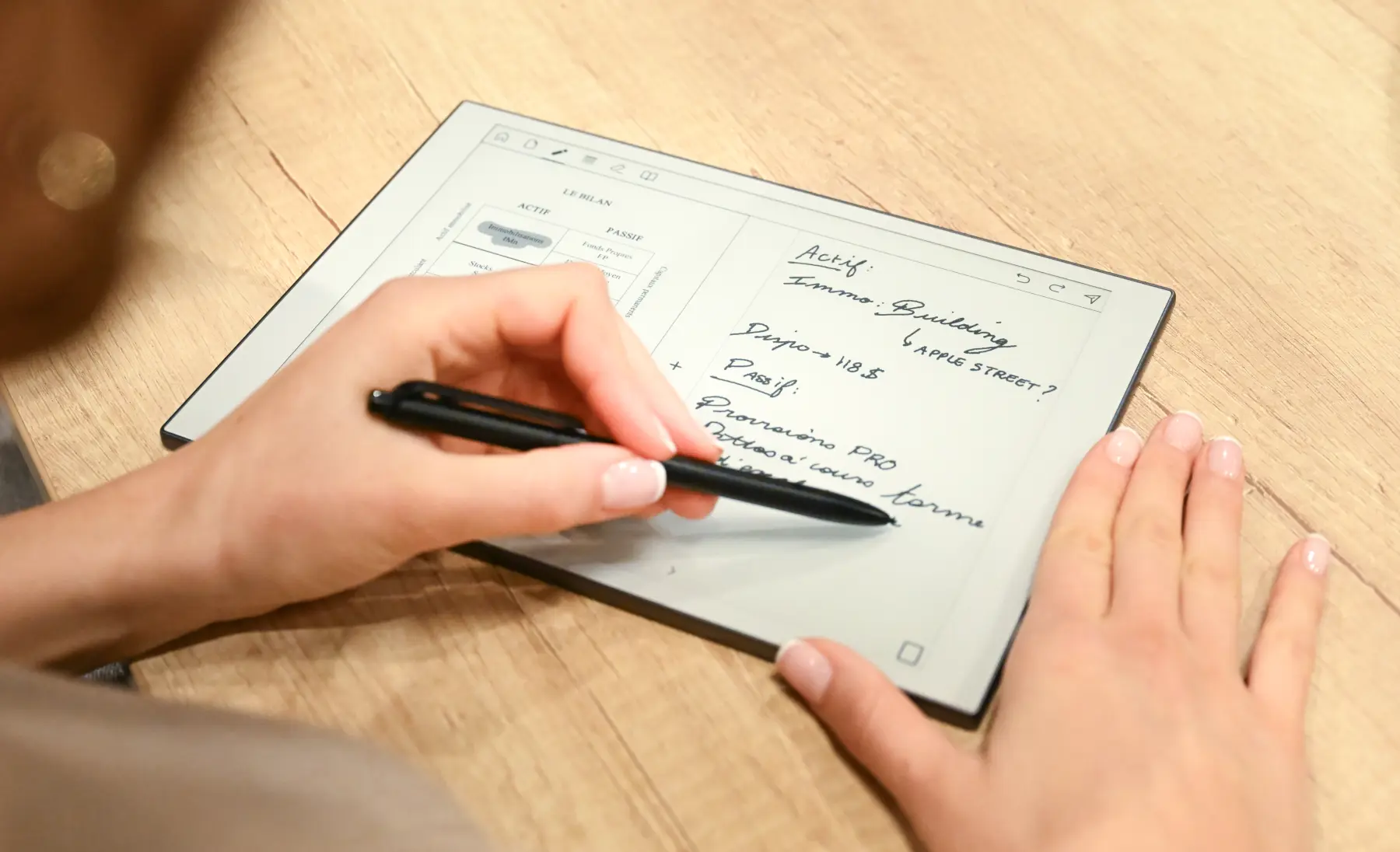
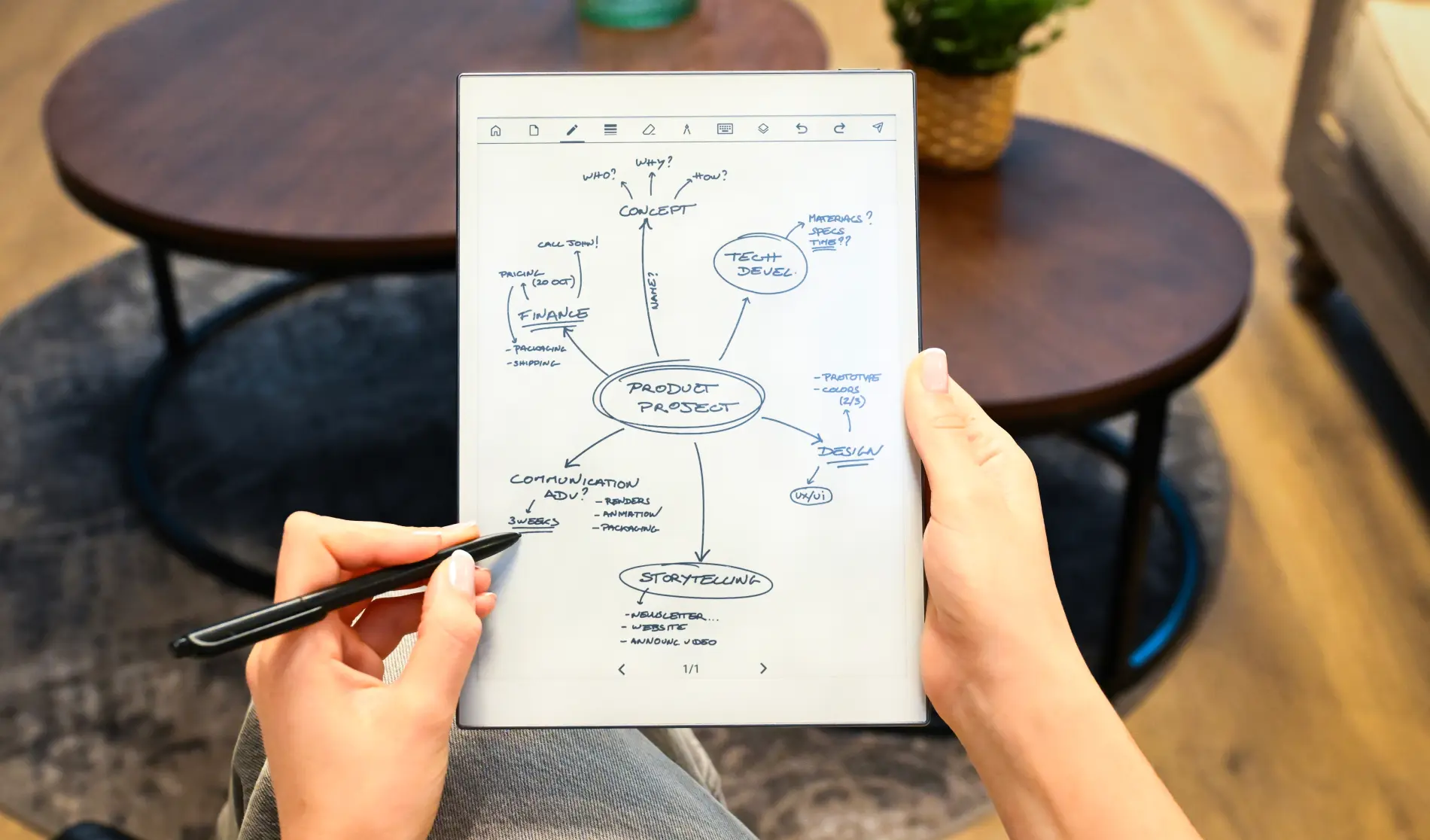
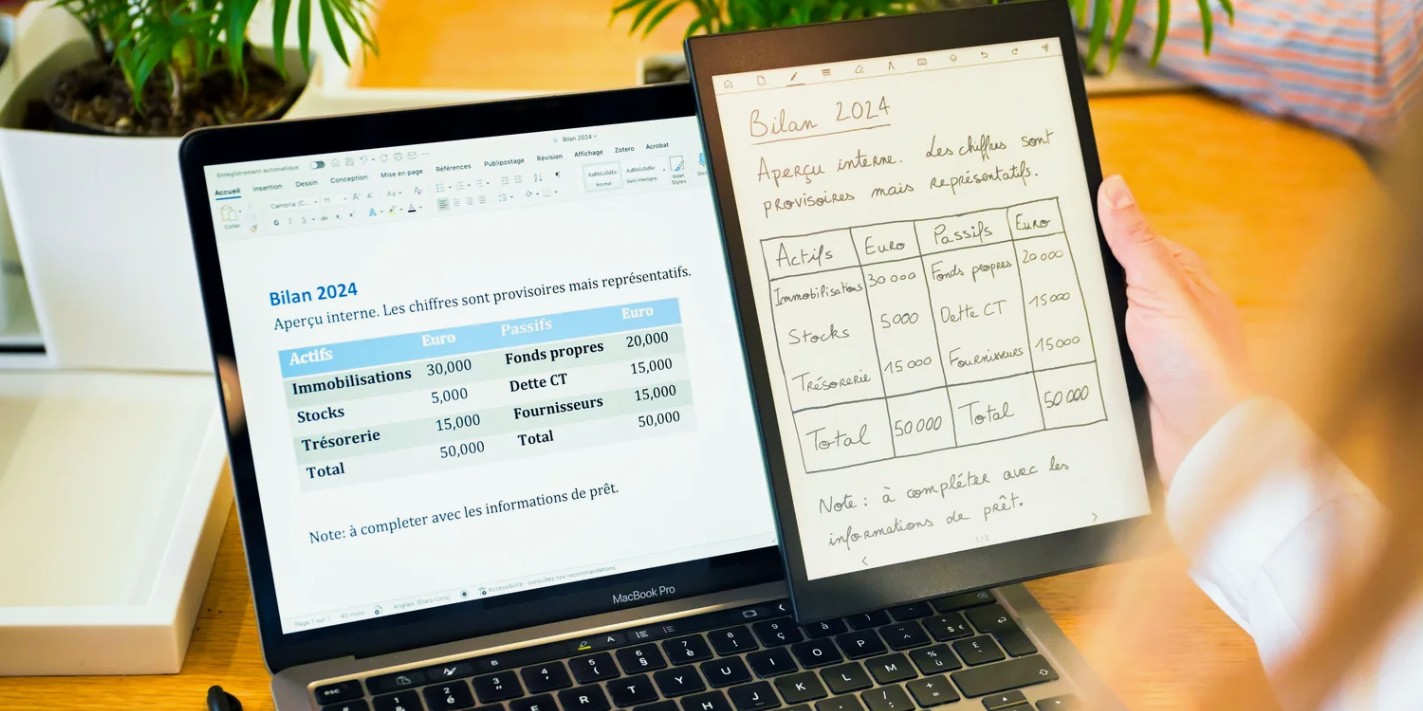
    In the category of e-readers, which are also digital note-taking tools (or digital notepads), Bigme offers machines that push the technical boundaries ever further. But haven’t they gone too far this time?

    Bigme inkNoteX Color: presentation

    Bigme is an Asian brand offering e-readers and digital notebooks that compete with the Kindle Scribe, the Kobo Elipsa 2E and the ReMarkable 2.

    The Bigme inkNoteX Color features a large, 10.3-inch color screen using Kaleido 3 technology. It is sold with a stylus and offers most of the options and functions found in this style of e-reader/tablet.

    Bigme also highlights the presence of a fast 2.4 Ghz octa-core processor and features to optimize the user experience when it comes to the color screen:

    • Bigme xRapid technology: minimizes ghosting, an unpleasant blurring effect that can occur during fast scrolling. A mode designed for sharper, more responsive display (better screen refresh).
    • Bigme xColor color management algorithm: improves image clarity, color richness, contrast, brightness and black depth. A mode designed for games, videos and photos.

    In addition, the Bigme inkNoteX Color uses 6 GB of RAM and 128 GB of storage.

    All this is managed by the Android 13 system, allowing new applications to be added.

    Bigme inkNoteX Color : technical specifications

    Bigme inkNoteX Color

    Here is a summary of the technical specifications of this machine:

    • Screen: 10.3 inch color, E Ink Kaleido 3
    • Resolution: Black & White: 300 PPI, Color: 150 PPI
    • Front lighting: 36 levels of warm and cool light
    • Blue light reduction
    • Processor: octa-core 2.4 GHz ARM
    • Random Access Memory (RAM): 6 GB
    • Storage: 128 GB (expandable up to 1 TB with external memory card)
    • Battery: 4000 mAh
    • Operating system: Android 13 (third-party applications can be installed)
    • Stylus: 4096 pressure levels
    • Additional features: infrared pointer, voice remote control
    • Microphone and speakers
    • Front cameras: 5 MP, rear: 8 MP
    • Connectivity: Wi-Fi, Bluetooth, USB Type-C port
    • Security: fingerprint sensor integrated into power button

    Bigme inkNoteX Color: too high a price?

    very angry man

    This Bigme inkNoteX Color is priced at just under $800.

    It’s a very high price, but one that reflects the technical specifications fairly well. In addition to the usual tablet components, it’s the large 10.3" Kaleido 3 screen that pushes up the price.

    So the question arises: is it worth investing in a machine costing around $800, with a color screen that’s not as good as a tablet costing half that?

    For the record, you can find a good Android tablet from a major brand like Samsung for this price, and even an iPad Mini.

    As far as ebook reading functions are concerned, this Bigme inkNoteX Color offers everything you need, including the addition of new reading applications.

    But its size makes it a machine that’s best suited to the home or office.

    So, as far as I’m concerned, it’s not a reading machine, but a touch-screen tablet with a color e-ink screen.

    In my opinion, machines of this type, which have the advantage of an e-ink screen, shouldn’t cost more than $100 than their equivalent with a conventional OLED or LCD screen.

    The site (but this e-reader is not yet available): https://bigmestore.com/

  • How to find your Kobo e-reader model and serial number?

    kobo e-reader serial number

    If you have a Kobo e-reader and would like to know the model and serial number, here’s how to find out.

    Note that this article only concerns Kobo e-readers, and that you can find the equivalent article for Kindle e-readers here.

    Why do you need to know which Kobo e-reader model you have and what its serial number is?

    For the model (or version), it’s important to find out about its various features, whether you want to buy an accessory (a protective case or a charger) and its age (how long it’s been available).

    It’s also important to find out the exact model name of the e-reader if you want to buy second-hand, to make sure you’re being sold the right model.

    As far as the serial number of your Kobo e-reader is concerned, its main use is with the free Calibre software, which allows you to remove DRM from Kobo ebooks.

    You’ll find a full tutorial on this page.

    Here’s how to find the exact model name of your Kobo e-reader:

    More > Settings: you’ll find the name of your e-reader at the bottom

    Here’s how to find the serial number of your Kobo e-reader:

    More > Settings > Device information

    And screenshots to help you navigate your e-reader (on a Kobo Libra 2 e-reader, but it is almost the same on other Kobo devices):

    kobo e-reader serial number
    kobo e-reader serial number
    kobo e-reader serial number
    kobo e-reader serial number
  • Kobo color e-readers in 2024? Not sure…

    kobo libra color e-reader

    A new rumor has just emerged, suggesting that Kobo will be introducing color e-readers in 2024. But is it realistic?

    UPDATE (5 april 2024): it is a Kobo Libra Colour e-reader!

    As you know, Kobo will be renewing most of its e-readers this year. In any case, three new Kobo machines are expected for 2024, giving the range a fresh new look. Check the last news if you want to know more about it.

    For a few days now, information has been circulating on the Internet about Kobo e-readers with color screens.

    This follows the erroneous posting of product sheets for Kobo devices on a partner site and distributor of Rakuten products (Kobo’s parent company).

    The devices put online are called Kobo Clara Color and Kobo Libra Color.

    This means that Kobo is about to announce two color readers: a Kobo Clara and a Kobo Libra, both with color e ink screens.

    What bothers me, however, is that the price remains the same as that of e-readers with black-and-white e-ink screens. So these two new e-readers wouldn’t cost any more, even though color screens are considerably more expensive to produce.

    kobo color e-reader on sale online

    Clearly, this is unreliable information. We know that color screens are expensive, and that they are not yet produced on a large scale.

    It seems unlikely to me that Kobo would release two color e-reader models at the same time at an unbeatable price. Color e-readers are mainly high-end models, like the Pocketbook InkPad Color 3, produced in small numbers and aimed at demanding readers.

    As much as the prospect of a Kindle color e-reader in 2025 seems fairly certain to me, this one for Kobo seems rather unrealistic.

    Note that the photo of the Kobo Libra Color e-reader is a photomontage and not a photo of a real Kobo e-reader.

  • How to find your Kindle e-reader version and serial number?

    kindle serial number

    If you have a Kindle e-reader you may need to know which version you have, or its serial number. This short tutorial will show you how to find out.

    Note that this article only concerns Kindle e-readers, and that you can find the equivalent article for Kobo e-readers here.

    There are several reasons why it’s worth knowing the version of your Kindle e-reader.

    The first is if you want to buy an accessory compatible with your e-reader (charging cable, protective case, screen protector).

    The second is if you want to buy a used Kindle e-reader and want to know the exact model of the e-reader you’re going to buy.

    The main purpose of the Kindle serial number is to enable you to remove DRM from your ebooks using Calibre software.

    To find your Kindle version and serial number, go to :

    Settings > Device options > Device info

    Here are screen shots of my Kindle Paperwhite if you want to follow along:

    kindle serial number
    kindle serial number
    kindle serial number
    kindle serial number
  • The benefits of reading: 17 things you don’t know about books

    the benefits of reading: bring joy and happiness

    Why do we read? Why do we read more? What are the advantages of reading, and what benefits does reading have for us? Here are some answers in this article.

    Unlike other forms of entertainment, reading has many advantages.

    When I read, I always feel a certain sense of well-being that sometimes continues for hours after a long reading session. So I looked into why and came across a lot of information on the subject that I wanted to share with you.

    The first is well known: it’s an affordable pastime. Books are inexpensive and easy to borrow from friends and family, or from the library. You can even read for free (download ebooks).

    With an average price of around $10, a book that will take 6 to 10 hours to read also offers a good entertainment/price ratio.

    woman smiling

    But it’s not the economic aspect of the thing that’s interesting, but the effects of reading on our bodies and, more broadly, on our lives:

    1. reading allows you to deepen your knowledge
    2. reading makes you more open-minded
    3. reading helps us better understand the world around us
    4. reading allows you to share and exchange with other readers
    5. reading helps you understand yourself better
    6. reading gives pleasure
    7. reading helps you succeed in your professional life
    8. reading helps you live longer (reading 30 minutes a day can add 2 years to your life)
    9. reading reduces stress
    10. reading lowers your heart rate
    11. reading helps you earn more money (or more precisely: people who read a lot earn more on average than those who read less)
    12. reading increases memory
    13. reading reduces the risk of dementia
    14. reading improves communication
    15. reading improves concentration
    16. reading develops analytical skills
    17. reading increases empathy

    Of course, this list is far from exhaustive. More and more studies are being carried out on the subject, and science is discovering new things every day.

    I invite you to share my article with your friends and family, as fewer and fewer of us read, so spreading the word can’t hurt.

  • ACEP color display: finally a reality with E Ink Gallery 3

    e ink acep gallery 3 ink screen

    E Ink, the company that produces e-ink displays, has just surprised everyone: after announcing a new generation of Kaleido 3 color displays, they’re working on a brand new color technology with Gallery 3.

    Gallery 3 is the trade name for the Advanced Color E-Paper (ACEP) color display technology.

    It will therefore be possible to display 50,000 different colors on screens with resolutions starting at 8 inches. This new technology should nevertheless be suitable for smaller diagonal readers (we’re thinking of 6" to 7" machines, of course).

    Unlike Kaleido’s e-ink color screen technology, Gallery 3 offers brighter colors and better resolution. Unfortunately, this screen is slower to refresh.

    In practice, it takes 350 ms to refresh a screen with black and white. For color, the situation is much worse, and there are 3 options here:

    • A "fast" mode that refreshes a screen with color in 0.5 seconds
    • A "standard" mode that refreshes in 0.75 seconds
    • A "best colors" mode that refreshes in 1.5 seconds

    In practical terms, this means that the Gallery 3 screen will take more than a second to refresh a page with the best color setting.

    If you settle for a fast half-second refresh, you’ll get blander, less vibrant colors.

    It remains to be seen whether future e-readers featuring this screen will be able to integrate software enabling us to choose the screen refresh mode, or whether the manufacturer will take care of this (and therefore the user won’t be able to change it).

    In addition to this technical information, E Ink has announced that these new Gallery 3 color screens will be compatible with Wacom’s touch technologies (to have a touch screen) and with its own ComfortGaze lighting system, which reduces the effects of blue light during reading.

    e ink acep gallery 3 ink screen

    From the few visuals we have, it seems clear that this type of color screen is a clear plus over Kaleido screens.

    However, it’s clear that the display of these screens will be very slow for the time being (so count on a good second to fully refresh the screen while displaying colors).

    This is a major limitation, and it’s easy to see why the company is continuing to develop Kaleido color displays: they refresh much faster.

    While we’ll have to wait and see before drawing any conclusions, it also seems that the Gallery 3 screen offers twice the color resolution of the Kaleido 3 screens (300 PPP for Gallery 3 vs. 150 PPP for Kaleido 3.

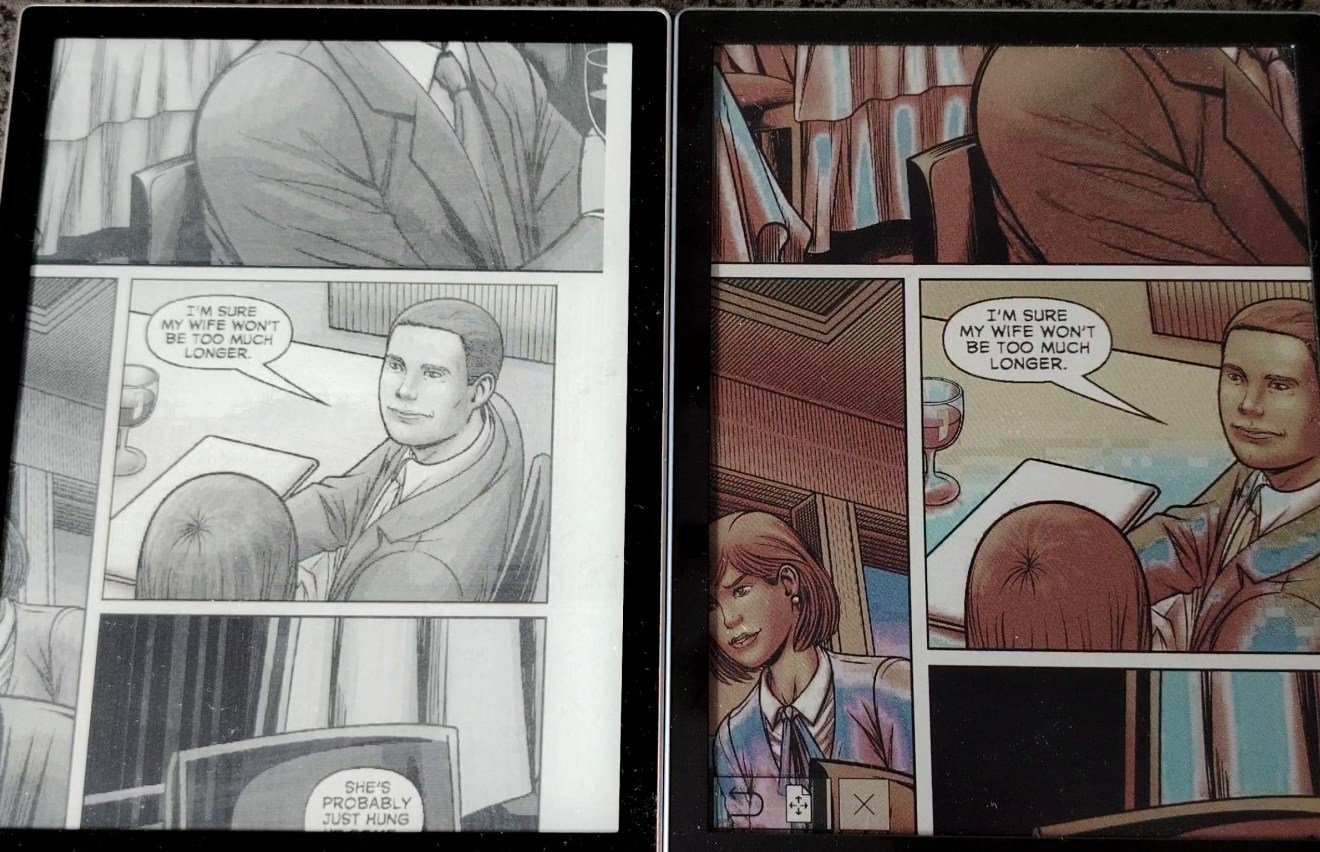
    If this is indeed the case, Gallery 3 screens could finally make it possible to read comics comfortably on a e-reader, provided the diagonal is at least 10 inches.

    Even if the screen takes a second to refresh a page, if the reading experience is as close to paper as E Ink claims, this could be a real revolution for digital reading.

    If all goes well, we should soon have new images and videos to tell us more.

  • What do minimalists do with books? They use a e-reader!

    minimalist house without books

    People are drawn to minimalism for a variety of reasons, often seeking a more intentional and fulfilling life. But what do minimalists do with books?

    Not reading is out of the question, because reading has many benefits. The question of paper books still arises when you want to reduce your possessions.

    First of all, let’s start with a few definitions.

    Why anyone would want to become a minimalist?

    People are drawn to minimalism for a variety of reasons:

    Reduced stress and anxiety: Clutter, both physical and mental, can contribute to feelings of stress and overwhelm. Minimalism encourages decluttering physical possessions, leading to a calmer and more organized living space. This can have a positive impact on mental clarity and reduce overall stress levels.

    Greater freedom and time: Owning less means spending less time cleaning, organizing, and maintaining possessions. This frees up valuable time and energy that can be used for more fulfilling activities, hobbies, and relationships. Minimalism also often translates to simpler routines, allowing for more flexibility and spontaneity.

    Financial benefits: By focusing on needs over wants and reducing impulse buying, minimalism can lead to significant financial savings. This can free up resources for things that truly matter, such as experiences, travel, or supporting causes you care about.

    Environmental concerns: Minimalism promotes mindful consumption and reducing waste. This aligns with environmental consciousness, as it encourages people to buy less, use what they have responsibly, and extend the lifespan of their belongings.

    Intentionality and focus: Minimalism encourages living with intention, surrounding yourself with things that truly serve a purpose and bring you joy. This can lead to a greater sense of focus and clarity in life, allowing you to prioritize what matters most.

    Personal fulfillment: Ultimately, minimalism is a personal journey towards a more fulfilling life. It’s not just about owning less, but about living more intentionally and finding joy in experiences and relationships rather than material possessions.

    If you want to know more about minimalism, you can read this good blog.

    What do minimalists do with books?

    books

    While the advantages of reading are undeniable, the desire to declutter can make holding onto physical books a tough call.

    Here are some common strategies if you want to become a minimalist:

    Curating a physical book collection

    • Keep only books that hold significant value: This could be due to sentimental attachment, reference value, or being a personal favorite they plan to reread.
    • Limit the number of books kept: This is a personal decision, but minimalists often have much smaller collections compared to the average person.
    • Prioritize high-quality editions: If keeping physical books, minimalists might prioritize well-made, durable editions that they appreciate aesthetically as well.
    • Selective buying and selling: Minimalists might only buy new books they are highly committed to reading and sell or donate books they’ve finished or no longer need.
    • Utilizing libraries: Borrowing books from the library is a great way to access a vast selection without adding to personal possessions.

    Embracing ebooks and e-readers

    a pocketbook e-reader

    E-readers allow minimalists to carry a large library with them without physical clutter. They can also borrow ebooks from libraries.

    Benefits of e-readers for minimalists

    Here are the pros of using a e-reader when you’re a minimalist:

    • Reduced physical clutter: Replacing physical books with an e-reader significantly reduces physical clutter in your home. This can lead to a more organized and peaceful living space, which is a key aspect of minimalism.
    • Increased portability: E-readers are lightweight and compact, allowing you to carry a vast library of books with you wherever you go. This eliminates the need to choose between bringing your favorite book and saving space in your bag.
    • Environmentally friendly: While the production of e-readers does have an environmental impact, studies suggest that over their lifetime, they can be more eco-friendly than printed books, especially when considering factors like paper production, transportation, and potential for book waste.

    Concerns of e-readers for minimalists

    Here are the cons:

    • The "feel" of physical books: Some readers value the tactile experience of holding a physical book and turning its pages. You can’t have the same feeling with an e-reader.
    • Eye strain: If you use an e-reader with a light, some people can have eye strain from prolonged e-reader use. If it is your case, you should adjust screen brightness, using nighttime mode, and taking breaks every two or three hours.

    Which e-reader should I buy as a minimalist?

    On the site, you’ll find a wealth of information about e-readers to help you find the one that’s right for you: