This merger will enable Pocketbook to take advantage of Bigme’s Android e-reader expertise to offer high-end e-reader models in the US and Europe.
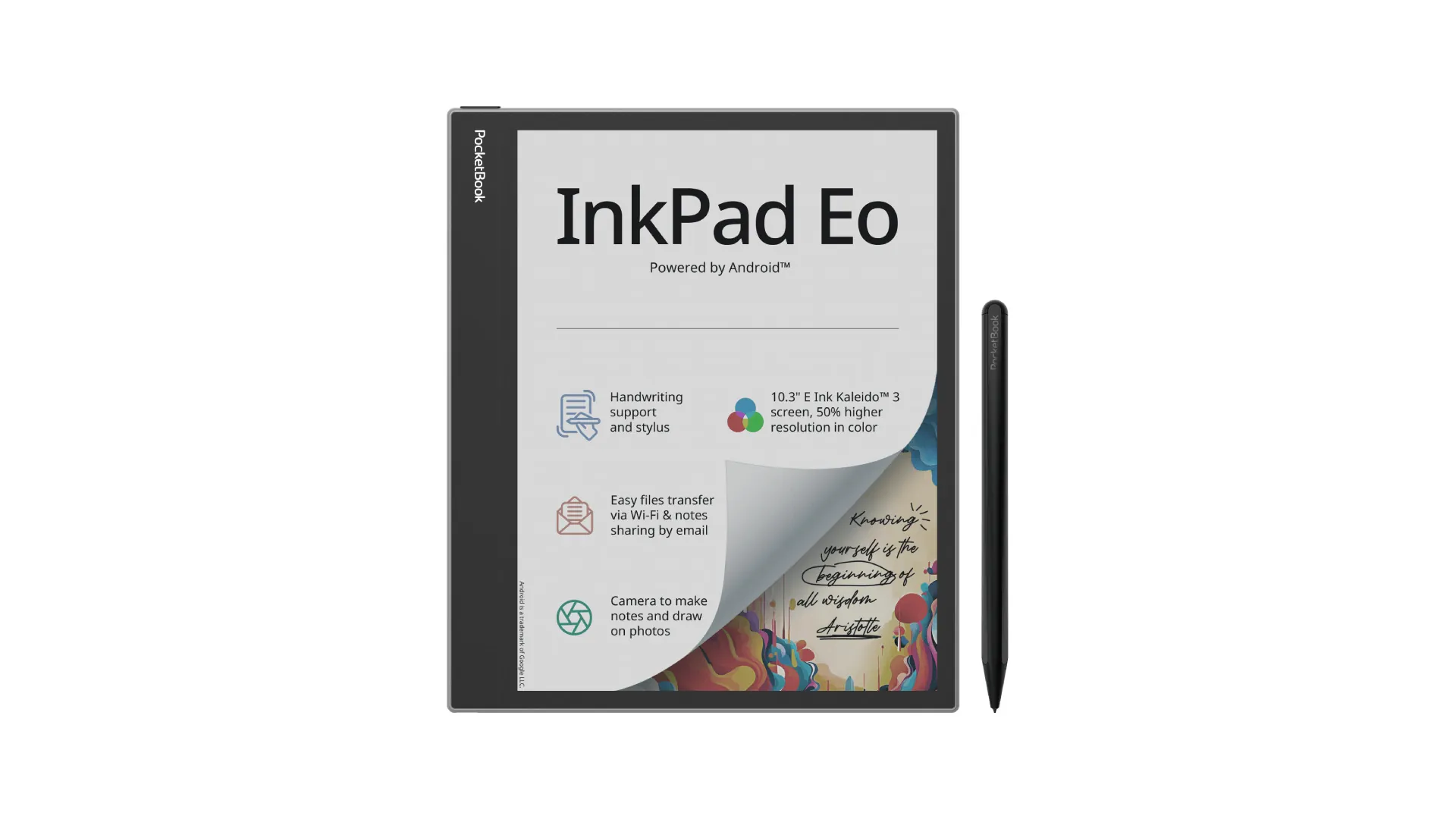
The first machine is the Pocketbook Inkpad Eo, whose fast release surprised me. It’s a large-format color e-reader with a Bigme-designed Android 11 system, but with software modified by Pocketbook.
When I tested the last Bigme e-reader I received, I noticed problems with software translation. A slight disappointment, since the hardware is really good quality, with a superb color e-ink screen.
Pocketbook will correct this and market some Bigme e-readers under its own brand and with corrections in the months and years to come.
Of course, all this comes solely from the Goodereader website, and Pocketbook doesn’t seem to have communicated much more about Bigme in recent days.
The DC-1 is the first e-reader model from Daylight Computer to use a black-and-white screen, capable of simulating paper printing, but with a different approach to electronic ink.
First of all, the DC-1 is available for pre-order on the company’s website for a rather hefty price: $729. It will be delivered to the first buyers during November 2024.
Daylight Computer features
The DC-1 is first and foremost a touchscreen tablet with a 10.5” black-and-white display.
In terms of functionality, it can be used to consult Internet content – including video – but above all to read and work.
It uses a proprietary operating system based on Android 13 called Sol:OS. This system is presented as an anti-distraction software that enables its user to concentrate on the essentials, with a simple interface accessible to all.
It also appears to be possible to install third-party applications, such as reading apps from Kobo or Kindle (to name but a few).
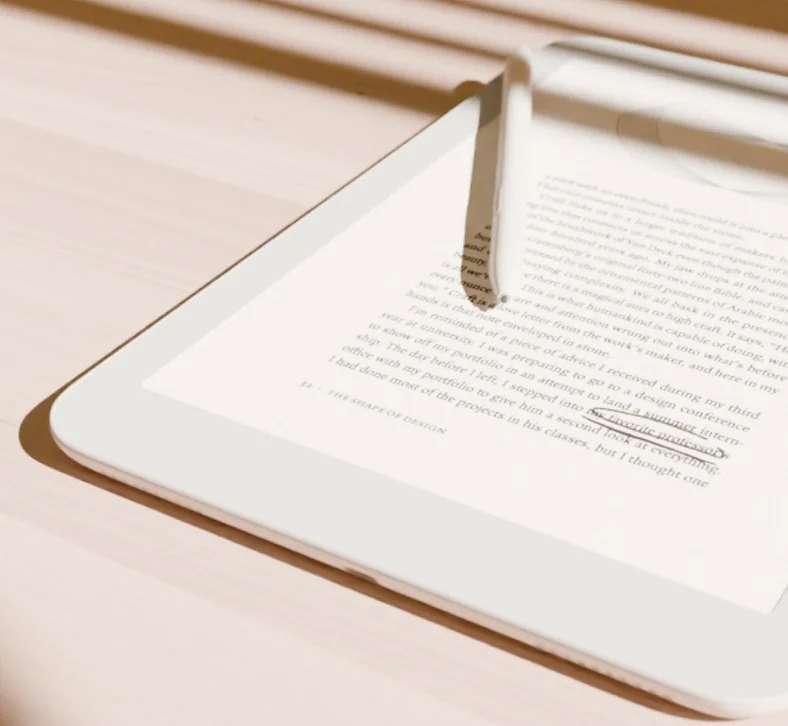
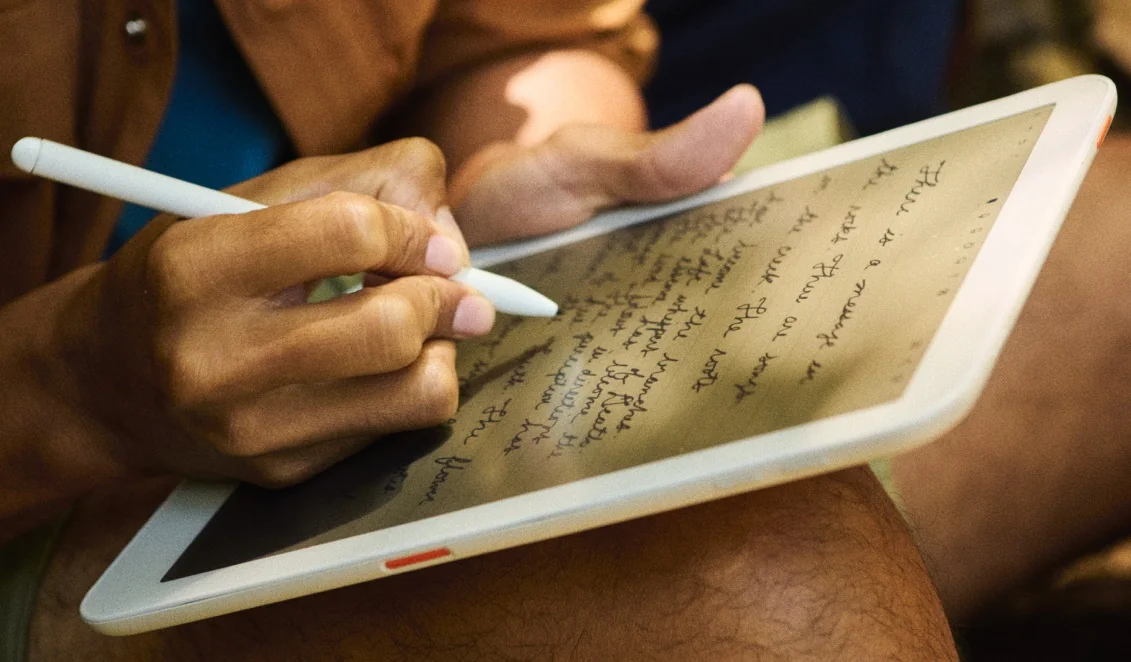
The main functionalities revolve around reading (with, it seems, very good PDF support) and productivity, since a stylus is supplied with the DC-1.
A brand new display
Next, it’s important to talk about the screen used in this Daylight Computer, since it’s its main selling point.
The screen is black and white and called “Live Paper”, with a diagonal of 10.5 inches. Its resolution is correct (without being exceptional) at 1600 x 1200 pixels (190 dpi).
The technology is based on RLCD (reflective LCD screen), but with modifications for better light reflection (for reading in the sun), better contrast and – above all – very fast display at 60 frames per second (60fps).
The speed of the display can make all the difference for people who read a lot of PDFs on which it’s necessary to zoom in to enlarge certain portions of the documents.
Its diagonal may also be perfectly suited to heavy manga consumers, and the presence of a stylus should enable it to be used with the main productivity software in the Android ecosystem.
Daylight Computer technical specifications
Here are the technical specifications for this new machine:
10.5-inch Live Paper screen, black and white, 1600 x 1200 pixels (190 dpi)
Touch screen
Wacom stylus (passive EMR type)
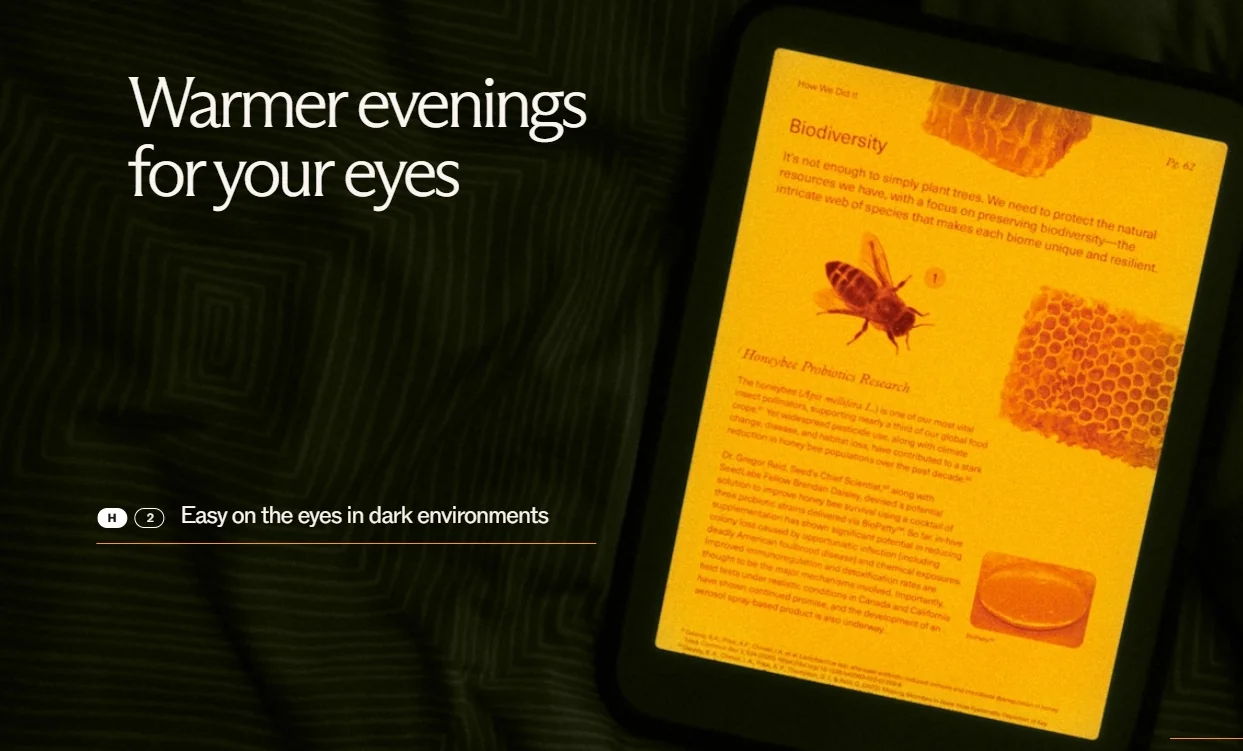
Illumination with blue-light filter
MediaTek Helio G99 processor
8000 mAh battery
128 GB storage
8 GB RAM memory
Wifi
Bluetooth 5.0
USB-C
micro-SD expansion
Weight: 550 grams
Speakers and microphone
System based on Android 13
My premature opinion before the first reviews
This device has been in development for several years, and the first reviewers of the beta versions have already expressed their opinions on the subject, all indicating their satisfaction with the product.
Of course, we’ll have to wait until it goes on the market – at the end of 2024 – to have a definitive opinion.
It’s worth noting that the price of this e-reader is mainly aimed at professionals or very heavy readers (it will cost more than $700 at launch). It’s a far cry from most e-readers, which can be found everywhere for under $200.
I’m quite enthusiastic, as the images I’ve seen suggest a good display and perfect fluidity – just like on an iPad.
We’ll have to check, however, that the display doesn’t tire the eyes too much after prolonged use.
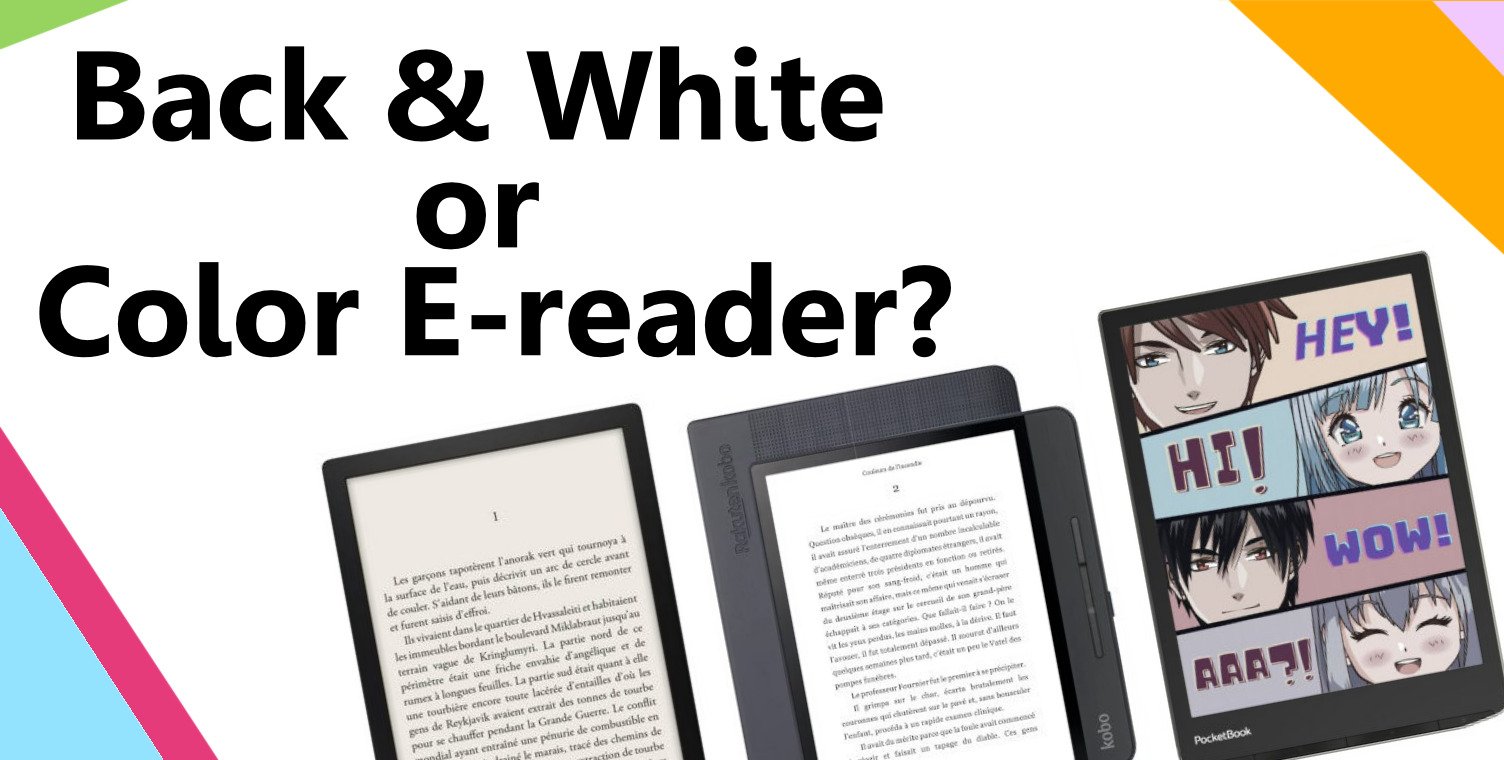
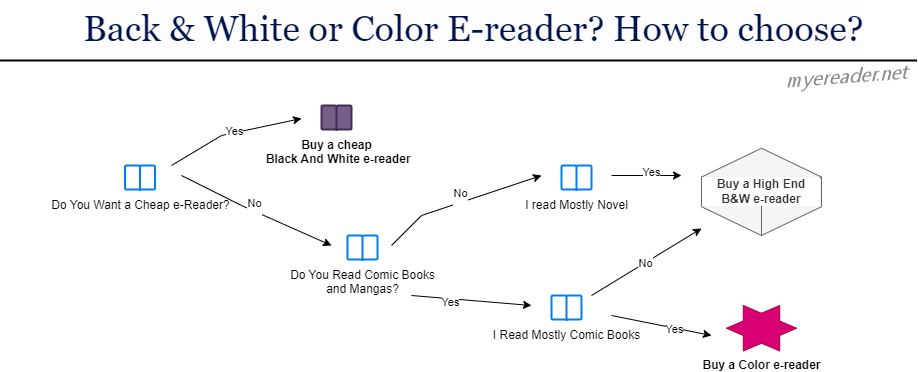
While it’s common sense to go for a color e-reader straight away, it’s worth pausing for a moment to consider whether a black and white e-reader might not be a better choice.
When it comes to buying a e-reader for reading ebooks, there are now several different categories to choose from:
Entry-level e-readers
Mid-range e-readers
High-end e-readers
Color e-readers
While entry-level e-readers do the job very well, they’re best reserved for readers who want to try out digital reading on a budget (there are e-readers for under $100-$120).
But if you really want to get into digital reading, or if you’re a good reader (you read more than one book a month), investing a little more money in a e-reader promises a better reading experience and greater comfort, thanks to a better definition e-ink "paper-like" screen.
Having looked at the best e-readers available, one question quickly springs to mind: should I buy a color e-reader?
Because, while we’re at it, why not go straight for a e-reader capable of displaying color?
The differences between color and black & white e ink screens
The technology behind color e-readers is still in its infancy. It therefore has its drawbacks, the first of which is that it renders text a little less well than a black-and-white e-reader.
The second disadvantage comes from the lighting: it’s more powerful, and a color e-reader, without lighting, s less legible than a black-and-white e-reader.
Finally, even if it’s hard to notice, black and white e-readers are a little faster in use. Simply put: e-ink displays pages of text faster than a black-and-white screen.
Do you really need color?
So you have to ask yourself whether you’ll really need color for your reading. If this is the case, don’t hesitate: switch to a color e-reader!
Alternatively, you can save a few dozen dollars by settling for a black and white e-reader. That way, you’ll be able to treat yourself to an e-reader with a beautiful high-definition e-ink screen for less.
Do you have a book in a foreign language that you'd like to read in English, but you're not fluent in that language? No problem! Here's an efficient way to translate your book in no time.
The automatic ebook translation solution I'm proposing will be useful to both readers and publishers who want to have their book translated.
Please note, however, that this is not a definitive solution, but rather an initial troubleshooting tool – as you'll see later. For those who prefer a video, I've added the video I made at the end of the page.
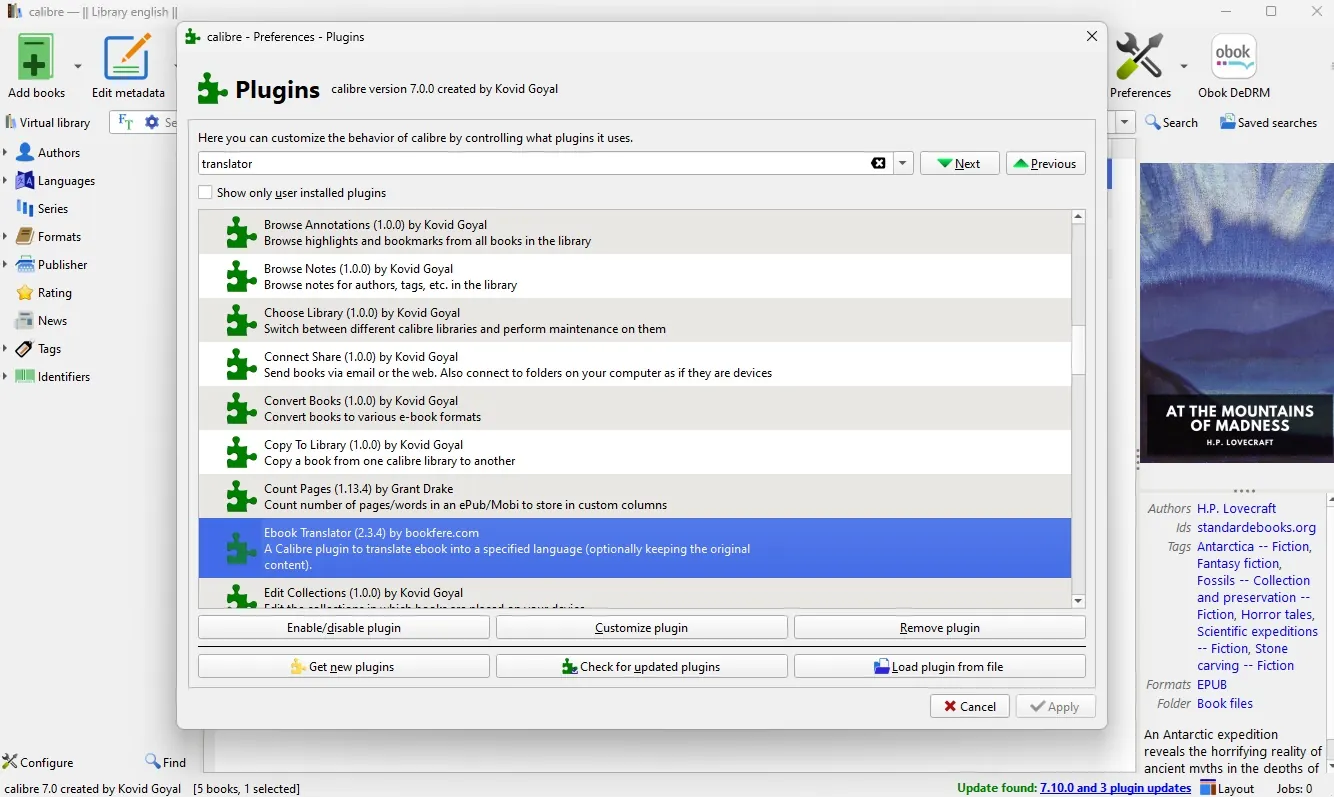
The first thing to do is install Calibre and the translation plugin.
The aim of this article is not to go into detail on how to install the software and plugin, since you already have everything you need here in text and video on these pages:
Name of the plugin to be found in Calibre: Ebook Translator
Now that that's done, you'll see that this page is a tutorial on how to use this plugin: Ebook Translator.
I'm going to guide you through the setup and use of this plugin.
Configuring Ebook Translator
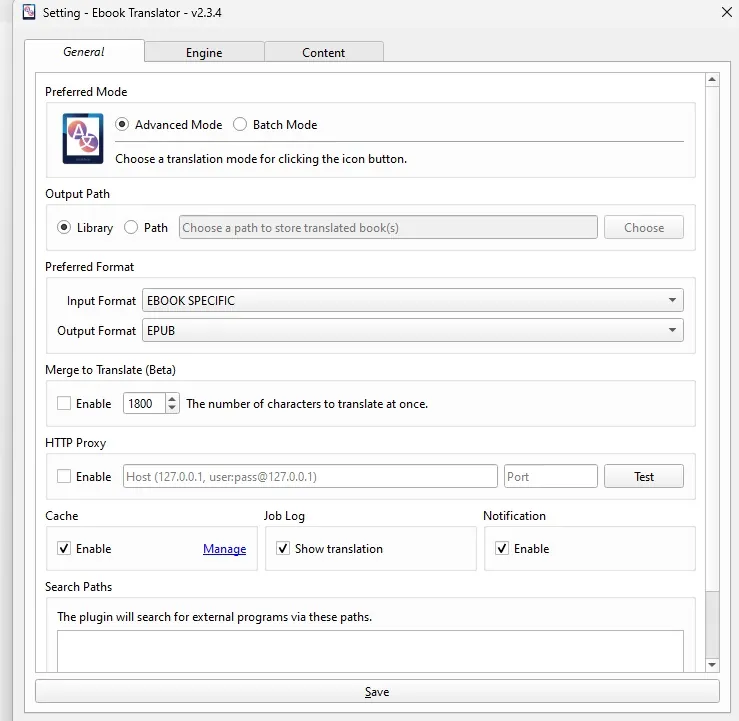
The first thing to do is to go to the plugin's settings and adjust a few things.
First, you need to set the output format, which I prefer to set to EPUB. But you can change this:
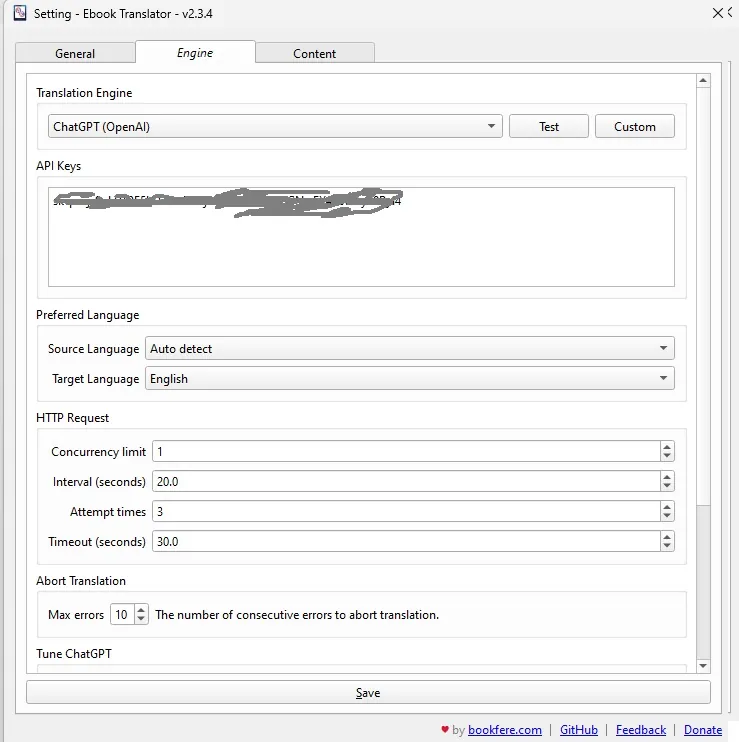
Then, in the second tab called “Engine”, I've chosen to use OpenAI for translation:
As you'll see, you'll need to use ChatGPT's translation tool for this to work. You'll need to get an API key from OpenAI, which you'll fill in here (and we'll see how much it costs later).
To configure OpenAI and ChatGPT, go to their site and pay a few euros: https://platform.openai.com/docs/overview
You'll find many articles and videos explaining how to do it, and in the video at the end of this article, you'll see how I did it and how I set it up.
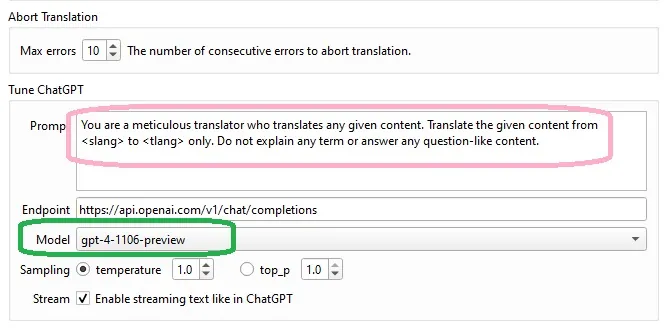
Another very important element in plugin configuration is the Model version used.
For this test, I chose a version of GPT-4, which is quite powerful for translations. If you want to save money, you can use a version of GPT-3.5, which will be less expensive, but which may provide a poorer translation.
In addition, you can also set the “prompt”, i.e. the instruction to be given to OpenAI to perform the translation.
I haven't tested this, but I've read that it's possible to get a better translation by requesting a translation in an author's style.
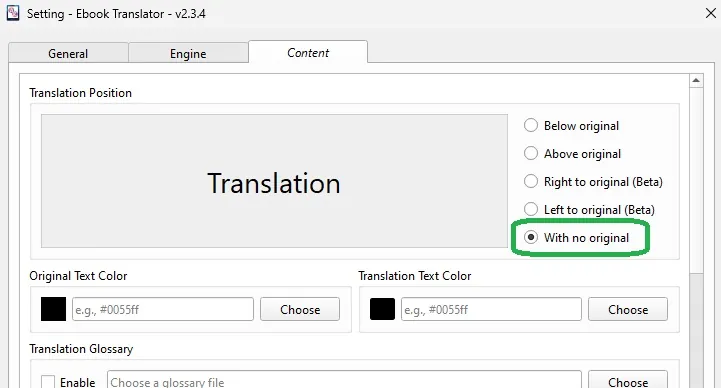
Finally, in the “Content” tab, select “With no original” to obtain the new ebook with only the translation and no original text.
Once you've configured everything, you can save the settings and move on to the next step.
Using Ebook Translator
You'll need to select the book to be translated.
For this tutorial, I've decided to use a short text by Lovecraft called Dagon. This text is in the public domain and I'll be making the translation available in some way.
So, we've got a 4 or 5 page text in English, in fairly strong language.
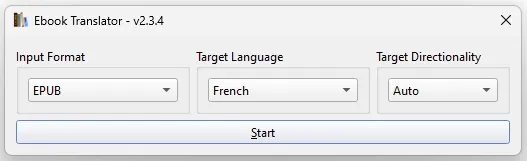
We select the book in the Calibre library and press the plugin's translation button. A small window appears, asking you to select the translation "target" language.
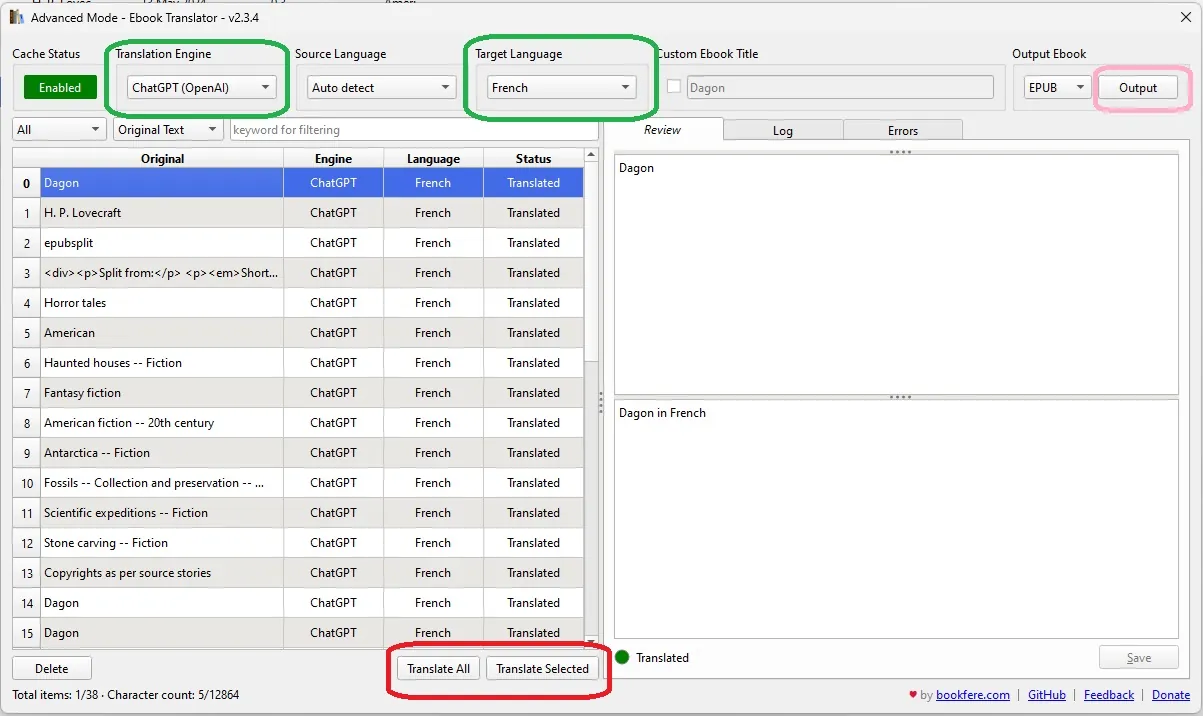
A large window then appears, listing (on the left) the chapters of the book and the available translation (on the right) for each sub-section.
There are also various buttons, and I've framed the important parts in the screenshot.
So, here's what you need to do:
Select the translation engine (OpenAI in my case)
Select target language: French
Select source language: English
Next, you'll need to select the parts of the book you want to translate: you can use the “shift” and “control” keys on your keyboard to select multiple parts, or simply choose to translate the whole thing.
Once you've done this, click on one of the “Translate selected” or “Translate all” buttons.
A slow but fairly accurate translation
Now we have to wait. And that takes a long time. In my example, the whole process took around 15 minutes. Which is a lot for a 5-page book.
It has to be said that I use the OpenAI translation tool, which is one of the slowest. But you can also set up another, more specialized tool like Deepl – which may cost you less or more too.
Once you're done, click on the button at the top right called “Output” to launch the creation of the new ebook, which you'll see appear in your library once the process is complete.
You can then consult the book to observe the result in greater detail.
And I think the result is just fine. In any case, it's readable, and even if there are a few passages that are a little heavy or approximate, you can read the text without any problem.
How much does it cost to translate an ebook automatically?
Now it's time to add up, since this process has a cost.
I spent $0.17 in OpenAI credit to translate this text. I therefore estimate the translation cost at $0.03 – $0.05 per page of text.
If you want to translate a 300-page ebook, it will cost you between $9 and $15 using the configuration I've suggested. That's a bit high for a reader, but it's an interesting first draft for a publisher who wants to propose and work on a translation of the book – which will then have to be proofread and corrected.
Writing a novel is a dream for many, and getting published even more so. With the development of digital reading and ebooks, it’s becoming easier and easier to distribute and sell ebooks (some even become millionaires, as you’ll read in this article).
Contrary to popular belief, writing the first draft of a book, novel or essay is quite easy.
All you need to do is draw up a plan and think in terms of the number of words to be written per day.
Here’s the word count for a novel:
Minimum: Around 40,000 words is the absolute minimum for a novel. It would be on the very short side, but some publishers might consider it.
Average: Most novels fall between 70,000 and 100,000 words. This range gives you room to develop characters, plot, and setting.
Genre can affect length: Some genres, like romance, can be shorter (around 50,000 words) while fantasy or historical fiction may be longer (up to 120,000 words).
And here’s the calculator to work out how many words you need to write per day to get to the end of your book:
<form id="word-count-form">
<label for="novel-length">Target Novel Length (words):</label>
<input type="number" id="novel-length" name="novel-length" min="40000" value="40000" required>
<br>
<label for="writing-days">Number of Writing Days:</label>
<input type="number" id="writing-days" name="writing-days" min="1" value="20" required>
<br>
<button class="submit success button" type="submit">Calculate Daily Word Count</button>
</form>
<p class="label" id="result">You need to write approximately 2000 words per day to complete your novel in 20 days.</p>
<script>
const form = document.getElementById(‘word-count-form’);
const result = document.getElementById(‘result’);
form.addEventListener(‘submit’, function(event) {
event.preventDefault();
const novelLength = parseInt(document.getElementById(‘novel-length’).value);
const writingDays = parseInt(document.getElementById(‘writing-days’).value);
if (novelLength < 40000) {
result.textContent = "Novel length must be at least 40,000 words.";
return;
}
const dailyWordCount = Math.ceil(novelLength / writingDays);
result.textContent = You need to write approximately ${dailyWordCount} words per day to complete your novel in ${writingDays} days.;
});
</script>
As you can see you only need to write for a mounth in order to write a short novel!
The Pocketbook e-reader range is getting bigger every day, or at least that’s the impression I get from regularly visiting their website. The announcement of a new reader, the Pocketbook InkPad Eo, comes as no surprise, and we’ll see what this machine has in store for us.
E Ink has been at the forefront of e-ink technology for years, and their Kaleido color displays have been a popular choice for e-readers. However, with the recent release of the Kaleido 3, it’s time to take a look at how these two generations of displays compare.
Real-World Comparison
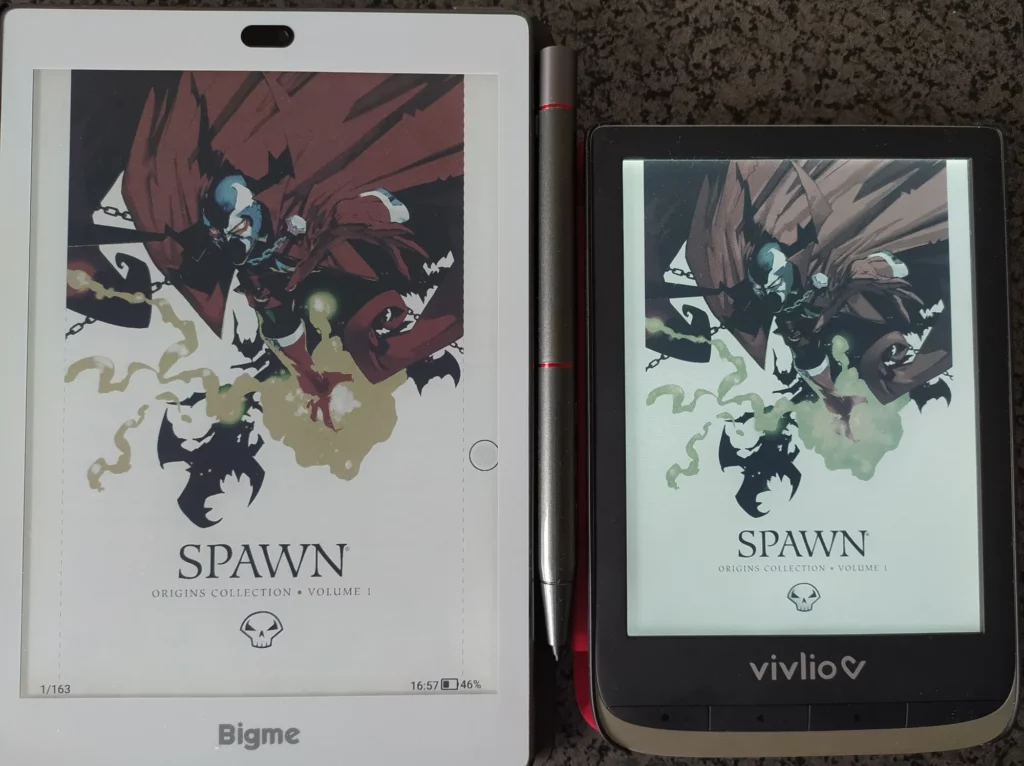
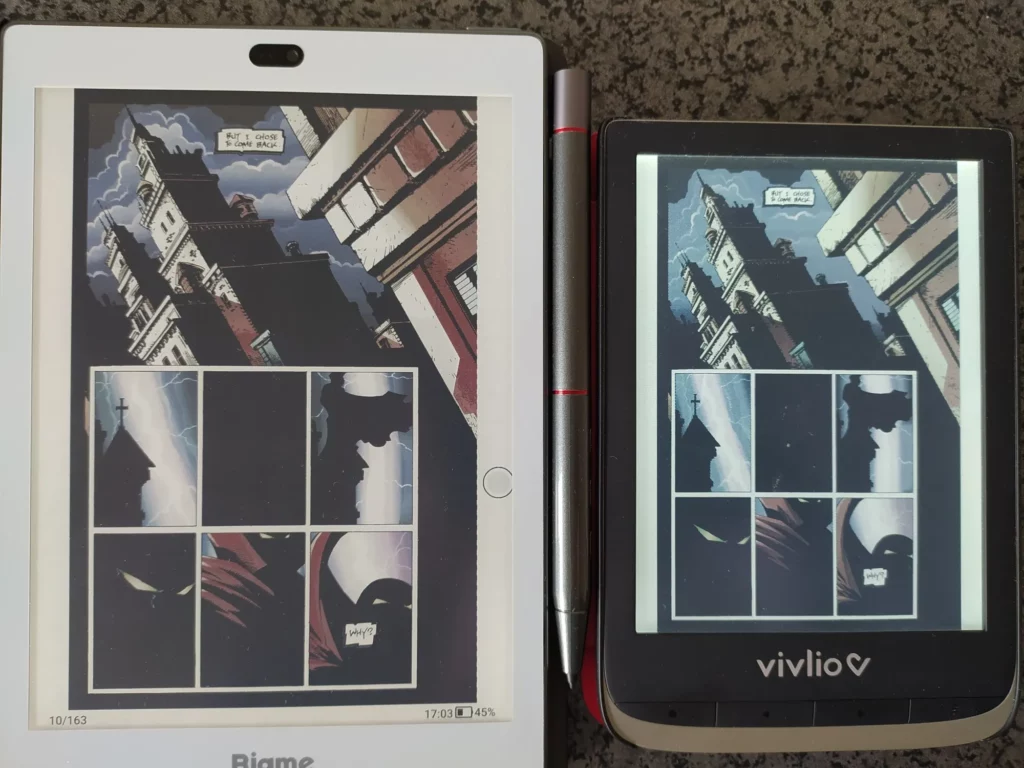
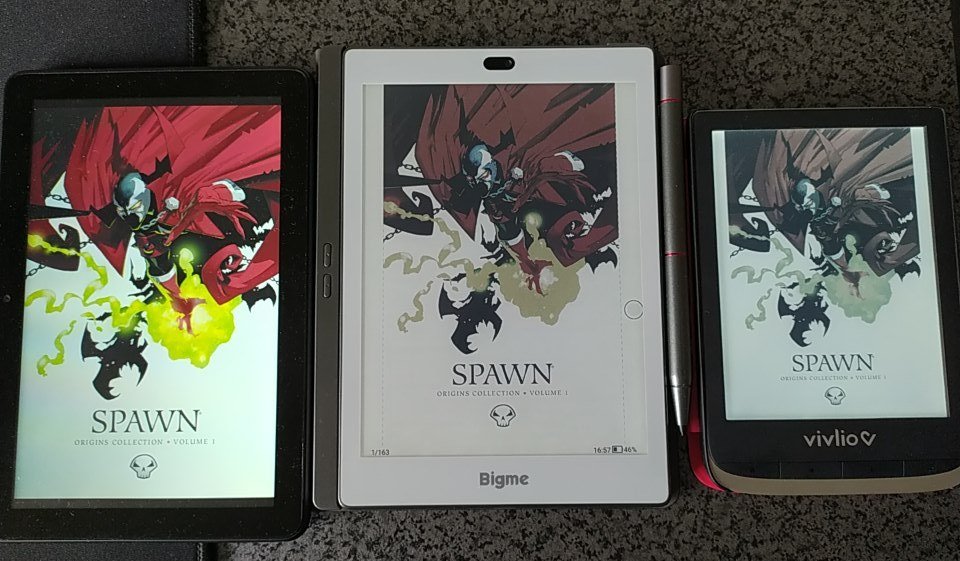
To get a better sense of the differences between Kaleido 1 and Kaleido 3 displays, I compared two e-readers: the Vivlio Color (which uses a Kaleido 1 display) and the Bigme S6 Color+ (which uses a Kaleido 3 display).
Note: the Vivlio Color is a Pocketbook Color with a Kaleido 1 screen rebranded for the french market. It is technically the same as a Pocketbook Color.
Picture: Kaleido 3 (left) and Kaleido 1 (right)
As you can see, the Kaleido 3 display on the Bigme S6 Color+ produces colors that are significantly deeper and more varied than the colors on the Vivlio Color’s Kaleido 1 display.
The text on the Kaleido 3 display is also sharper and easier to read.
Comparison with Tablets
While tablet displays offer even more vibrant colors, it’s important to remember that e-ink displays are designed to mimic the look of paper.
As a result, the colors on e-ink displays are less harsh and more eye-friendly for long reading sessions.
As you can see in the image above, the tablet’s LED display produces a much higher contrast than the e-ink displays. However, the colors on the tablet are also oversaturated and "bleed" together, making the image look less natural.
Comparison with Printed Paper
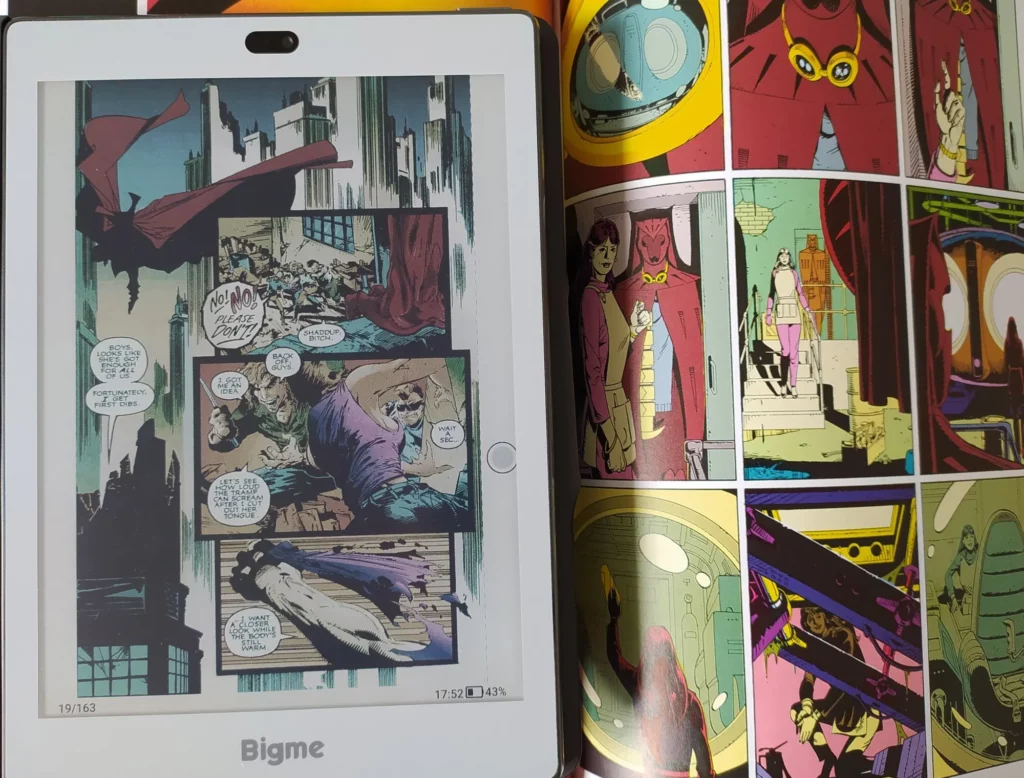
When compared to printed paper, the Kaleido 3 display on the Bigme S6 Color+ comes surprisingly close.
The colors are not quite as rich as the printed paper, but the overall reading experience is very similar.
Conclusion
The Kaleido 3 display is a significant improvement over the Kaleido 1 display. The colors are richer, the text is sharper, and the refresh rate is faster.
If you’re looking for the best possible e-ink reading experience, then a Kaleido 3 display is the way to go.
While the Kaleido 3 technology is mature, there is still room for improvement. I would like to see even richer colors, a higher resolution, and an even faster refresh rate in future generations of e-ink displays.
Overall, I am very impressed with the Kaleido 3 display. It is a major step forward for e-ink technology and I believe that it will continue to improve in the years to come.
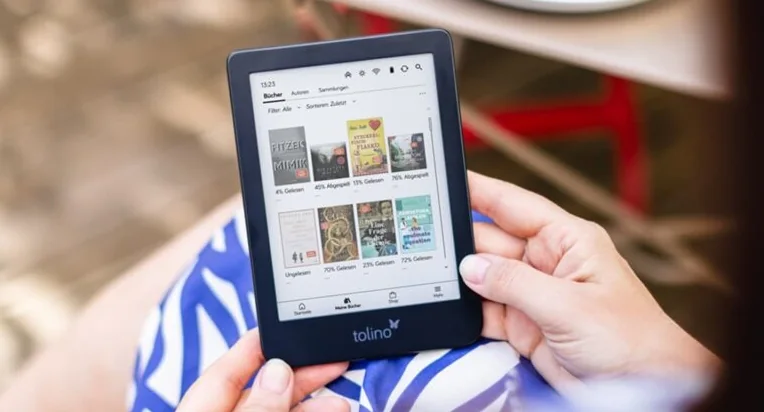
This will come as no great surprise to observers: the German e-reader brand Tolino is also announcing color e-readers: the Tolino Shine Color and Tolino Vision Color.
Tolino is a brand that only distributes in certain European countries, such as Germany. In recent years, it has signed a partnership agreement with Kobo, which supplies the e-readers.
The Tolino Shine Color is the Kobo Clara Colour with a 6-inch screen featuring Kaleido 3 color e-ink.
The Tolino Vision Color is an adaptation of the Kobo Libra Colour with a 7-inch Kaleido 3 color e-ink screen.
Tolino e-readers are not distributed in the USA. So you’ll only come across them on certain e-commerce sites that import e-readers, or on the shelves of large German bookshops.
If you come across one, don’t buy it.
The integrated bookshop is designed to provide books in different languages, but very few in English or Spanish. Compatible booksellers include Thalia, Weltbild, Bucher and Hugendubel.
As these are Kobo e-readers, there’s no point in switching to a Tolino e-reader when Kobo e-readers are readily available in the USA – and almost everywhere else.
A new version of the Tolino Shine, based on the Kobo Clara BW, will also be available.
The release date for the new Tolino e-readers is a little surprising. While the new Kobo e-readers arrive at the end of April, these Tolino Shine Color and Tolino Vision Color e-readers are not expected until May and June 2024.
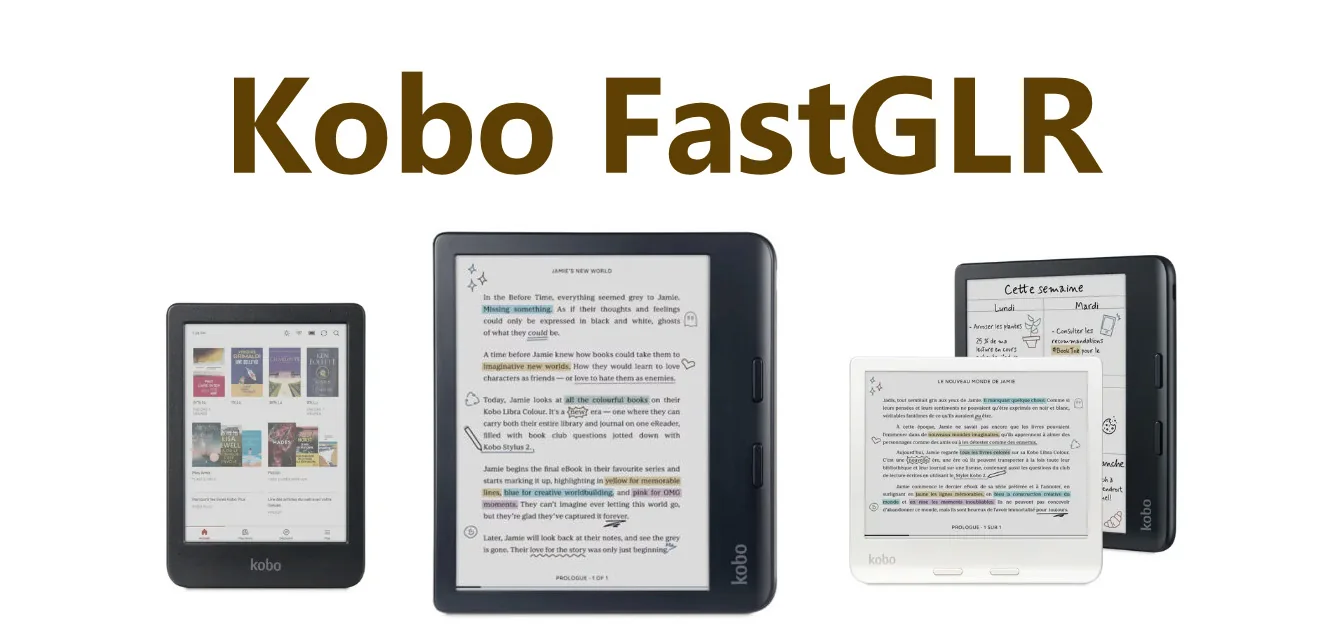
Have you heard about the latest Kobo color e-readers? They just rolled out a feature called FastGLR, and it’s a game changer. But what exactly is it, and why should you care, especially if you’re all about those vibrant color displays?
If you’re not familiar with E Ink, it’s pretty amazing. This display tech is designed to replicate that lovely ink-on-paper feel.
Unlike traditional screens like LCD or OLED that blast out light, E Ink screens reflect natural light, making them super easy on the eyes, even on sunny days! Plus, they’re fantastic for long reading sessions without straining your peepers.
But here’s the catch: E Ink has a bit of a slow side. That slower refresh rate is because of how it works: it's all about moving particles to create images. While this can be a bummer, it’s also what gives E Ink its standout features like incredible readability, low battery usage, and that cozy paper-like look we love.
Now, let’s chat about those Kaleido 3 e-Ink screens. They can be fine-tuned based on what you want to see. Think about it: if you prioritize rich color quality, you might have to deal with a slower refresh rate. On the flip side, if speed is your game, you might get decent colors but risk seeing some ghost images.
That’s where Kobo really shines with their new FastGLR technology! They teamed up with E Ink to create a system that ramps up the refresh rate while still keeping those colors bright and true. It’s a clever way for Kobo to set themselves apart from the crowd of e-reader brands out there.
It’s worth mentioning that while different brands may use the same E Ink tech, they each have their own twist on how text looks on the screen, thanks to their unique software, font choices, and systems like FastGLR.
Other players like Bigme and Onyx are also upping their game. For example, Onyx has a nifty feature called "Super Refresh BSR," which enhances color display while keeping the screen refresh nice and smooth.
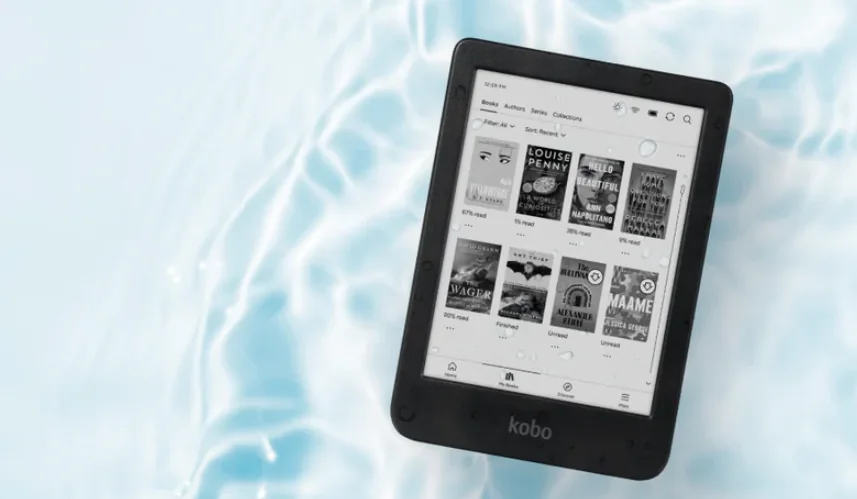
Kobo is hitting back with a new 6-inch e-reader with a black and white screen. Nothing new, you may ask? Well, this e-reader comes with a latest-generation E Ink Carta 1300 screen at an unbeatable price.