How can I use my e-reader with the Internet connection of my smartphone or iPhone?

hotspot smartphone and e-reader

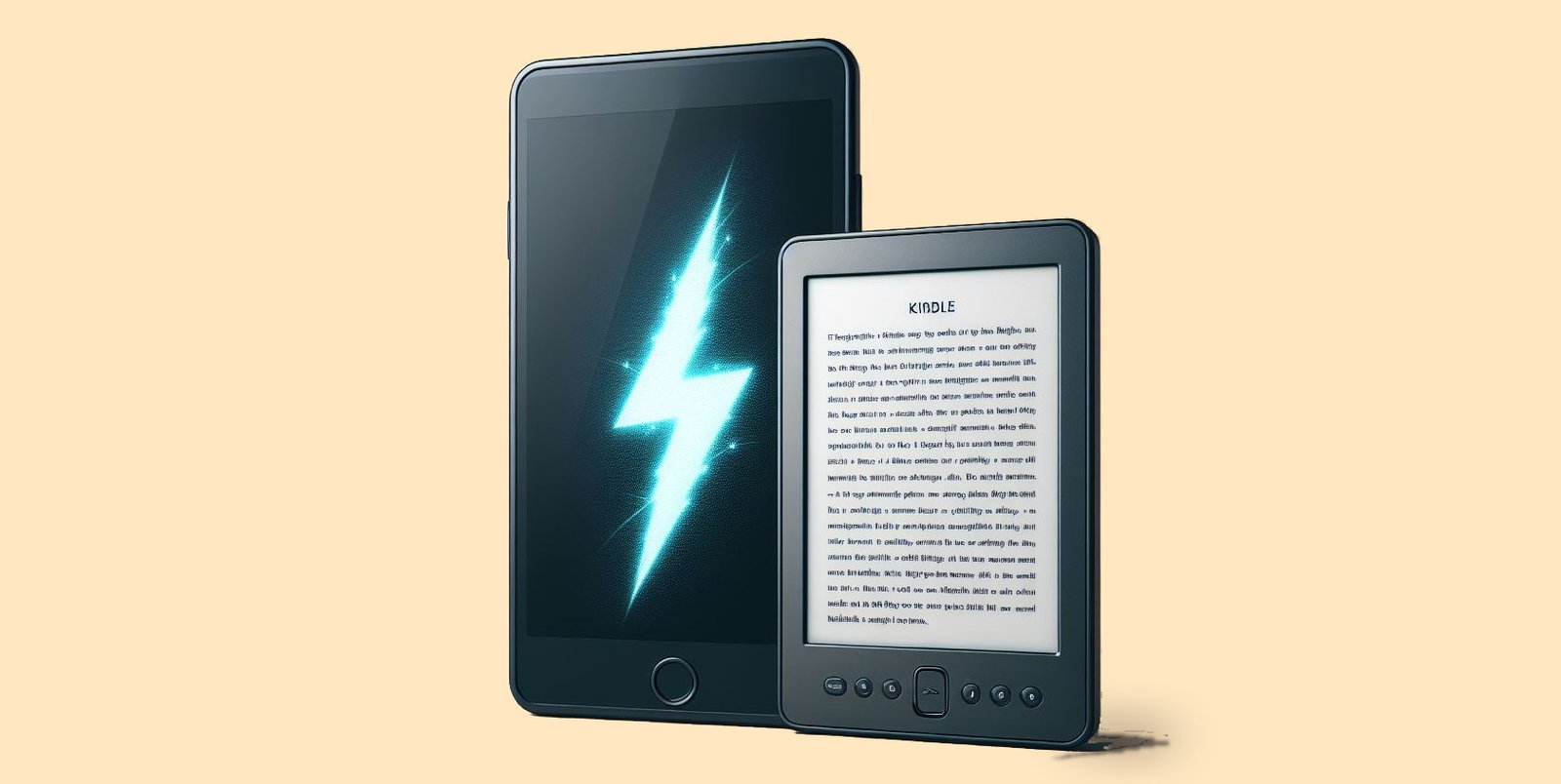
E-readers need an Internet connection to access online services such as synchronizing your reading or buying and downloading digital books (ebooks). But a WiFi connection isn’t always available.

This article explains how to use the connection on your Android smartphone or iPhone to connect your e-reader to the web.

Why connect your e-reader to the Internet?

Your Kindle, Kobo or Pocketbook e-reader doesn’t need the Internet to work.

So you can read books without needing Internet access, which is very practical when you’re on public transport, travelling or on vacation.

However, you may need an Internet connection to perform these operations on your e-reader:

  • Initial start-up after purchase
  • Log in to your Kindle, Kobo or Vivlio account to retrieve your digital books
  • Buy and download new ebooks
  • Synchronizing your reading

There are other things you can do with an Internet connection on your e-reader, such as accessing your Pocket account on a Kobo e-reader or consulting Wikipedia definitions, but these uses are marginal.

How do I use my smartphone Internet connection on my e-reader?

Check that you have Internet access on your smartphone

The first thing to do is to check that your Internet connection is working on your smartphone.

The easiest way to do this is to try a search on Google or Wikipedia (for example) and consult a website.

For this to work, you’ll need to have a 3G, 4G or 5G connection and not use your smartphone’s Wifi connection. If your smartphone is using its Wifi connection, the easiest thing to do is to connect the e-reader to the same connection.

Share a mobile connection by hotspot or tethering on Android

Next, you need to activate Internet connection sharing with your smartphone.

To do this, you’ll need to go to your phone’s preferences and request sharing.

Here’s how to do it on Android:

Settings > Wi-Fi Access Point / Hotspot > Mobile Wi-Fi Access Point / Hotspot (check "enable")

Configure the access point:

  • SSID: enter the name of your choice for this connection, e.g. "Nicolas’s smartphone Wi-Fi".
  • Password: enter a password of your choice.

Documentation: https://support.google.com/android/answer/9059108?hl=en

Here’s how to do it on iPhone:

Settings > Personal Hotspot

You’ll also need to set a password.

Documentation: https://support.apple.com/kb/HT204023

Connect your e-reader to the Wifi network of your Android smartphone or iPhone

Now that you’ve configured your smartphone for Internet connection sharing ("hotspot"), you can activate Wifi on your e-reader to connect it to your smartphone.

You’ll need to :

  • Activate Wi-Fi
  • Select the right Wi-Fi network to match that of your smartphone
  • Enter your chosen password

If all goes well, your e-reader is now connected to the Internet via your smartphone’s shared connection (also called "hotspot").

Don’t forget to disconnect your e-reader from the Wifi network and turn off your smartphone’s hotspot when you’re not using it – this is a power-hungry feature that will quickly drain your battery.
Onyx Boox Leaf 3 and Leaf 3C e-readers

onyx boox leaf 3 e-reader

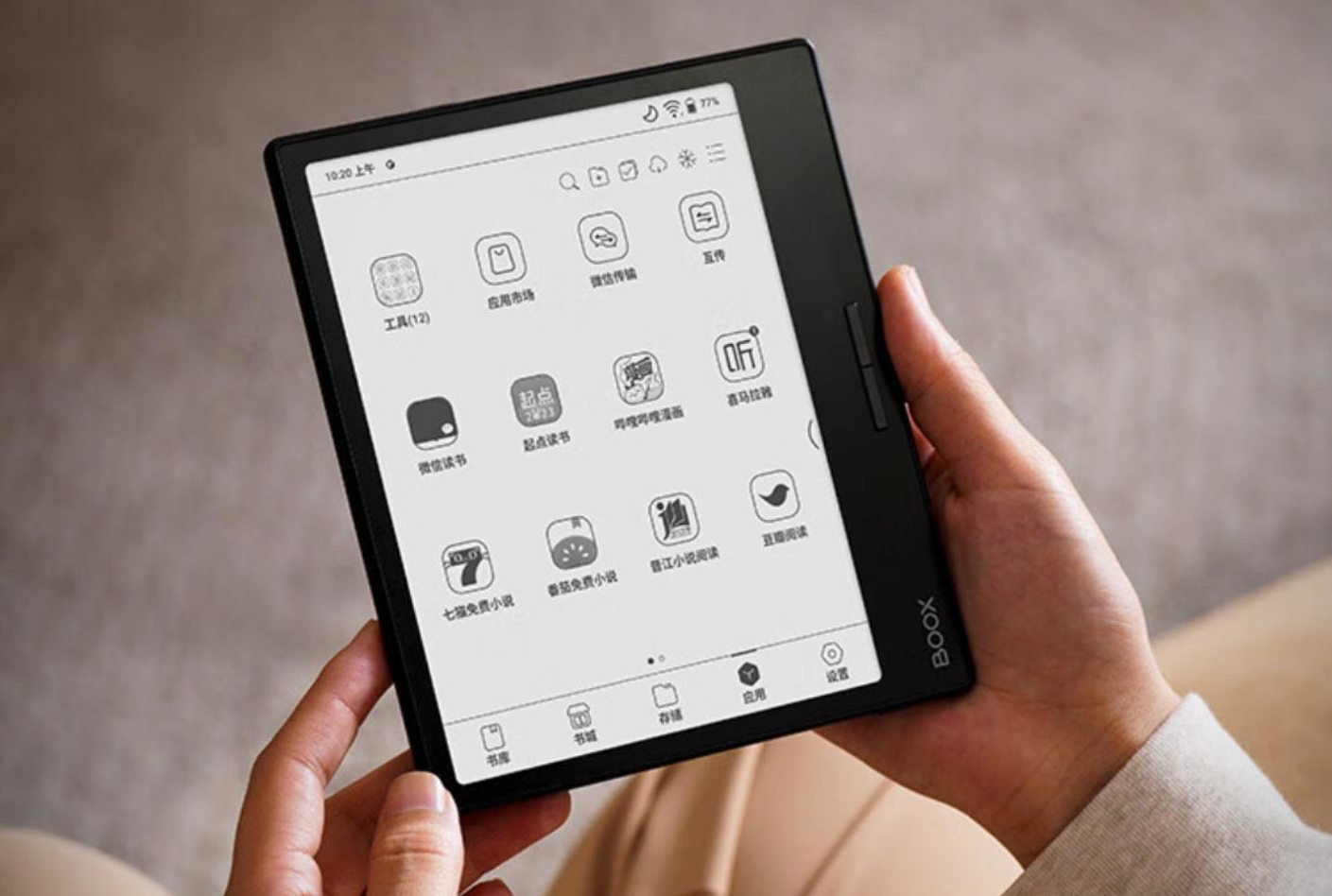
Onyx is a major player in digital reading in Asia, and regularly offers new e-readers with innovative designs and technologies. This time, we take a look at two interesting e-readers, the Onyx Boox Leaf 3 and Onyx Boox Leaf 3C.

As their names suggest, these Onyx Boox Leaf e-readers are two sisters who share a broad base of technical features.

The Leaf 3 features a 7-inch e-ink screen in black and white, while **the 3C comes with a Kaleido 3 color e ink screen.

Both e-readers are powered by a fast ARM processor (octa-core) and 3 GB of RAM.

The design is fairly classic for a 7-inch e-reader, as it follows the codes established by the Kobo Libra 2 and Kindle Oasis, i.e. an asymmetrical design with buttons placed next to the screen for ease of handling.

As always with Onyx, the operating system is based on Android, and offers a range of applications. It is undoubtedly possible to add applications by downloading APK files or via the Onyx Store present in this e-reader's software suite.

onyx boox leaf 3 e-reader

Screen-wise, there are two E Ink screens to choose from:

  • A Carta 1200 HD 300 PPI screen for the Onyx Boox Leaf 3
  • A Kaleido 3 screen for the Onyx Boox Leaf 3C.

It should be noted that these e-readers are also not available everywhere, and that you'll have to wait until the end of February 2024 or March 2024 to be able to buy the Onyx Boox Leaf 3C (the color version).

See the ONYX BOOX e-readers on Amazon.com

My opinion on these Onyx Boox Leaf 3 and Onyx Boox Leaf 3C e-readers

As much as the Onyx Boox Leaf 3 with its 7-inch black and white screen offers a solution and an alternative to the Kobo Libra 2 and Kindle Oasis, I find it hard to understand the positioning of the color version.

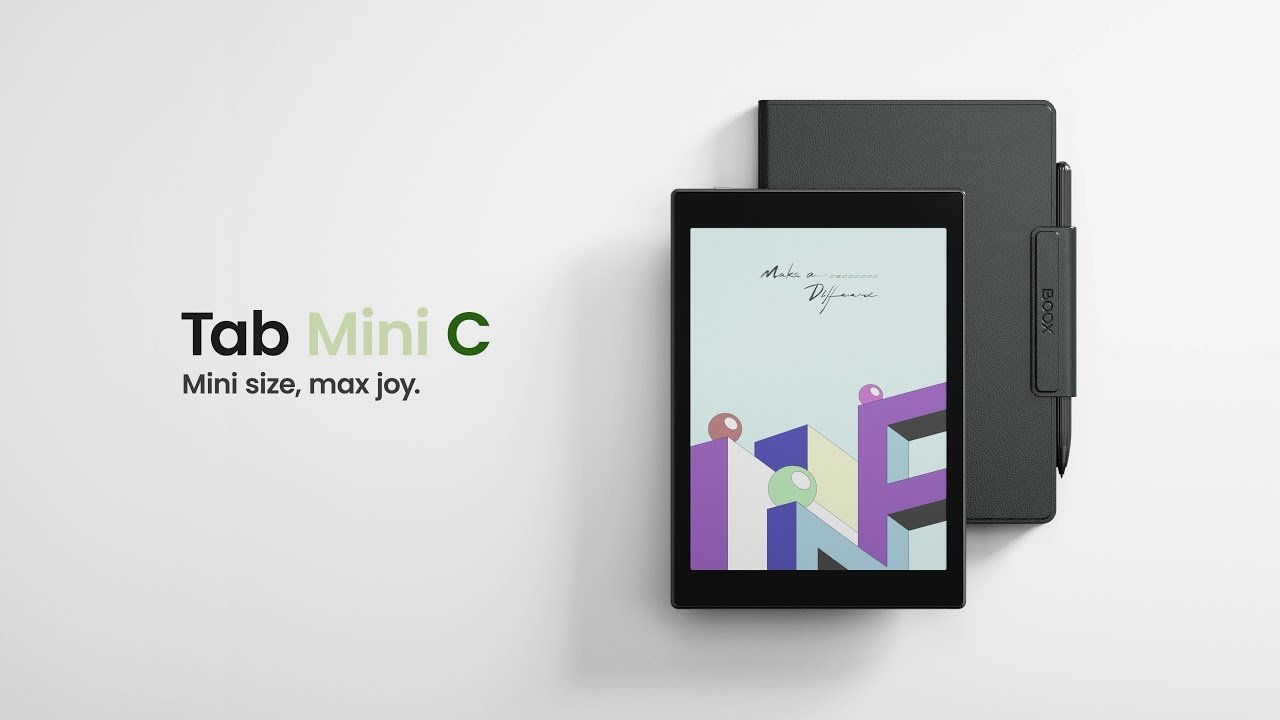
In fact, Onyx already offers the Onyx Boox Tab Mini C, which is a Kaleido 3 color e-reader with a larger 7.8-inch screen.

onyx boox tab mini c

The latter seems to me far more relevant for enjoying ebooks and other content in color than the Leaf 3C (which is still not out, by the way).

What's more, Onyx e-readers are imported devices mainly reserved for the Asian market. There are still a few problems with the translation of their interface (even in English), and there are occasional bugs in the applications.

While bugs in the reading applications can be resolved by installing a better reading application (either with the Android Store provided, or by loading an APK), this is not always the case with the operating system, as these Onyx readers are rarely updated.

If you're looking for a good e-reader, I'd recommend checking out our guide to the best e-readers around, and choosing a model designed by a reputable brand that officially distributes its e-readers in the USA.

Kindle Oasis: Amazon’s mystery e-reader for 2024

kindle oasis e-reader 2024

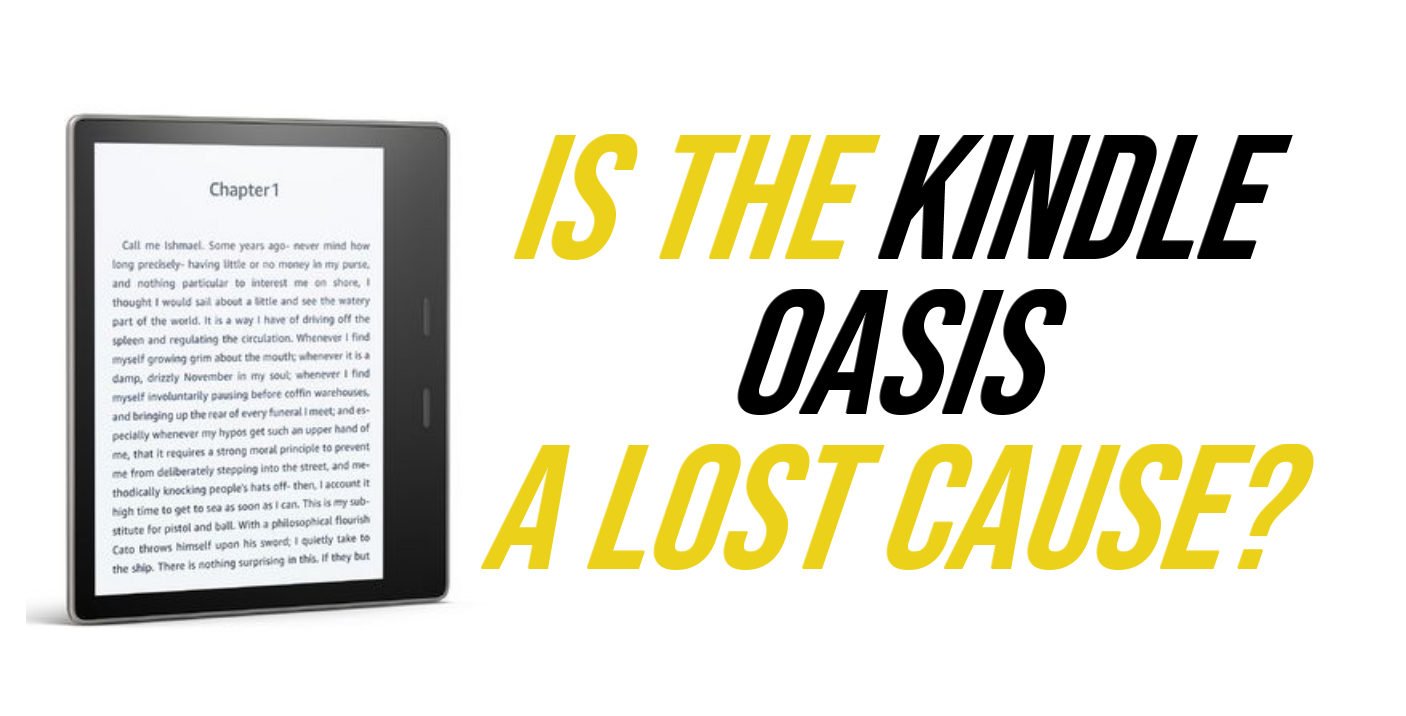
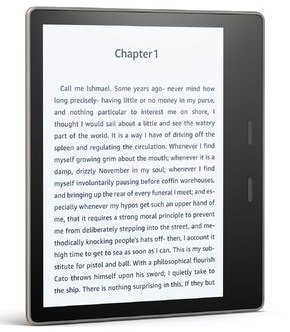
The Kindle Oasis is Amazon's top-of-the-range portable e-reader. With a price tag approaching $300, it's also one of the longest-running Kindle e-readers.

But for the past few years, it seems that Amazon has been floundering, and doesn't really know what to do with the Kindle Oasis.

The Kindle Oasis is regularly out of stock

Indeed, the Kindle Oasis is regularly out of stock. Each time, we think this means a new version is on its way. But it's always a disappointment when, a few weeks later, the Kindle Oasis is available again, unchanged.

It turns out that Amazon only manufactures this Kindle Oasis in small quantities, and the Kindle Oasis is often out of stock all over the world at the same time, and not just in the USA.

Now, as it turns out, this e-reader has not been available for sale for several weeks (probably since Christmas 2023). And, as I write these lines, the Kindle Oasis is still not back in stock…

Will Amazon finally make a final decision on the Kindle Oasis?

Nothing is less certain, even if Valentine's Day is of course a special time for sales of e-readers, which make a very popular gift during this period, as the discounts offered every year show.

What can Amazon do with the Kindle Oasis?

kindle oasis e-reader

Amazon has several options for the Kindle Oasis, and it seems that all of them are on the table today, making it difficult to make reliable predictions.

Firstly, Amazon may simply choose to remove the Kindle Oasis from the range. The Kindle Paperwhite and its 6.8-inch screen offer a similar size to the 7-inch Kindle Oasis. The Kindle Oasis is therefore less justified in the Kindle range in 2024.

Secondly, the Kindle Oasis will return to stock unchanged.

Thirdly, the Kindle Oasis will return with improved features (new version). It has to be said that the idea of a new, updated version of the Kindle Oasis is an interesting one. A Carta 1300 e-ink screen could also make an appearance in this hypothetical new model.

Whatever happens, Amazon is leaving the way clear for the Kobo Libra 2, which also boasts an excellent 7-inch screen, a lower price, page-turning buttons and is widely available around the world.

🔎 Find your dream e-reader

e-reader search engine

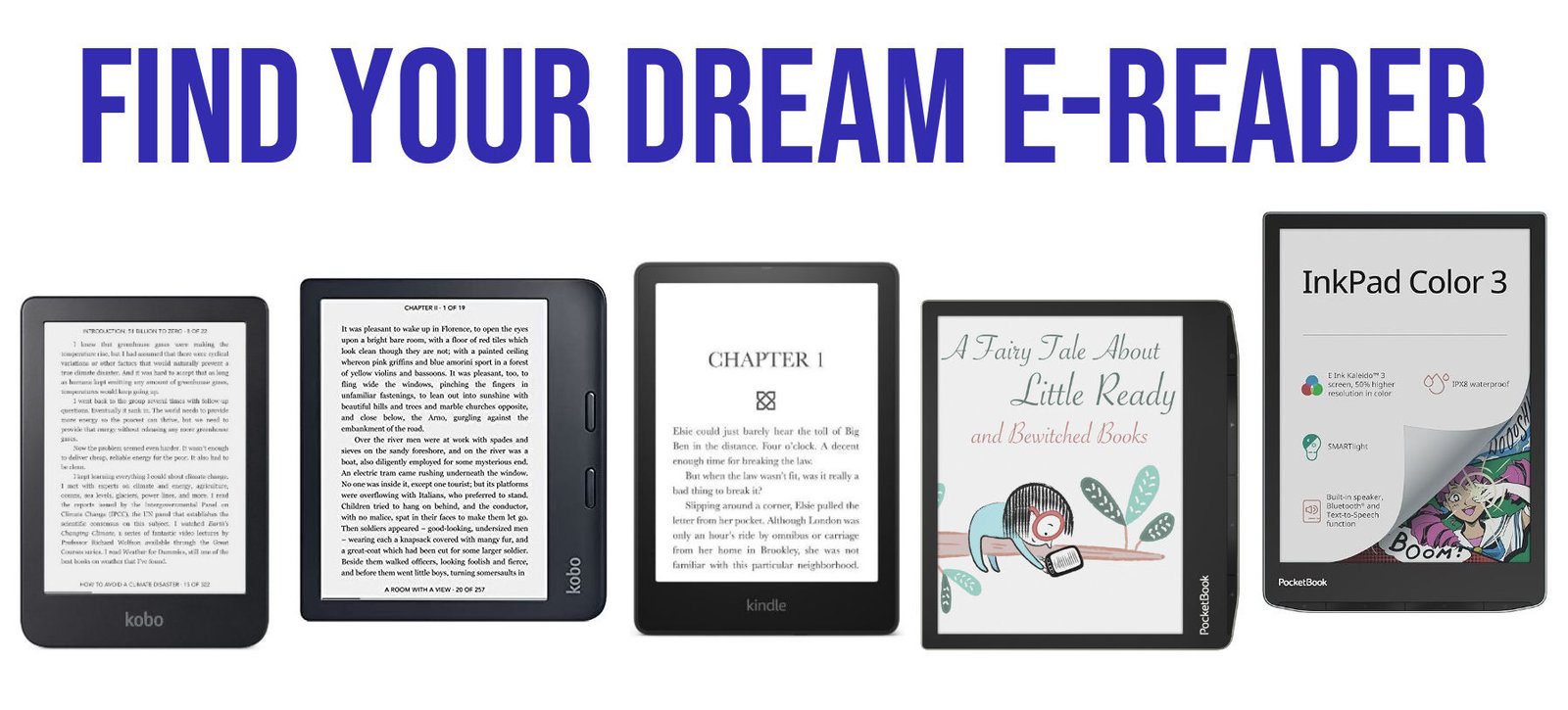
Find the e-reader of your dreams thanks to our tool that lets you filter and search for e-readers with the features that suit you best. You can use our tool to get all the good e-readers for your criterias.

!ALL_EREADERS!

Why not all the e-readers are in this search engine?

We've selected the best e-readers available today.

We've deliberately avoided e-readers that are difficult to find outside the USA, or that are only sold via Chinese marketplaces.

What's more, we've selected e-readers from brands that have already been tested on the site (see e-reader reviews) and have already proved their worth.

How to look for a specific e-reader?

If you know the brand of the e-reader simply type the brand in the search bar.

If you know the screen size, type the diagonal in inches like 7" for a 7" screen.

If you went an e-reader that can read EPUB, type "epub" in the search bar.

If you know the name, search for it (like paperwhite).

Why this online tool to search for e-readers?

Are you tired of scouring the internet for hours, trying to find the perfect e-reader that matches all your requirements? Look no further! Our innovative online tool is here to revolutionize your e-reading experience.

Simplify Your Search:

Gone are the days of endlessly scrolling through endless product listings and reviews. Our intuitive interface allows you to effortlessly filter through a vast array of e-readers based on your specific criteria.

Tailored Recommendations:

Whether you prioritize screen size, color options, supported ebook formats, or any other feature, our tool delivers personalized recommendations tailored to your preferences.

Explore Diverse Options:

With a comprehensive database of e-readers from leading brands, you'll discover a diverse range of options to suit every need and budget. From sleek and compact models to feature-rich devices, we've got you covered.

Save Time and Effort:

Why waste time on trial and error when you can find your ideal e-reader in just a few clicks? Our tool streamlines the selection process, saving you precious time and effort.

Make Informed Decisions:

Empower yourself with all the information you need to make informed decisions. Detailed specifications, user reviews, and expert insights are readily available to help you choose with confidence.

Start Your Journey:

Ready to embark on a seamless e-reading journey? Simply input your preferences, hit search, and let our tool match you with the perfect e-reader companion. Say goodbye to compromise and hello to a world of reading enjoyment!

How to export Kobo highlights and annotation from your e-reader?

If you’ve got a Kobo e-reader, you’ve probably noticed that it’s impossible to export your notes and the bits of text you’re going to highlight.

Fortunately, there are solutions that allow you to retrieve notes from your computer for further editing, formatting or sending to someone else.

How do I take notes on a Kobo e-reader?

The first thing we’re going to look at is how to take notes (or annotation) on a Kobo e-reader.

It’s pretty straightforward.

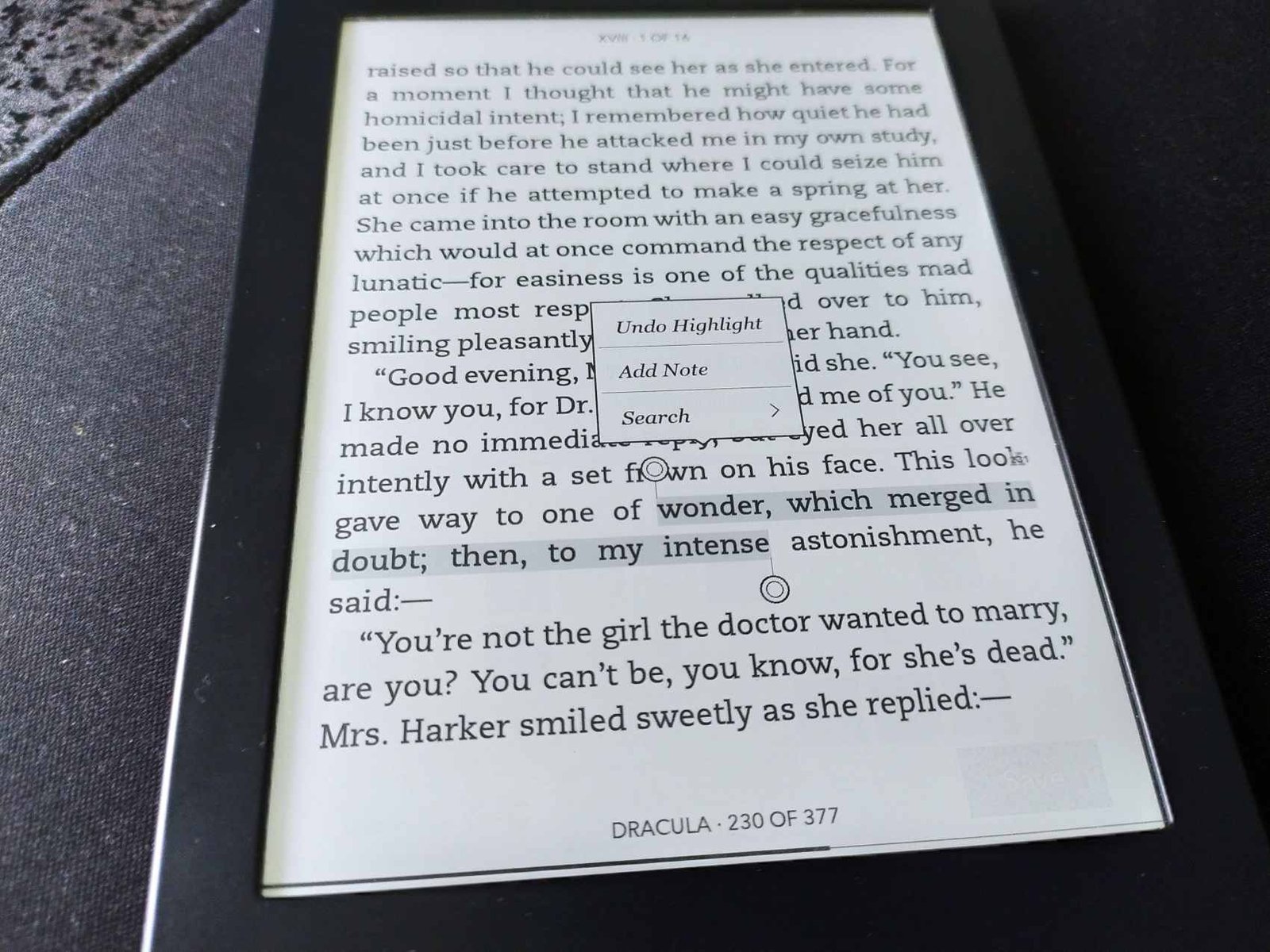
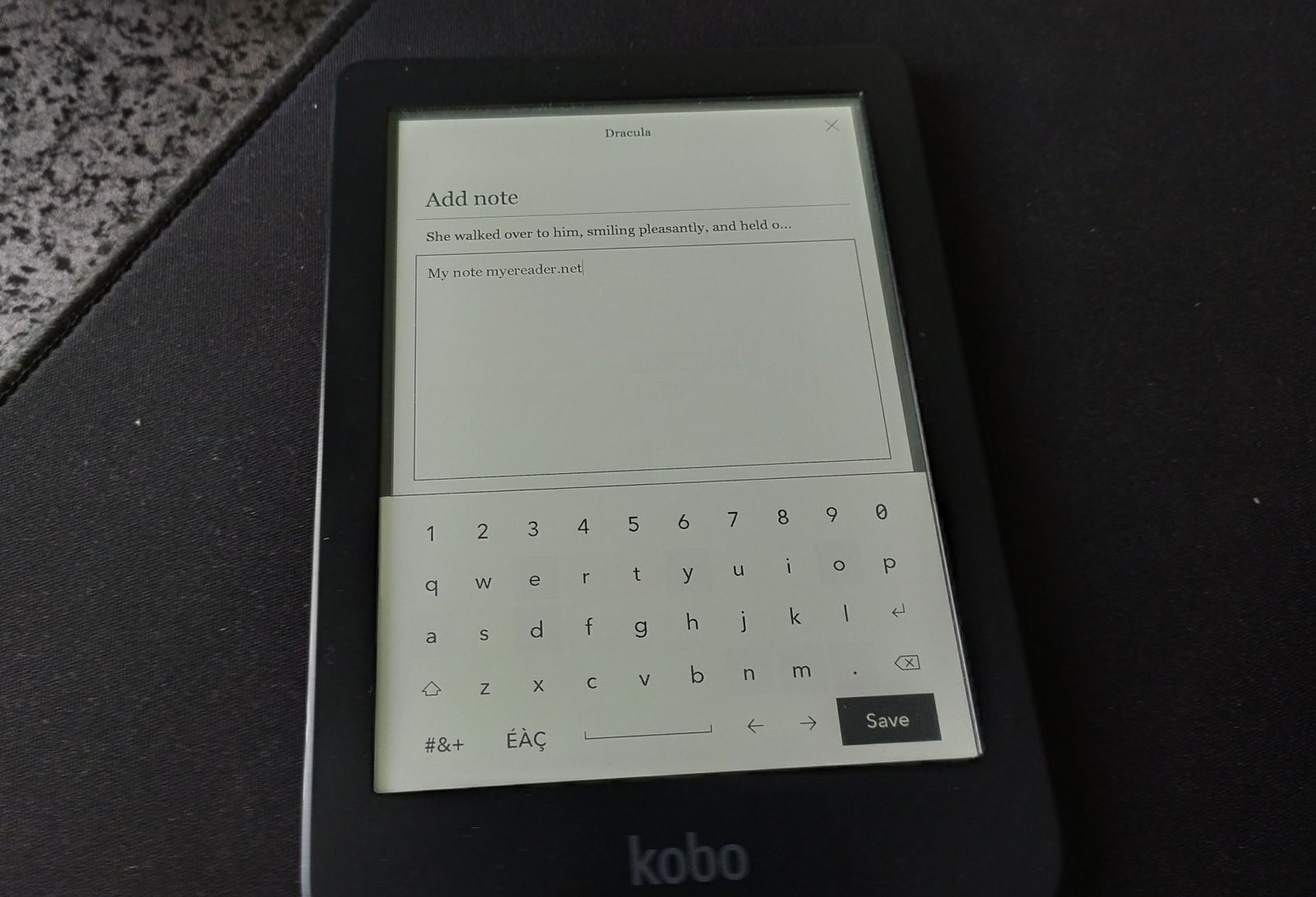
When reading a book, you can leave your finger pressed down on the screen to underline a word. To underline a passage or a complete text excerpt, slide your finger over the relevant words.

A menu then opens, allowing you to enter text.

add not and hightlight kobo e-reader

You can, of course, delete highlighted notes and extracts by pressing them to bring up the menu again and delete them.

How to enable export Kobo highlights and notes?

First, you need to enable annotation export to your Kobo e-reader.

First of all, you need to connect your e-reader to a computer to make its contents visible.

Next, go to the ".kobo / Kobo" folder.

You’ll see a file called "Kobo eReader.conf".

You need to edit the file to add a line of text. You can use the text-editing software of your choice. I recommend VSCode, which runs on all platforms (Windows, Linux and Mac) and is free of charge.

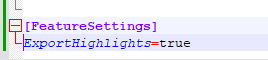
Using the editor, find the line containing the text [FeatureSettings].

There should be some text below this line (at least one line).

You must then add this text below the existing text:

ExportHighlights=true

Here’s what it looks like on my Kobo Nia in my text editor:

activate highlight export kobo

If you have no [FeatureSettings] in the file you can add it as showed in the last picture.

Now that this is done, you can eject your e-reader, which should no longer be connected to your computer.

How to export notes, highlighted extracts and annotations on your Kobo e-reader?

Now you can easily export your notes.

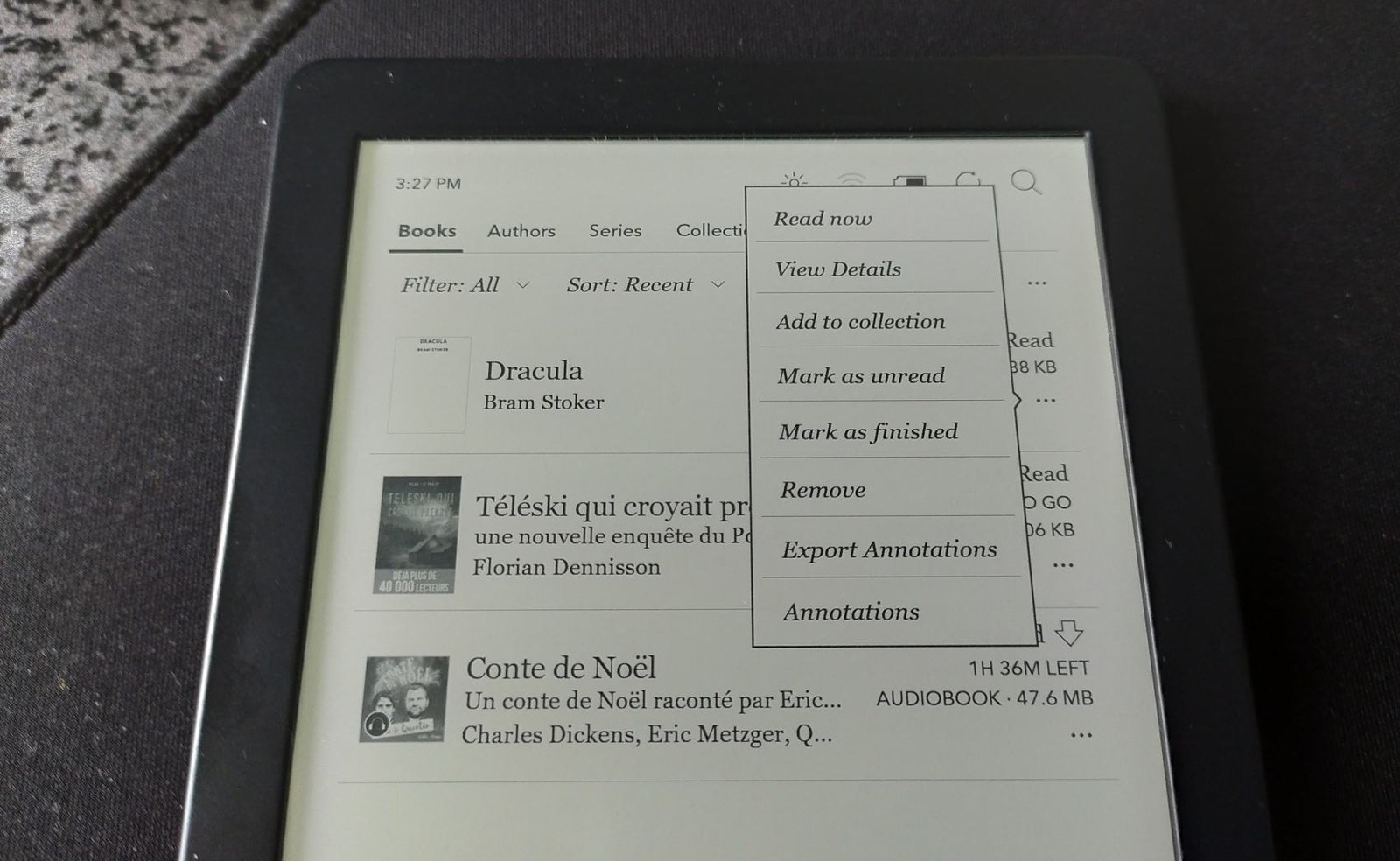
Go to the library and rest your finger on the cover of a book.

A menu appears and you need to select "Export annotations".

export notes for a book kobo e-reader

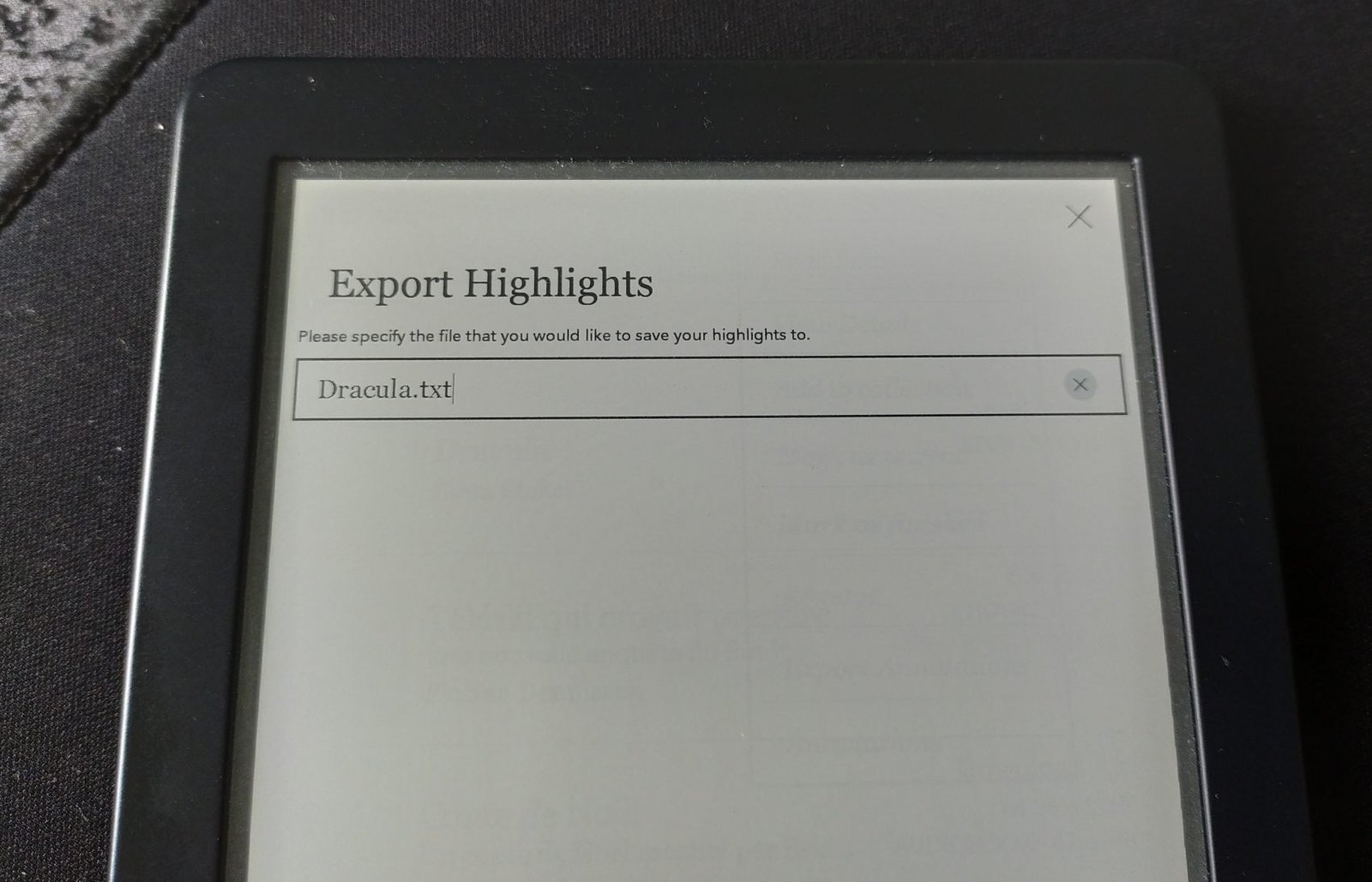
You then enter a file name (by default, the book name is used, which is very convenient):

export notes for a book kobo e-reader

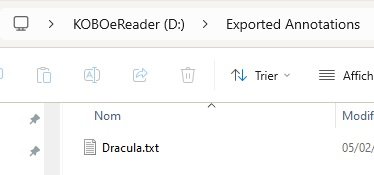
Once this has been done, the highlighted passages and annotations are saved in a file in ".txt" format.

Simply reconnect your Kobo e-reader to view the contents of the file, as you can see in this screenshot:

export kobo notes to file

The content is in the "Exported annotations" folder on your Kobo e-reader.

Vision Pro and ebook reading: Apple’s sad vision

apple vision pro is a sad device for ebook lovers

You’ve probably read or heard about the Apple Vision Pro. This device is an immersive headset that lets you work and play. But what about reading and ebooks ?

What is the Vision Pro?

Before getting to the heart of the matter, I confess to having trouble describing the Apple Vision Pro properly.

On the one hand, even though I haven’t tested it, I can see where Apple is going with this new device. On the other hand, I’m having trouble finding the right words and vocabulary to describe the Vision Pro’s features.

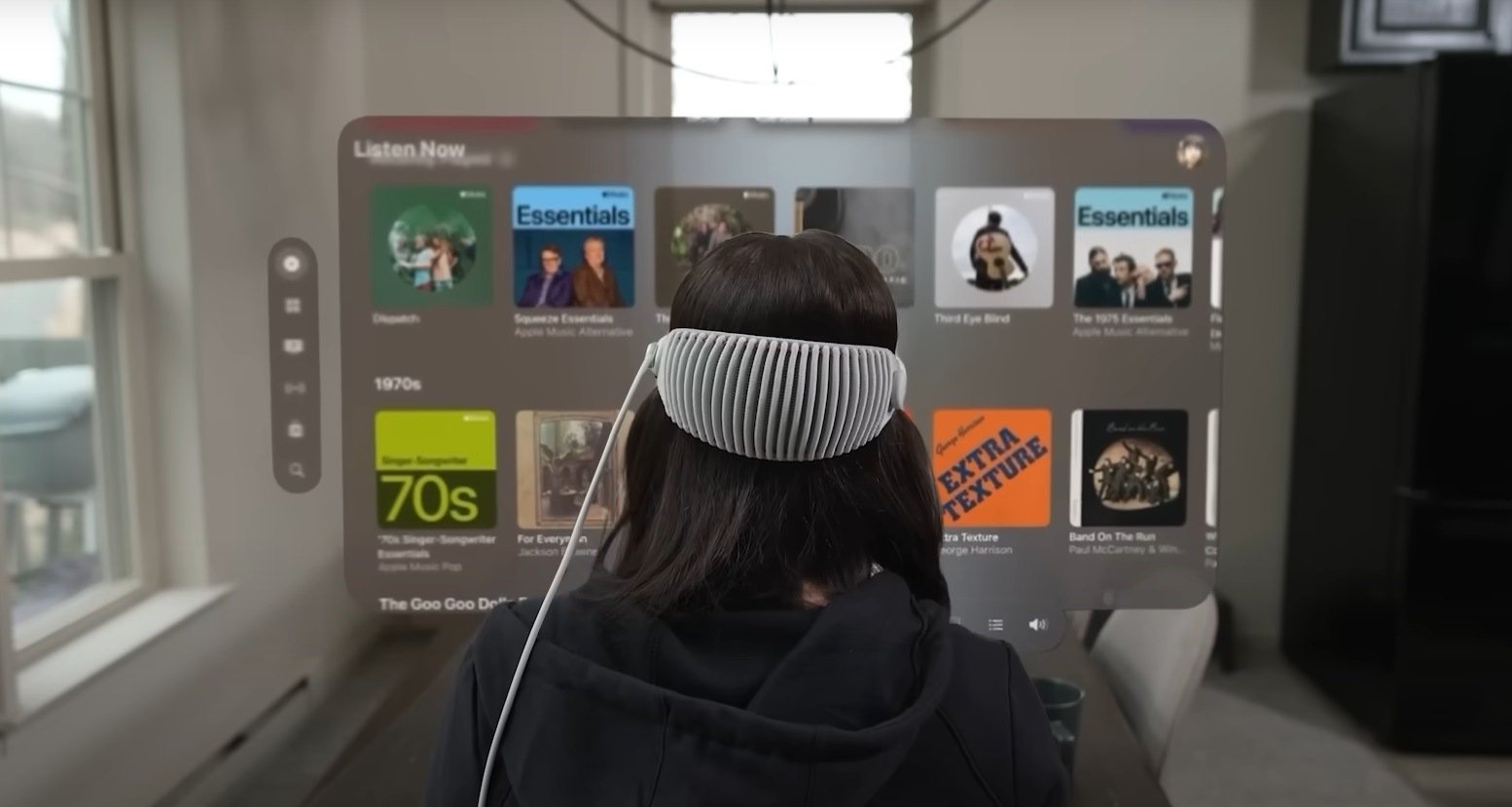
So, let me say that the Vision Pro is a headset that adds digital information to your environment.

In practice, when you wear this headset, you can bring up an Internet browsing window (Safari) in your living room. You’ll then see the Internet page "floating" above your table or displayed against a wall in your apartment.

You can then access a wide range of applications: professional tools (word processing, spreadsheets), entertainment (video) or social networking.

The applications are designed for the Vision Pro, and even if they’re not all available, Apple has done the work for its video application, which lets you watch a movie sitting in a cinema or in the countryside of Yosemite Park.

Apple Vision Pro and reading: is it possible?

Apple offers an Internet browser from the Vision Pro. This browser is based on Safari, which can read epub files, but transfers them to the Apple Books application (formerly iBooks).

Unfortunately, Apple didn’t see fit to launch its Vision Pro with a dedicated Apple Books application.

And it’s a fine example of the sad reality that Apple is once again neglecting reading on one of its devices.

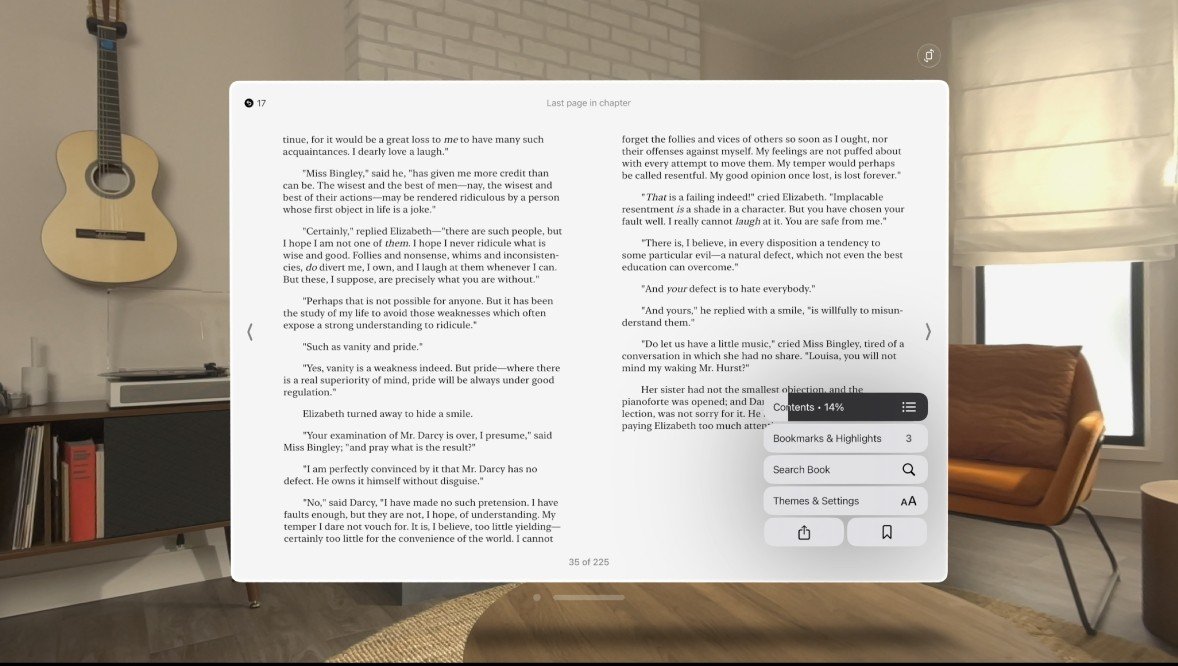
So, you’ll have to use the Apple Books app for iPad on your Vision Pro to start reading your ebooks.

Apple Books for iPad on Apple Vision Pro

The page size can then be perfectly adjusted with the right settings to make reading more enjoyable.

But the Apple Books application is designed for the iPad. And it’s far from being one of the best ebook-reading apps for tablet or smartphone (check out this list if you’re looking for something good).

What we end up with is an ebook-reading application that doesn’t fully utilize the capabilities of its medium, as is often the case with Apple.

Also, there’s no Youtube or Netflix application on Vision Pro (for the moment), and you have to use these services in your browser.

So I’m wondering about the future availability of Kindle or Kobo applications on Vision Pro. Will this be possible?

For the time being, we’ll have to make do with the iPad versions of these reading applications on the Vision Pro, but if it proves successful, it’ll be interesting to see what Kindle or Kobo come up with in terms of reading immersion.

I think the Vision Pro offers an interesting and immersive technology for reading comics and manga, and I hope Apple will take advantage of this device to experiment in this area (which I doubt, of course).

Official website: https://www.apple.com/apple-vision-pro/

Affordable but limited mini e-readers (DLHiFi, Onxy, Fanmu, etc.)

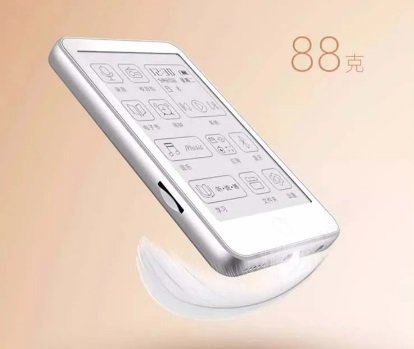
tiny ereader DLHiFi, Onxy, Fanmu

A few months ago, I tested a small-format, affordable e-reader from Woxter (a Spanish brand), and on Reddit I discovered a whole range of mini e-ink e-readers with screens smaller than 4 inches.

These e-readers are distributed on e-commerce sites under brand names such as Onxy (not to be confused with Onyx), DLHifi or Fanmu.

They all share the same specifications, or almost:

  • a small 3.52" e-ink screen
  • 240 x 360 pixel resolution
  • Bluetooth 5.3 connectivity
  • 850 mAh battery
  • USB-C port
  • Support for ebook format: TXT
  • Support for audio formats: MP3, FLAC, AAC, WAV, APE, WMA
  • 32 GB of storage
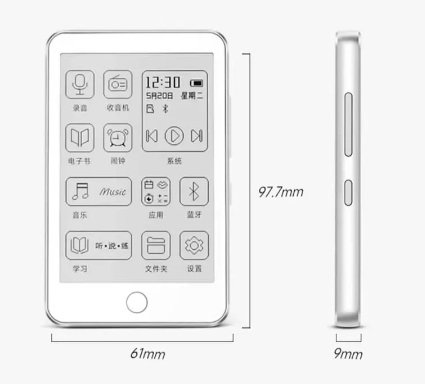
  • Weight: 88 grams
  • Dimensions: 97.7mm x 61mm x 9mm

In short, these devices are tiny and fit easily in the hand or pocket.

The specifications reveal that they only support the TXT format for reading. This makes them very limited e-readers, far from the possibilities offered by major brands such as Kindle, Kobo, Nook or Pocketbook.

To read an EPUB file on one of these little e-readers, you'll need to use Calibre software and convert the ebook to TXT format (which is easy to do with the conversion options offered by the software).

The TXT file must then be transferred to the e-reader by connecting it to your computer and copying the file to its storage medium.

tiny ereader DLHiFi, Onxy, Fanmu

With more advanced audio compatibility (and Bluetooth), these devices are primarily designed for reading audiobooks or music files.

On the technical side, there's a 320 x 240 pixel e-ink screen. To the best of my knowledge, these seem to be small screens designed primarily for display purposes.

Resolution is therefore minimal, and text display will be rather complicated, but not impossible. Needless to say, the reading experience will be a far cry from what a true, more complete e-reader is capable of offering.

So why am I telling you about these mini e-readers?

Well, because the price is pretty impressive: you can pick one up for around $50 (sometimes less, depending on the brand) on a sales site like AliExpress. So, if you like minimalist and different reading experiences, this could be an intriguing and fun gadget to get your hands on.

Nevertheless, you can always get the Woxter Scriba e-reader on Amazon (reviewed on the site) for a few dollars more which will give you a much better reading experience – without audio capability though.

NXTPAPER 3: finally a decent color screen?

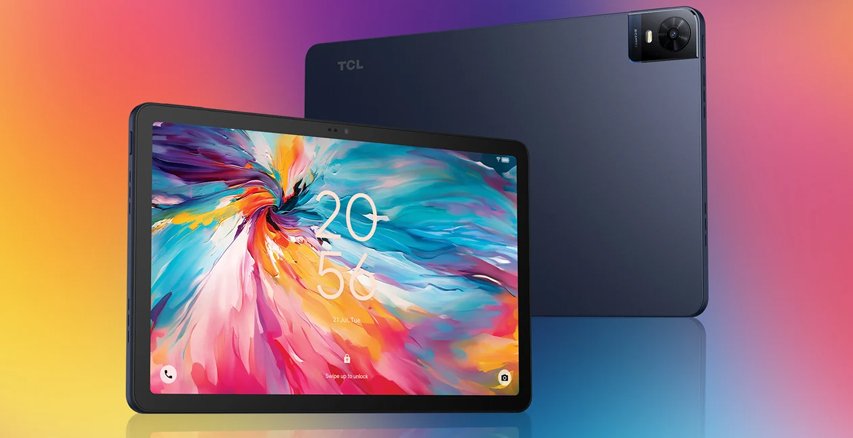
TCL NXTPAPER 3 tablet

For years, TCL has been pushing the NXTPAPER technology, a type of color LCD screen that offers a more restful reading experience for your eyes. TCL has just announced a major evolution with NXTPAPER 3.

At CES 2024, TCL unveiled NXTPAPER 3 and the all products that will use it for the year to come.

What is NXTPAPER?

NXTPAPER is a technology based on LCD screens which, unlike e-ink screens, relies on an older technology: liquid crystals.

However, TCL has modified the way this type of screen produces light to offer a less aggressive experience for the eyes. The result is a screen with softer lighting that offers more entertainment possibilities than e-ink screens.

The NXTPAPER technology makes it possible not only to read, but also to display videos and play games smoothly.

Unfortunately, all is not rosy, as these screens have great difficulty in being convincing when exposed to an external light source, such as the sun.

When reading an ebook in the garden, their performance is far inferior to that of an e-ink e-reader screen.

NXTPAPER 3: what’s new?

NXTPAPER 3 arrives with a host of new features.

First of all, TCL has improved the display by eliminating artifacts on color rendering and the blue light filter – which is much more efficient than that of the previous generation NXTPAPER.

NXTPAPER 3 now uses a CPL (Circularly Polarized Light) display that also enhances the outdoor reading experience by playing on the screen’s "reflectivity", i.e. the way light reflects off its surface.

Another point: the luminous intensity of the lighting has been improved by 10%.

The aim of all these adjustments is to make the LCD screen less tiring on the eyes, while offering an experience close to that of conventional smartphone or tablet screens.

NXTPAPER 3: pros and cons

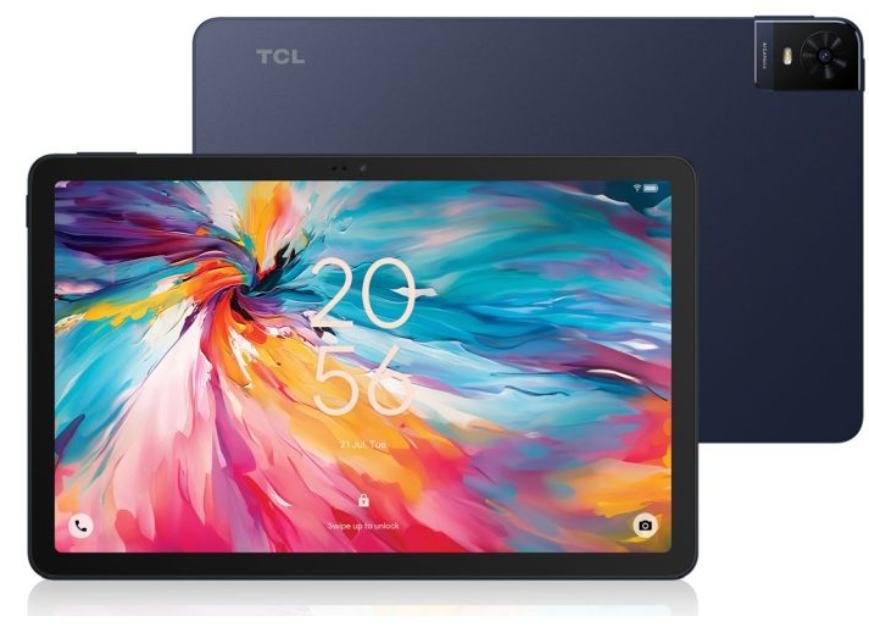
TCL NXTPAPER 3 tablet

The advantages of the NXTPAPER 3 screen are its wide color palette and excellent refresh rate, making it ideal for displaying videos or playing video games.

The tablets that use it are Android-based, so the user experience is very similar to that of a conventional tablet.

It’s also possible to switch this screen to a "black and white" mode, which is easier on the eyes when reading ebooks.

But the NXTPAPER 3 also has its drawbacks. The first is that it’s a TCL technology, found only in their products: smartphones and tablets. So there’s not much choice, and you’ll have to make do with what TCL has to offer.

NXTPAPER devices are also available in limited quantities and are sometimes hard to find in the USA.

Finally, while the reading experience is appreciable and better than on a conventional smartphone or tablet, it still seems below what an e-reader is capable of.

Indeed, NXTPAPER screens still "play" a lot with ambient light, which is a disadvantage when it comes to reading text.

What tablets and smartphones with NXTPAPER 3?

In addition to announcing this technology, TCL also presented various devices at CES 2024 that use NXTPAPER 3 screens.

TCL 40 NXTPAPER 5G

A 6.6" smartphone with a NXTPAPER 3 screen.

  • 256GB Large Memory
  • 6+6GB RAM Expansion
  • 50MP AI Triple Camera

TCL 40 NXTPAPER

A 6.78" FHD+ 90Hz smartphone with a NXTPAPER Display.

  • 32MP Front Camera
  • 256GB Large Memory
  • 8+8GB RAM Expansion

TCL NXTPAPER 11

A 11" screen tablet (Android 13) with a 2k NXTPAPER display.

  • 2K 11" NXTPAPER Display
  • Premium Design
  • 8000mAh Big Battery

TCL NXTPAPER 12 PRO

A 12.2" screen tablet (Android 13) with a 2k NXTPAPER display.

TCL website: https://www.tcl.com/