
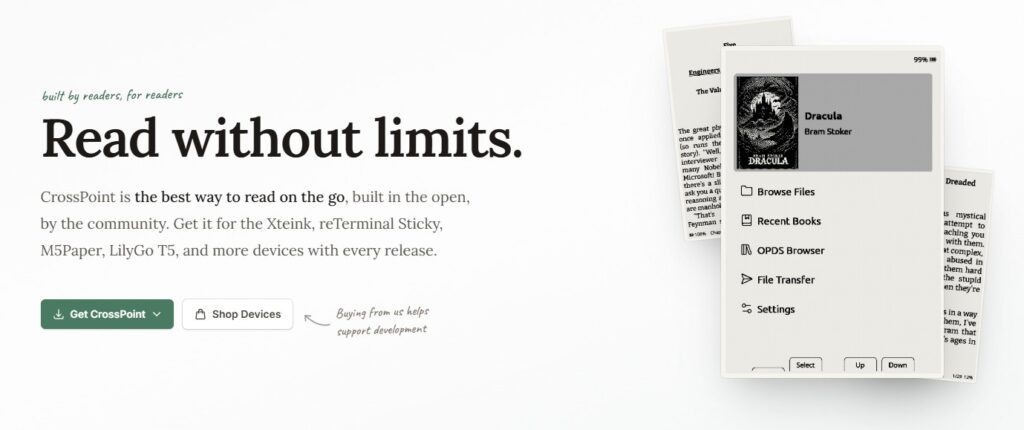
TL;DR: CrossPoint is a free, open-source firmware that replaces the limited stock software on Xteink X3 and X4 e-readers. You install it from a computer over USB-C, straight from your browser (use Chrome or Edge). If you bought your device on AliExpress, it may be USB-locked, so you’ll need to unlock it first with the Xteink Unlocker tool; if you bought it from the official xteink.com site, you can flash CrossPoint right away. When it’s done, the e-reader restarts on CrossPoint, and you can always go back to the original system later.
CrossPoint is a free, open-source firmware that replaces the original system on your Xteink e-reader. Installation is done from a computer, with a USB-C cable, directly in your browser.
There are two possible scenarios depending on where you bought your e-reader.
Why install CrossPoint on your Xteink e-reader?
By default, the software on Xteink e-readers is heavily limited, as my review of the Xteink X4 showed.
That’s why it’s so worthwhile and easy to replace it with this new software.
I think it’s a change that every owner of this device should make.
Before you start: an important check to make
There are two versions of Xteink e-readers: a “closed” or “locked” version and a more open one. So you need to figure out which version you have.
Use a computer and a USB-C cable that supports data transfer (some cables only charge).
Preferably use Chrome or Edge, since the web installer needs access to the serial port.
Plug in the e-reader, turn it on, and keep the screen unlocked for the whole process.
Case 1: e-reader bought on AliExpress
Some Xteink units sold by third-party stores (like AliExpress) ship from the factory with USB flashing locked. In that case you have to unlock it before you can install CrossPoint.
The smart move is to first test whether your device is really locked:
- Plug in the e-reader and go to the web installer (see case 2).
- If your browser’s serial port selection window does show your device, it isn’t locked: you can go straight to case 2.
- If the device doesn’t appear, try another USB port or another browser before concluding that it’s locked.
If the device really is locked, use the Xteink Unlocker tool available at: https://crosspointreader.com/#unlock-tool
Important: in this tool, only install CrossPoint (or CrossInk). Flashing another firmware on a locked device can make it permanently unusable. Once the unlock is done, move on to the installation below (case 2).
Case 2: e-reader bought from the official site (xteink.com)
Devices bought directly from the official site aren’t locked: you can install CrossPoint immediately.
- Connect the e-reader to the computer via USB-C, and keep the screen on and unlocked.
- Go to the online tool: https://crosspointreader.com/#flash-tools
- Select your model (X3 or X4).
- Choose an official version of CrossPoint.
- Allow the browser to access the device when the port selection window appears, then let the installation run all the way to the end.
When it’s done, the e-reader restarts on CrossPoint. That’s it.
If one day you want to go back to the original system, just return to the same page and flash the official firmware.
Leave a Reply