To continue our series of articles on the Calibre software, we’re going to see how to share your Calibre library online and put your digital books on a local network (or even the wider internet).
TLDR: Calibre includes a built-in content server that lets you access your entire ebook library from any web browser. Just click “Connect/Share” and start the server, then open http://localhost:8080. It’s handy, but be careful: anyone who can reach your computer over the network can browse your collection, so only turn it on when you need it.
This article is aimed first and foremost at advanced computer users. But the curious can try out this feature and use Calibre right from their favorite web browser!
You’re going to learn how to put your Calibre library online.
First things first: if you’re not familiar with Calibre, you can read our overview of the software.
Calibre has a very simple option that lets you access all your ebooks from a web browser. To turn it on, click the “Connect/Share” button at the top of the software’s interface (see the screenshot below) and click “Start Content Server.” When you want to stop sharing, do the same thing again and click “Stop Content Server.”
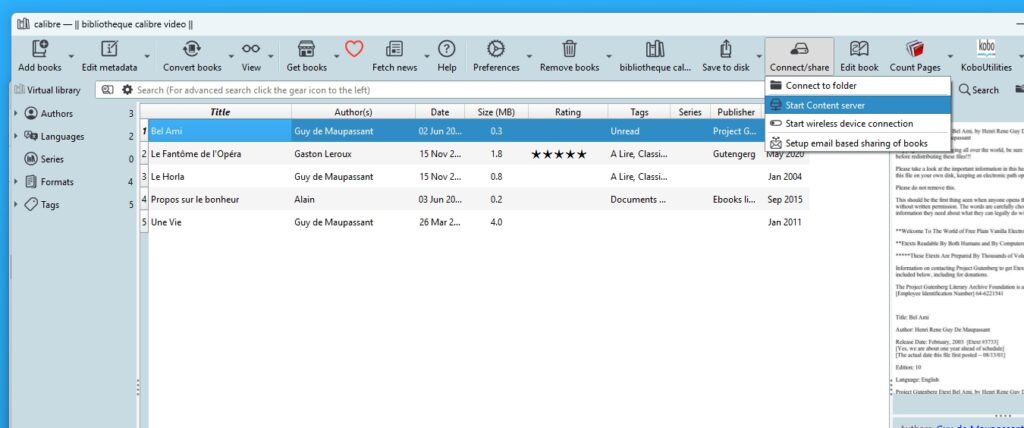
Once the content server is running, you can open a web browser and enter the following address: http://localhost:8080
Your browser will then be able to reach your ebook library, and you’ll be able to browse it as if it were a website.
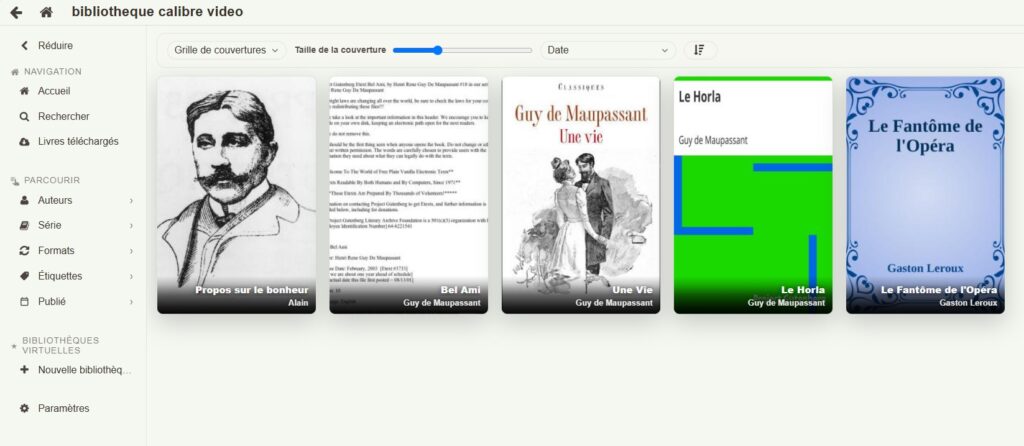
The interface isn’t exactly a model of design and usability, but there’s no denying this feature is very handy and can come in useful.
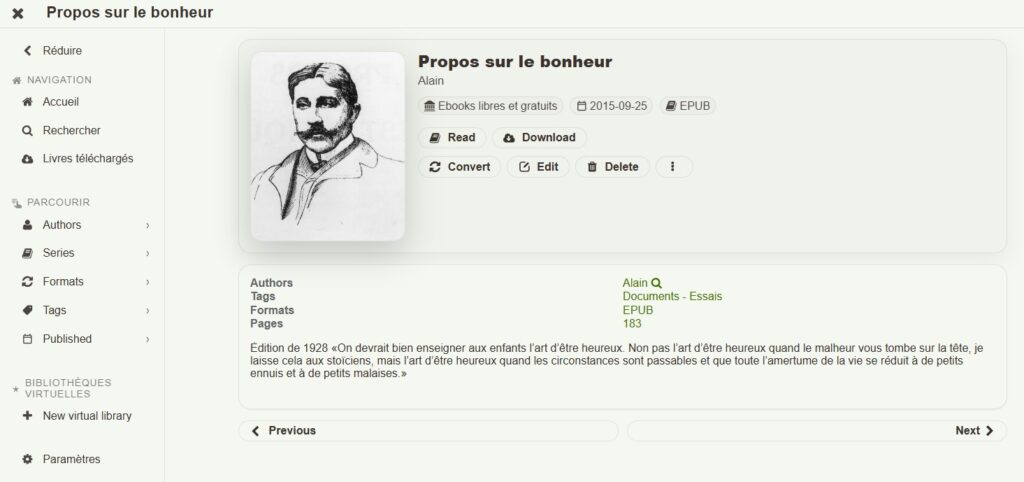
But be careful: keep in mind that anyone who connects to your computer (if it’s connected to the internet) can then access your ebook collection.
So you should only use this feature when you actually need it, and if possible with the help of someone tech-savvy (for example, when sharing a digital library over a local network).
Accessing your Calibre server from outside the local network
To reach your Calibre server from outside your local network, you need to solve two problems:
- make the server reachable from the internet,
- and do it securely.
First, in Calibre, go to Preferences > Sharing over the net, turn on the content server (as we just saw), and above all set a username and password; this is essential if you’re exposing the server to the internet. Also make a note of the port being used (8080 by default).
Next, you need to allow that port through Windows Defender Firewall so that incoming connections can get through (note that the steps will be different on Mac or Linux).
Then, in your router’s admin interface, create a port-forwarding rule that sends the external port (e.g., 8080) to the local IP address of your Calibre machine. Remember to lock down that local IP (DHCP reservation) so it doesn’t change.
Finally, since most home internet connections have a public IP that changes, it’s best to set up a dynamic DNS service (DuckDNS, No-IP, etc.) to get a stable hostname like myserver.duckdns.org, which you’ll use instead of the public IP.
The weak point of this method: the server becomes accessible from anywhere on the internet, so a strong password and, ideally, HTTPS really matter.
Note: the Calibre content server includes an HTTPS option in its preferences (the “Advanced” tab), but setting up the certificates is a bit technical. For easy HTTPS without port forwarding, Cloudflare Tunnel is another good alternative.