You just transferred an ebook to your e-reader, you open it… and… it’s a disaster! Repeated blank pages, oversized margins, shifted lines, text spilling off the screen, garbled accents, or (worse) an e-reader that simply crashes. You can dig through your device’s settings all you want, but nothing helps. Don’t worry: the problem rarely comes from the e-reader itself. It’s the file that’s causing trouble, and we’re going to look at 3 ways to repair your digital book (ebook).
TLDR: If an ebook displays badly on your e-reader; blank pages, huge margins, shifted lines, garbled accents, or crashes; the file is usually to blame, not the device. The free, open-source software Calibre fixes most of these issues. Try three methods, from easiest to most advanced: (1) double conversion through an intermediate format, which rebuilds the file structure and solves most problems; (2) heuristic processing, which uses Calibre’s advanced conversion options to clean up formatting; and (3) direct EPUB editing for surgical fixes if you’re comfortable with HTML and CSS. In the vast majority of cases, the double conversion is all you need.
So here are the 3 methods, from the easiest to the most advanced, to breathe life back into an ebook that won’t work on your e-reader.
The essential tool: calibre
Before anything else, you’ll need to install Calibre, a completely free and open-source program dedicated to managing digital libraries. It’s the Swiss Army knife of ebooks: it lets you organize your books, convert them from one format to another, and above all fix a multitude of display problems. Calibre is available on Windows, macOS, and Linux.
Once it’s installed, import your ebook into the Calibre library.
Method 1: the double conversion
This is the simplest method, and very often the most effective. The idea is counterintuitive but remarkably handy: we’re going to convert the book twice in a row, passing through an intermediate format.
Here’s how to do it:
- Identify your e-reader’s native format: Kobo readers read EPUB and KEPUB. Kindles use MOBI and AZW3. Pocketbook readers support EPUB.
- First, convert your ebook into a format your e-reader can’t read: for example, choose FB2, which is an uncommon format but perfectly handled by Calibre. To do this, right-click the book, then “Convert book.” In the output format drop-down menu, select FB2, then confirm.
- Check the intermediate result: Calibre has a built-in ebook reader. Open the freshly created FB2 file to make sure the text is present and readable.
- Then reconvert that FB2 file to your e-reader’s format (EPUB for Kobo or Pocketbook, MOBI for Kindle, etc.).
- Transfer the final result to your e-reader: connect the device, right-click the book in Calibre, then “Send to device,” choosing the format you want.
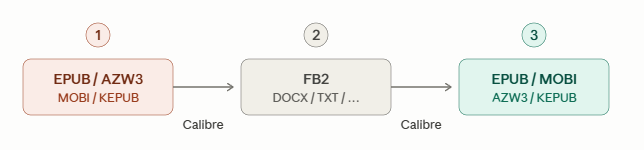
Why does it work?
By passing through an intermediate format, Calibre completely rebuilds the file’s structure.
Markup errors, broken formatting, and corrupted metadata get eliminated along the way. It’s a bit like rewriting a text cleanly rather than trying to fix a scribbled-up draft.
Method 2: heuristic processing
If the double conversion isn’t enough, Calibre offers an arsenal of finer conversion options, grouped together under the name “heuristic processing.”
The advanced calibre settings to explore
When you launch a conversion (right-click > Convert book), a window opens with many tabs. Here are the most useful ones.
“Heuristic processing” tab: turn it on so Calibre intelligently analyzes the book’s content and makes automatic formatting decisions: redefining line breaks, detecting chapter titles, removing stray blank lines, and standardizing the overall formatting.
“Page setup” tab: select an output profile matching your e-reader (Kobo, Kindle, etc.). This setting adapts the dimensions and margins to your device’s screen format.
“Table of contents” tab: if the original ebook’s table of contents is broken or endless, you can force the generation of an automatic table of contents, or on the contrary prevent the detected chapters from being added to avoid duplicates.
“Output” tab: a few interesting options hide here. Here are the ones worth looking at: ignore the margins defined in the source file, disable content compression, or choose a “new” MOBI file type for better compatibility.
Other useful settings: in the main tab, you can also disable automatic font resizing, embed all fonts in the document, simplify punctuation, or fix Unicode characters (handy when accents show up as incomprehensible symbols).
How to proceed?
The simplest approach is to start by turning on heuristic processing and giving it a try. If that doesn’t work, you can try again and adjust the options that match your problems.
Method 3: directly editing the EPUB file
This last method is aimed at the users most comfortable with computers and technical work. It involves opening the EPUB file in Calibre’s built-in editor and manually modifying its contents.
What you need to know
An EPUB file is nothing more than an archive containing HTML code, CSS style sheets, images, and metadata. Calibre’s editor lets you navigate this structure and work directly on the source code.
How it works in practice
- Right-click the book in Calibre, then select “Edit book.”
- If the book exists in several formats, choose the EPUB since it’s the easiest format to edit.
- The editor opens with three areas: the book’s file tree, the source code in the center, and a live preview on the right.
- Spot the problematic sections by browsing the preview, then locate the corresponding code to modify or delete it.
- Save, then reconvert to your e-reader’s format if necessary.
Who is it for?
This method requires a minimum of familiarity with HTML and CSS. It’s especially useful for removing unwanted elements (ad pages, badly encoded sections, images that break the layout) or for fixing very localized problems that automatic conversions can’t resolve.
In summary
| Method | Difficulty | When to use it |
|---|---|---|
| Double conversion | Easy | As a first step; solves the majority of problems |
| Heuristic processing | Intermediate | When the double conversion isn’t enough |
| Direct EPUB editing | Advanced | For surgical fixes on specific problems |
In the vast majority of cases, the double conversion is enough to set an ebook straight again.
Keep the other two methods in reserve for the most stubborn cases, and don’t forget that Calibre is your best ally for getting the most out of your digital library.