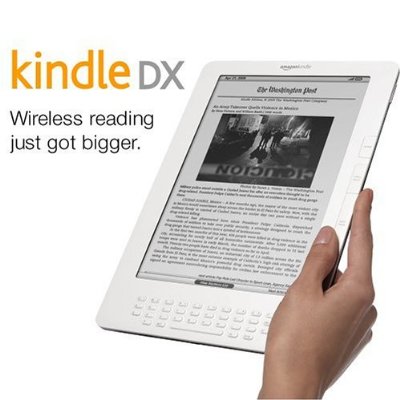
Got an old Kindle that’s been gathering dust in a drawer for the past few weeks? Maybe you figured it was headed for the trash now that Amazon has “unplugged” it. Well, good news: your e-reader isn’t dead. It still works perfectly, and there’s a really simple way to keep transferring books to it and reading for years to come.
In this article, I’ll explain what happened, then show you how to find books (free ones!) and send them to your Kindle, even if Amazon has cut off your access to its store.
So, what actually happened?
On May 20, 2026, Amazon ended support for every Kindle released in 2012 or earlier; in other words, the models that are now more than 13 years old. In practical terms, these e-readers can no longer connect to the Kindle store or download new ebooks directly from the device.
Here’s the full list of affected models:
- Kindle 1st generation
- Kindle 2nd generation
- Kindle DX
- Kindle DX Graphite
- Kindle Keyboard (3rd generation)
- Kindle 4
- Kindle Touch
- Kindle 5
- Kindle Paperwhite 1st generation
If you spot your e-reader in there, don’t panic. The device itself still works just fine: the screen turns on, you can read the books already on it, turn pages, basically everything is normal. It’s just the link to the Amazon store that’s been cut.
When you think about it, I actually find this pretty reassuring: it means a Kindle can be used for 14 years. Not bad for an electronic device, right?
What really changes for you
To sum it up clearly:
- ✅ You can still read every book already downloaded onto your Kindle.
- ❌ You can no longer download new ebooks from the device.
- ❌ The built-in Kindle store is no longer accessible.
- ❌ The “Send to Kindle” feature no longer works.
- ❌ You can no longer link these old models to an Amazon account.
So there’s only one way left to add books to your e-reader: transferring them over a USB cable. And that’s exactly what we’re going to do together; you’ll see it’s super simple.
💡 A quick tip while we’re at it: if you’re thinking about buying a used e-reader, be wary of old Kindle models. A lot of sellers don’t even know these can no longer be registered to an Amazon account. Check carefully before you buy!
Buy a Kindle e-reader
Kindle on Amazon.com (click here)
The solution in 3 steps
The general idea is this: you download books from the internet (we’ll dip into the free ebooks out there, and there are tons), you organize them in a free piece of software called Calibre, and you send them to the Kindle over USB. That’s it!
Here’s a video if you want to see how it works, but I’d still recommend reading the explanations below:
Step 1: find and download free books
There’s a huge number of sites that offer completely legal free ebooks (works in the public domain, independent authors, and so on). I’ve put together a big list of them on the “Free Ebooks” page of the site.
The principle is always the same:
- You pick a book you’re interested in.
- You download it in a compatible format. Personally, I often go with EPUB, because it’s universal and works easily on all my e-readers. Don’t worry if your old Kindle doesn’t read EPUB natively: Calibre handles the conversion automatically (more on that in a moment).
- Make a note of where the file was saved on your computer (usually in the “Downloads” folder).
And believe me, once you get going, building up a nice little free library becomes addictive. You may end up with enough to read for years!
Step 2: organize the book in Calibre
Calibre is a free piece of software for managing your entire ebook library. If you have an e-reader, I really recommend installing it: it’s the essential tool.
Once Calibre is open, adding a book is child’s play: just drag and drop the file you’ve downloaded into the software window. And there it is, the book shows up in your library. It’s that simple.
Step 3: transfer the book to your Kindle
The home stretch! Now we’re going to send the book to the e-reader:
- Connect your Kindle to the computer with a USB cable.
- Calibre will automatically recognize your e-reader, and you’ll see a button along the lines of “Send to device.”
- Select the book you want to transfer, then click that button.
And this is where Calibre’s magic happens: if your old Kindle doesn’t read the EPUB format, Calibre converts the file all on its own into the right format before sending it. You don’t have to do a thing.
A little task kicks off, you wait a few seconds, and there you go! The book is on your e-reader. You can unplug the cable and go back to reading in peace, as if nothing had happened. The Kindle that Amazon “deactivated” has just welcomed a brand-new book.
In conclusion: don’t throw out your Kindle!
There you have it, you know everything! Even though Amazon has turned its back on the old Kindle models, these e-readers still have plenty of good years ahead of them. With Calibre and the free ebook sites, you can keep filling them up and reading on them without spending a dime.
So before you toss your old e-reader, remember this method. And don’t hesitate to share this article with the people around you: there are surely folks out there with an old Kindle buried in a drawer who don’t know it can still be useful.
Happy reading!

Leave a Reply