How to install KOReader on your Kobo ereader?

how to install koreader on your kobo ereader

KOReader is a free software package that installs on your e-reader to provide additional functionality. In this article, we’ll look at how to install KOReader on a Kobo e-reader.

The only two things you need to know about KOReader on Kobo are the following:

  1. Installing KOReader on Kobo is free of charge and should not harm your e-reader.
  2. Installing KOReader on your Kobo e-reader changes the way it works: if you need to invoke your e-reader’s warranty, this could be a problem.

If anything happens to your e-reader, it’s your fault. I can’t be held responsible for any problems that may arise.

Warning before installation

According to my information, installing KOReader poses no risk to your Kobo e-reader. In fact, you can continue to use the old Kobo interface if you don’t like KOReader.

⚠️ But I wouldn’t recommend installing KOReader on a recent e-reader or one still under warranty.

KOReader is very interesting software, but if you’re happy with your Kobo e-reader, there’s no reason to install new reading software on it.

If, on the other hand, you have a Kobo e-reader in a drawer, then this software could well give your e-reader a facelift, and you should consider installing it.

Installing KOReader on a Kobo e-reader

For the purposes of this tutorial, I installed KOReader on a Kobo Nia e-reader.

I also use a PC with Windows 10.

You can find the installation procedure I used at this address: https://github.com/koreader/koreader/wiki/Installation-on-Kobo-devices
install koreader on your kobo ereader

Preparing for installation

You need to download the latest version of the KOReader bundle, which you can find here: Preparing for installation

You need to connect your Kobo e-reader to your Windows 10 PC with the USB cable and enable file sharing on your e-reader’s screen.

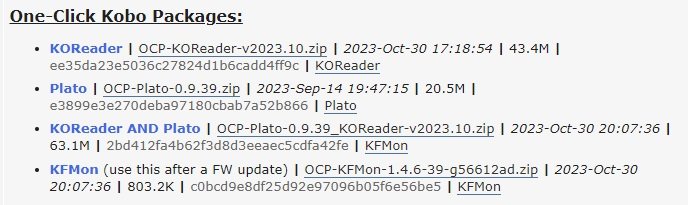
You need to download the latest version of the KOReader bundle (a .zip file), which you can find here: https://www.mobileread.com/forums/showthread.php?t=314220 (at the end of the first message) (at the end of the first message)

If you want, you can install Plato reader for your Kobo ereader.

Plug your Kobo eReader to your computer over USB

You need to connect your Kobo e-reader to your Windows 10 PC (or Windows 11) with the USB cable and enable file sharing on your e-reader’s screen.

Download the installation script

You will need to download this installation script for Windows: https://github.com/NiLuJe/kfmon/raw/master/tools/install.ps1

Copy this script in the same folder of your Kobo (where the ZIP file is located).

Now right-click on the "install.ps1" file and click on "Run with Powershell".

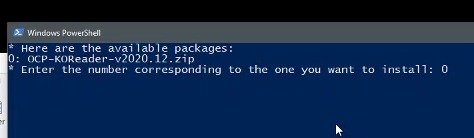
A window will open asking for the KOReader version to be installed (the "package").

Normally, the installation program should find only one file, so enter "0" ("zero") and press the "enter" key on your keyboard:
install koreader on your kobo ereader

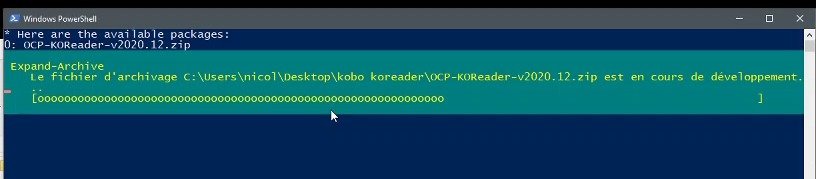
A new message with a progress bar will appear, showing the progress of the installation.
install koreader on your kobo ereader

⚠️ Wait a few minutes and do not disconnect your Kobo e-reader.

A new message appears, indicating that you need to eject your e-reader.
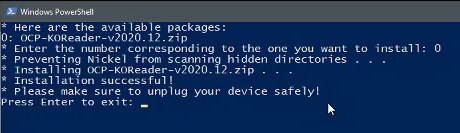
install koreader on your kobo ereader

Restarting the Kobo e-reader

Once the installation is complete, your e-reader should restart itself.

**If it doesn’t, that means there is a problem. You can restart it and try to install KOReader again.

After a short wait, you’ll be back on your e-reader’s usual screen.

Enjoy KOReader on your Kobo

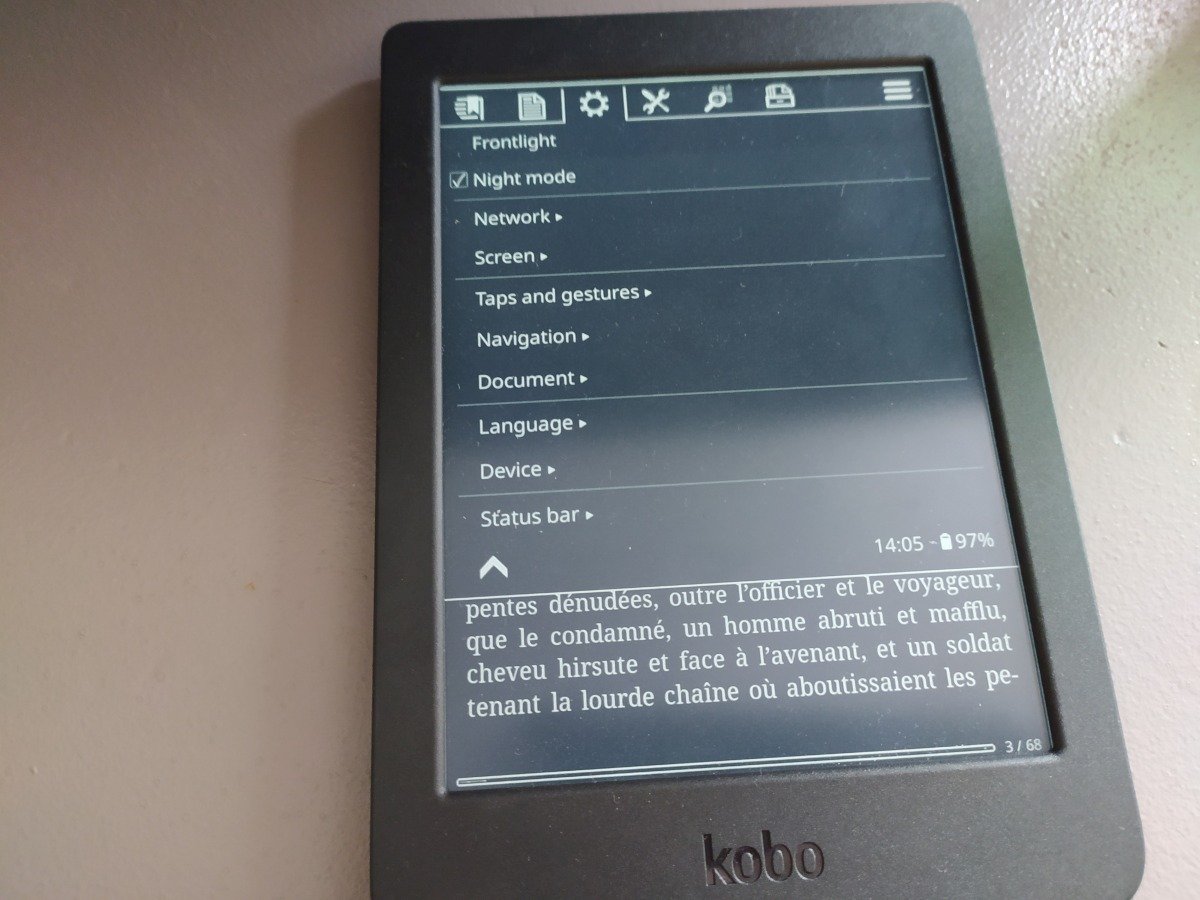
KOReader is now installed and all you have to do is launch this new reading software using the new button that has appeared in the bottom right-hand corner of your Kobo e-reader.

Conclusion

As we’ve just seen, installation is fairly straightforward, taking just a few minutes at most.

Bear in mind, however, that this software is primarily designed for people who are comfortable with computers.

However, I think its existence is very interesting, as it offers numerous possibilities for customizing your Kobo ereader.
install koreader on your kobo ereader

If you’ve had your e-reader for a while and don’t use it anymore, this software can give it a facelift.

It changes a lot of things on your e-reader, and the new interface takes some getting used to. For example, I’ve seen it improve the speed of the interface on my Kobo Nia e-reader.
What new e-readers and trends for 2024?

new ereaders in 2024

As the year starts, it’s time to focus on what’s in store for 2024 in terms of e-readers, with new models expected soon.

Two new Kobo e-readers

It’s no secret that Kobo will soon be offering a new e-reader.

From what little information has leaked out, it’s likely to be two e- readers to replace the Kobo Sage and the Kobo Libra 2.

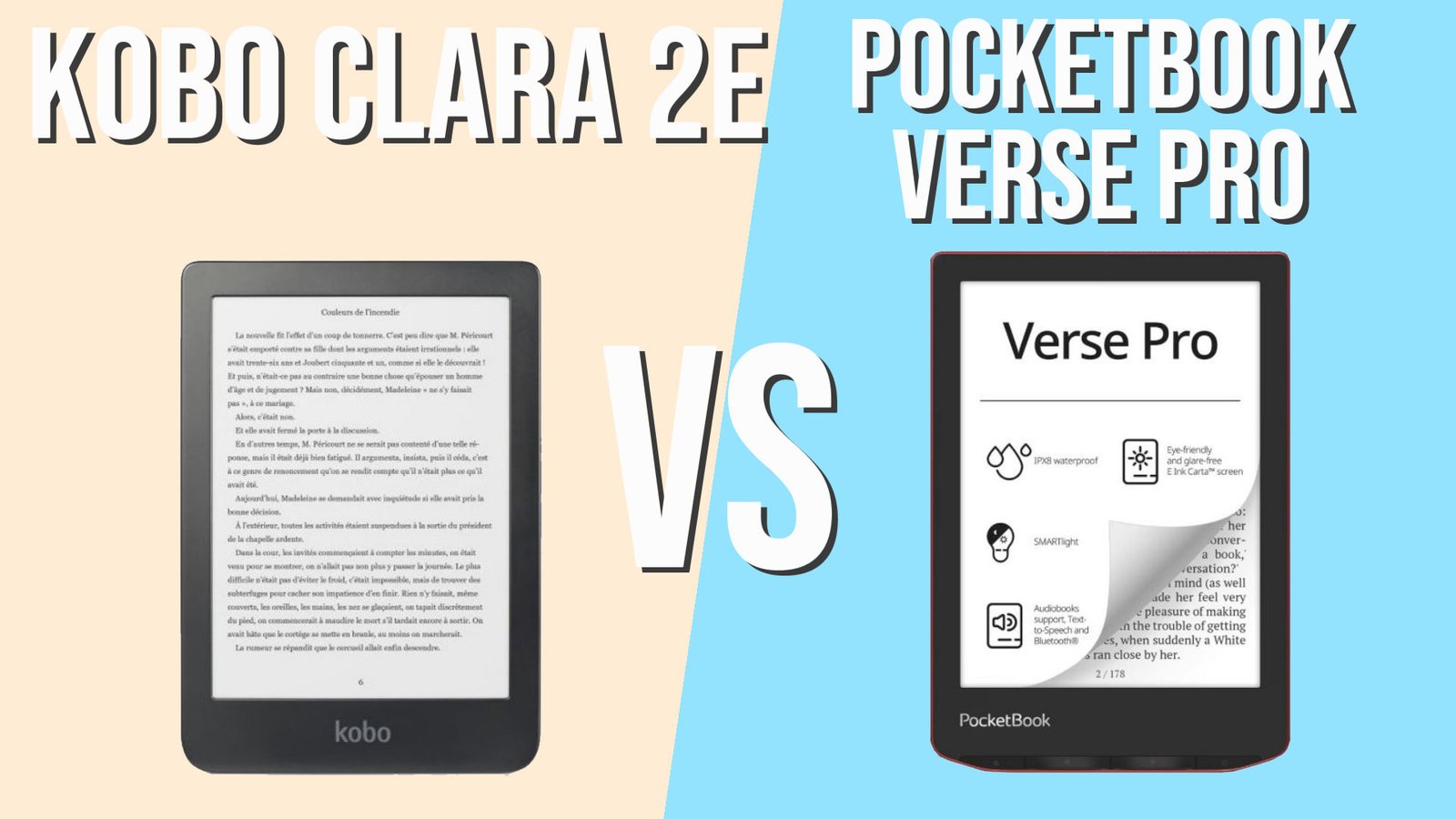
But the Kobo Nia is an aging e-reader (released 3 years ago) that will need updating to compete with the much better Kindle and the new Pocketbook Verse.

Read more here :

New color e-readers

Color e-readers were the talk of the town in 2023, and we can expect new releases in 2024.

On the one hand, new e-ink color displays have only just arrived on the market. These include the Pocketbook Viva (with its Gallery 3 screen) and the very recent Pocketbook InkPad Color 3 with its latest-generation Kaleido 3 screen.

On the other hand, several color e-readers announced for 2023 have had very limited releases, and we can expect some of these models to be available again in 2024 (I’m thinking of e-readers from the Onyx and iReader brands, for example).

As usual, innovation will undoubtedly come from Asian brands, who won’t hesitate to offer new e-readers with the latest-generation color screens.

A new Kindle?

It seems appropriate for Kindle to release one or more new e-readers in 2024.

The Kindle Oasis is quite old, and it would be interesting to propose a new version with a better screen and, why not, a color screen. However, I think it unlikely that this will happen (a color screen for a Kindle) for cost reasons.

Another possibility: a new Kindle Paperwhite with a newer screen or more storage is also on the cards, although this hypothesis seems less likely to me.

Productivity machine: a growing trend

Like every year, we can expect to see the arrival of *new ebook reading machines for the workplace with productivity tools.

As with the Kindle Scribe, the ReMarkable 2 or Kobo Elipsa 2E, these machines feature large 10-inch screens (sometimes up to 13.3 inches), a stylus and the tools to work with them.

These machines use an e ink screen and sometimes an Android system that enables the installation of third-party reading or productivity applications.

The year 2024 should once again bring us interesting new models in this product range.

New Pocketbook e-readers

Like every year, Pocketbook is going to offer us new e-readers.

These will undoubtedly be models with color screens or top-of-the-range models. It should be noted that the recent Pocketbook Viva is not yet available. It could therefore arrive in early 2024.

To find out more, take a look at our guide to the best e-readers, our guide to the main color e-readers and our article on e-readers discounts.

Calibre 7: what’s new in the best ebook management software

calibre 7 new features

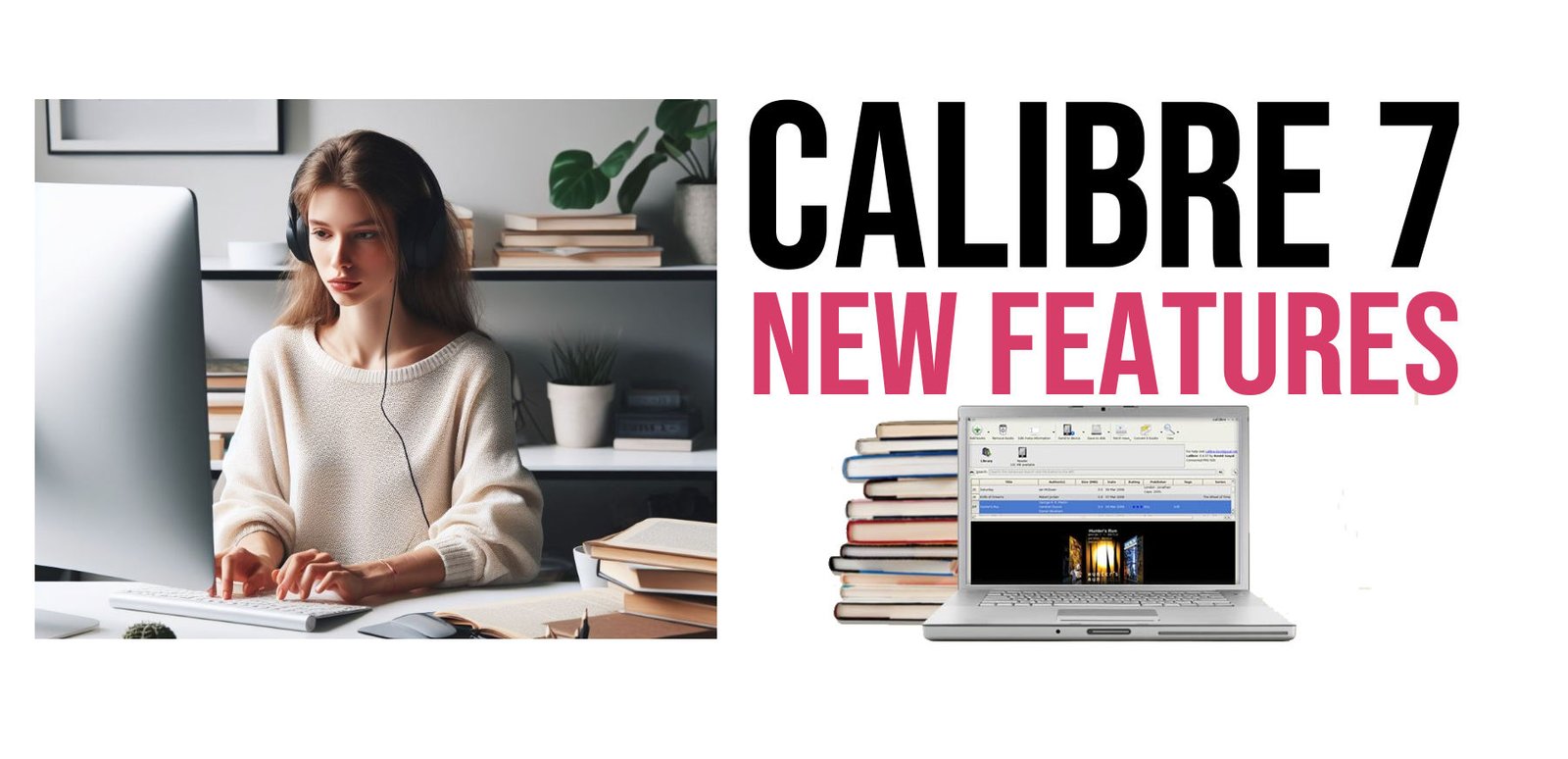
Calibre software is well known to owners of a large personal ebook library, as it allows you to manage your digital books and transfer them to your e-reader. Version 7 of Calibre has just been released, with a number of new features.

Calibre is free, open-source software that runs on Windows, Mac OS and Linux computers. To better understand the benefits of this software, I recommend you read this article on getting started with Calibre.

Here are a few new features that may be of interest to you.

Audiobooks in EPUB format

A little-known feature of the EPUB file format is its ability to store the audio version of an ebook. The idea is to have a single file containing both the text and the audiobook.

Calibre therefore offers audio functionality to EPUB files that support this feature.

calibre 7 audio epub ebook

Audio EPUB files are not very widespread, but you can download a few at this address: https://www.readbeyond.it/ebooks.html

According to my tests, this works very well and is pleasant to listen to. Note that there is already a text-to-speech function in Calibre.

Notes for ebook data

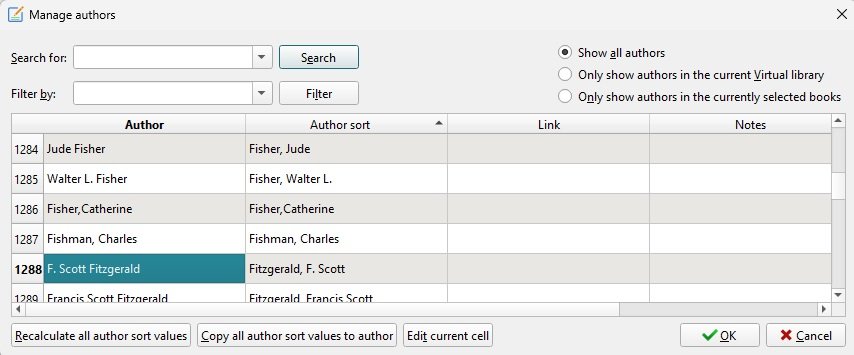
Calibre 7 lets you enter additional information on many data items in the form of "notes".

For example, you can add a note to an author’s record:

notes on author in calibre 7

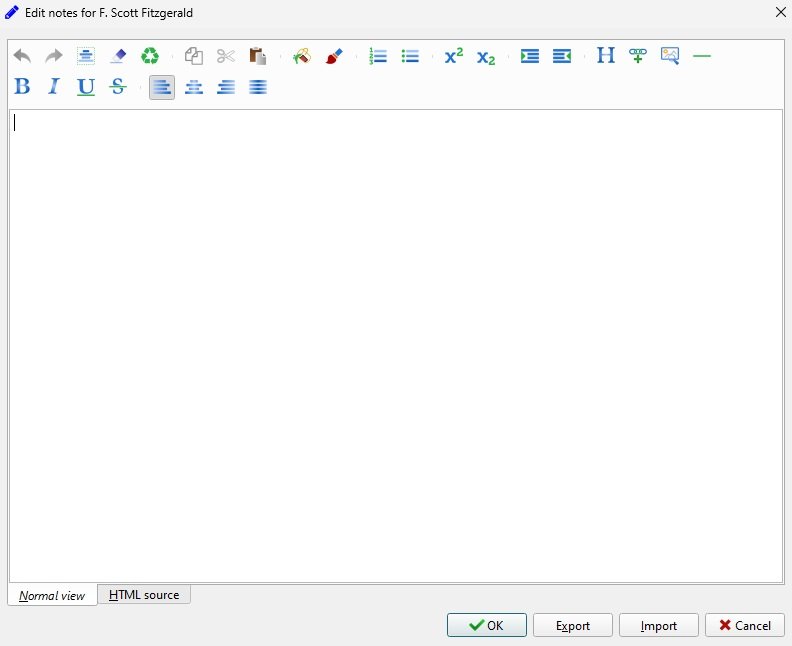
These notes can contain formatted text, as well as links and images.

add a note with Calibre 7

More data for ebooks

Another interesting feature for users wishing to store additional information on ebooks: it is now possible to add "metadata" files to digital books in the library.

To do this, select a book, then click on the little arrow in the "Add book" button and select "Add data files to selected book records".

A recycle garbage can for going back

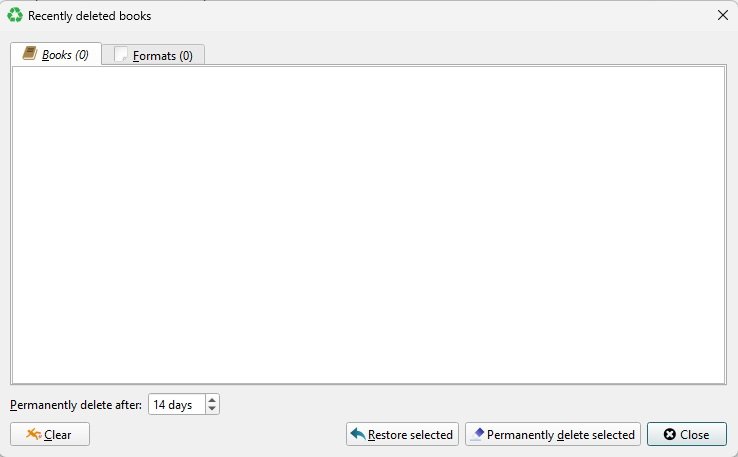
Calibre 7 comes with its own recycle garbage can, allowing you to retrieve books that you may have deleted by mistake.

It is now possible to undo any such mistake.

recycle garbage Calibre 7

Other updates in Calibre 7

As with every major release of Calibre, a number of small improvements have been made to the software, including :

  • Improved support for HTML images in the ebook reader
  • Bug fixes
  • Updated content server for sharing your library over a local network
  • New news sources
  • Simplified tag and author management

You can download the new version of Calibre at https://calibre-ebook.com/. Note that you can use Calibre with plugins to remove DRM from your ebooks.

The end of Comixology (almost…)

comixology

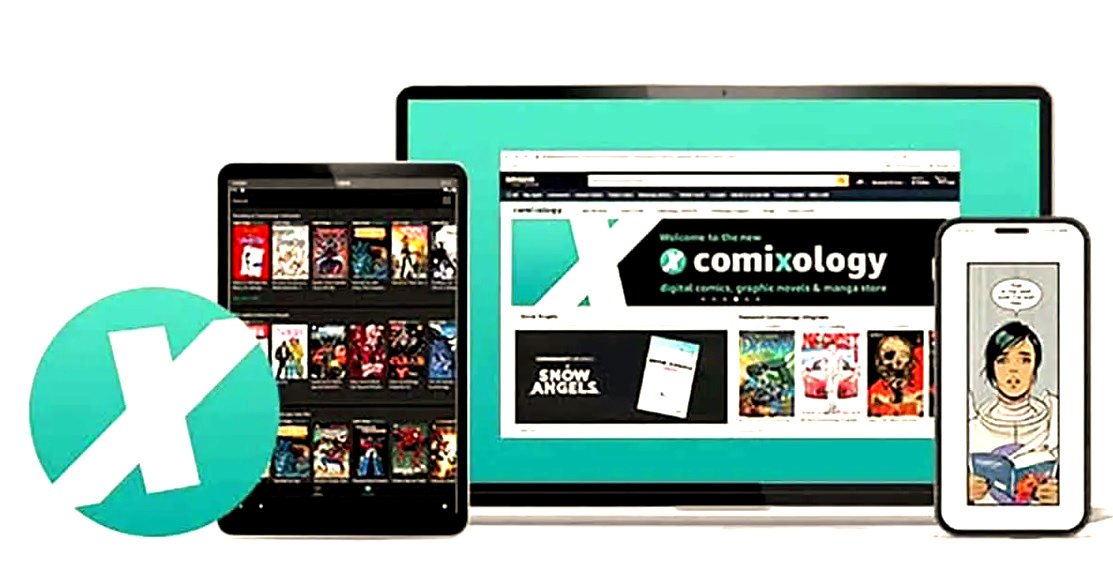
Comixology was acquired in 2014, and since then Amazon has tried various solutions to keep this digital comics reading service alive. In the end, Comixology will close and be fully integrated into Amazon.

What is Comixology?

Available via an app for smartphones and tablets, as well as from the service’s website, Comixology offers a wide selection of comics – mainly in English.

Backed by partnerships with a number of major publishers (Image Comics, Dark Horse, Valiant Comics, Archie Comics, etc.), the platform offers hundreds of thousands of titles in its streaming catalog.

The end of Comixology

Amazon has been trying to fully integrate Comixology’s offering into its Amazon Kindle bookshop since 2021. But, after several unsuccessful attempts, this solution did not seem to have been chosen.

However, Amazon has just announced that Comixology applications will no longer work from December 4, 2023.

The entire catalog will be transferred to the Amazon Kindle bookstore. For readers who have comics in their account, these volumes will be automatically transferred to their Kindle library and thus accessible both on the site and on Kindle e-readers.

For smartphone and tablet users, they will now need to use the Kindle app available on Android and iOS. It will be necessary to use the same login details on the Kindle app as those used on the old Comixology app. (see details here)

Amazon Fire tablet users will also benefit from this change, as everything will be accessible in the Kindle section.

This does not come without a drawback, as it will be necessary to download the comics again on the Kindle application.

To simplify navigation, it is possible to filter titles and books owned in your library using the "Comics & Manga" filter in the app.

With this merger, you should now have more choice in the titles available with the Kindle subscription and Prime Reading (for Amazon Prime subscribers). Of course, you’ll have to judge for yourself.

What strategy for Amazon?

Amazon is looking to unite users of its digital reading services by offering more choice to comic book and ebook readers.

Everyone will be able to access the entire catalog, and this should give readers more choice.

But it’s also a way of standing out from other reading services. The aim is to attract more people to the Kindle ecosystem, to the detriment of competing offers from Kobo (with Kobo Plus).

We’ll see in the coming months whether this decision is the right one, and whether current Comixology users will migrate to the Kindle application without any problems…

For the moment we don’t know what will happen to Comixology’s employees and whether they will join Amazon’s teams.

In any case, the "Comixology" brand is well and truly finished.

Prime Reading: how to get free ebooks on Kindle?

prime reading how to

The Amazon e-commerce site offers "Prime Reading", a program that brings you lots of free ebooks to download every month.

Prime Reading is a service reserved exclusively for Amazon Prime subscribers: see Prime Reading here on Amazon.com.

How does Prime Reading work?

So, if you're like us, you can already access this new selection of books directly from your Kindle e-reader, Fire tablet or Kindle reading app.

Then there's a new section featuring a selection of books you can borrow for free.

The selection isn't necessarily great, but there are plenty of bestsellers and books:

  • Unlimited access to a rotating catalog of ebooks and audiobooks
  • 1 free pre-release ebook every month from editors' picks
  • Magazines and comic books also included

For my part, I've already spotted a couple of things to read. I think that if you have a Prime subscription ($14.99/month), it's worth looking to see if there's anything that might interest you.

How do I download a Prime Reading ebook onto my e-reader?

Downloading an eligible ebook is very simple.

Simply go to the relevant category on your e-reader (tested on a latest-generation Kindle Paperwhite e-reader) and then press "Borrow".

The book is then automatically downloaded free of charge and appears in your e-reader's library.

When you've finished reading the book, you'll need to return it to Prime Reading. To do this, press the book cover for a few seconds to display the menu. Then select "Return to Prime Reading".

You can then download a new book (but you can borrow more than one book at a time).

How to read Prime Reading ebooks

You can also read Prime Reading ebooks on iPhone and iPad.

If you prefer to read your Prime Reading ebooks on a Kindle e-reader, you can also use the following software:

  • Kindle Android application
  • Kindle iOS application (for iPhone and iPad)
  • Kindle PC and Mac application

After installing the software and logging in to your Amazon account, you'll be able to find the book you've borrowed in the application's library.

Which e-readers are compatible with Prime Reading?

All Kindle e-readers are compatible with Amazon Prime Reading: Kindle, Kindle Paperwhite, Kindle Oasis and Kindle Scribe.

Older Kindle readers purchased a few years ago are also compatible. So you don't need to buy a new e-reader to take advantage of this service.

Conclusion: a great deal for Amazon customers!

There are thousands of digital books available. So Prime Reading is a great way to read for less.

However, it in no way replaces Amazon's $9.99-a-month unlimited reading subscription, which offers a much wider selection of books.

This Prime Reading is therefore a welcome addition to Amazon's offer, and above all a further argument for subscribing to Prime to take advantage of the many associated services (Video on Demand, photo storage, free delivery, etc.).

Click here to find out more about Prime Reading and see the Amazon Prime program on Amazon.com.

A new Kobo Libra 2 in 2024

new kobo libra 2

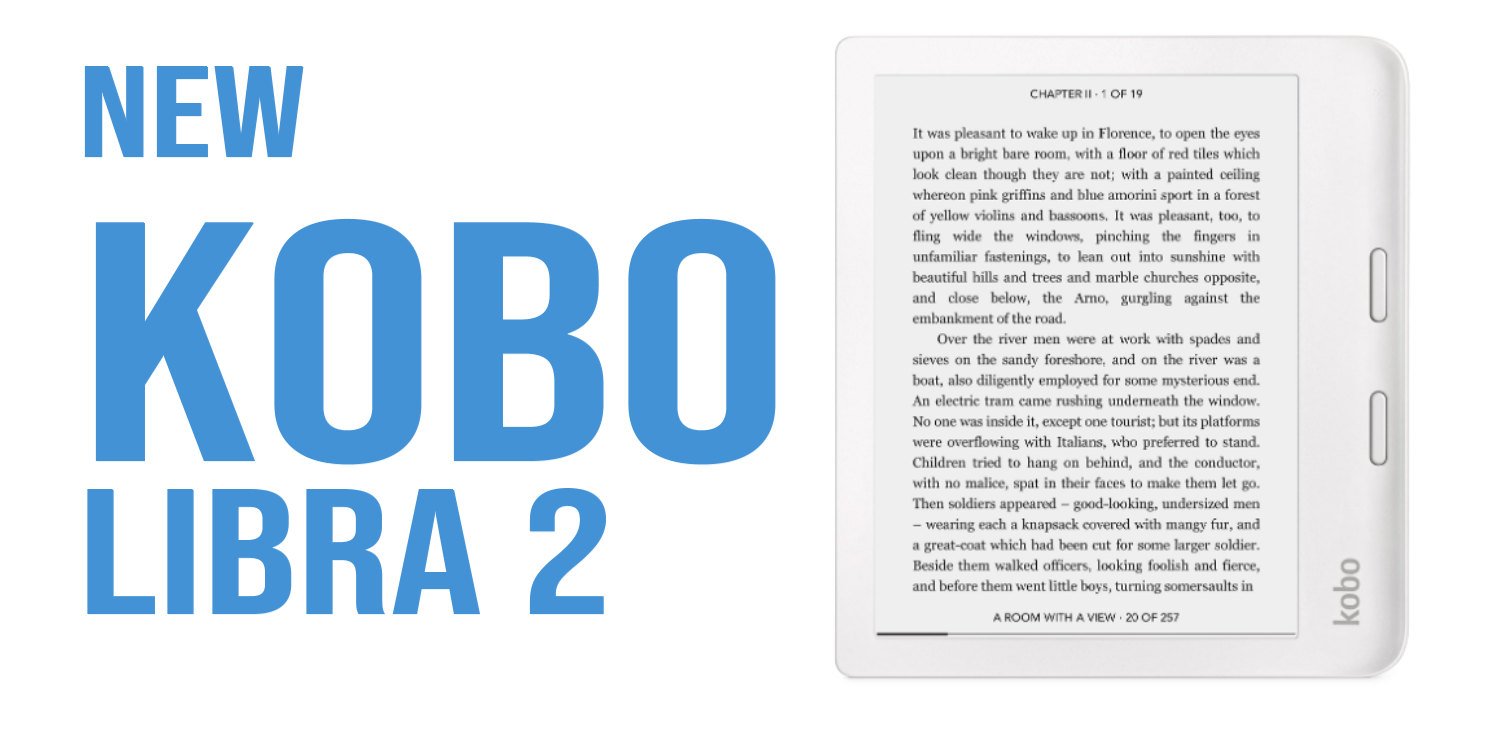
Kobo is preparing a new e-reader for release in the coming months. Although no release date has been announced, we can still make a few predictions about this future e-reader and its specifications.

UPDATE 8 april 2024: this e-reader will be called Kobo Libra Colour and the release date is set to May 2024 (read more here).

This new Kobo e-reader is a revelation that comes to us from an FCC document.

The FCC is the organization that certifies electronic products in the USA. This certification is necessary before any commercialization, and lets us know that a Kobo e-reader will be on the market in the coming months.

Unfortunately, the document reveals little information. There’s a "KBN428" serial number, the presence of a Wifi connection and the integration of Adobe services, which enable ebooks protected by Adobe DRM to be read.

However, this "KBN428" number already tells us a lot if we look at the history of Kobo releases.

Kobo has already released the Kobo Elipsa 2E in 2023. This is a large e-reader that is above all an electronic notepad that allows note-taking with a stylus on a large 10.3-inch e-ink screen.

We can therefore be fairly certain that this new Kobo e-reader is not an Elipsa-type e-reader.

On closer examination, the number "428" is strongly reminiscent of the Kobo Libra 2 reference number "418".

The Kobo Libra 2 is one of the best e-readers in the Kobo range and has been available since 2021. So it’s not really old, but if Kobo offers a new version, it could arrive in early 2024.

As this e-reader doesn’t have a name, I think it could be called Kobo Libra 2E (like the Kobo Clara 2E and the Kobo Elipsa 2E) or Kobo Libra 3.

In my opinion, the technical evolution won’t be very significant, since there hasn’t been a major advance in e-ink screens since 2021 – with the exception of the Carta 1300 e ink screen.

Another hypothesis: if this new e-reader is not a new Kobo Libra, I think it would be interesting for Kobo to offer a new version of its Kobo Nia, which is a little dated and has been supplanted by the recent Pocketbook Verse and Kindle.

The Kobo Nia was released in 2020 and I think a new version with a better screen and a USB-C port would be a good thing to face the competition on affordable ereaders.

Also, note that a new Kobo Sage is also coming in 2024.

UPDATE 8 april 2024: this e-reader will be called Kobo Libra Colour and the release date is set to May 2024 (read more here).

Is it worth buying a Kindle if I have an iPad?

woman with kindle cartoon

A Kindle is simply a reading device that does just one thing: let you read ebooks. But the Kindle does that very well. However, the iPad lets you do more things, like read emails, chat with friends, play games, watch videos and work.

Do you need a Kindle when you have an iPad?

Yes, if you want to read in the best possible conditions, you need a Kindle in addition to an iPad (if you already have one). The Kindle has better battery life, is lighter and has an e-ink screen that makes reading easier on the eyes.

The question boils down to this: do you want the best possible device for reading ebooks, or do you want a more versatile device that lets you do many things?

The Kindle has the advantage of being a device that lets you read without distraction. With a Kindle e-reader, you’ll never be interrupted by a message, email or notification – unlike the iPad.

The e-reader also gives you better battery life, with an e-ink screen that brings you a reading comfort close to the experience of a printed book.

There’s no doubt that the Kindle is better for your eyes. Long reading sessions on the iPad also lead to eye fatigue, sometimes accompanied by (admittedly mild) migraines.

If you’re looking for a e-reader, we have a guide to the best e-readers available on the site.

The new E Ink Carta 1300 screen for faster e-readers

ireader smart X carta 1300 e ink screen

E Ink, the company that produces the vast majority of e-ink screens, is offering a new screen for e-reader manufacturers: the E Ink Carta 1300 screen.

The E Ink Carta 1300 screen

Today, high-definition e-readers mainly use the E Ink 1200 screen, which offers a high pixel density.

E Ink recently launched the Carta 1300 version, which offers a number of interesting advances, including:

  • 27% faster response time,
  • 20% improvement in contrast.

These data are provided by the manufacturer and, even if in practice they will probably be less visible than advertised, they may provide relevant improvements for notebook e-readers and note-taking devices.

As far as reading is concerned, the contrast of the Carta 1200 screens is already sufficient to provide very good reading comfort.

But as the Carta 1300 screen is almost 1/3 as fast, it could make note-taking e-readers more efficient and more responsive for all pen-based note-taking.

The iReader Smart X3 reader

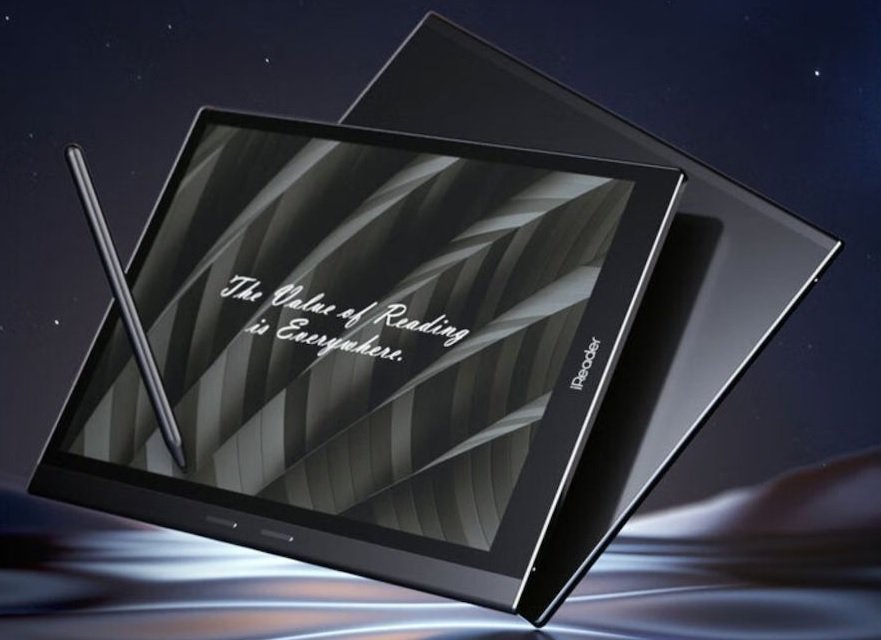
To my knowledge, the first device to use this E Ink Carta 1300 screen is the iReader Smart X3.

ireader smart X carta 1300 e ink screen

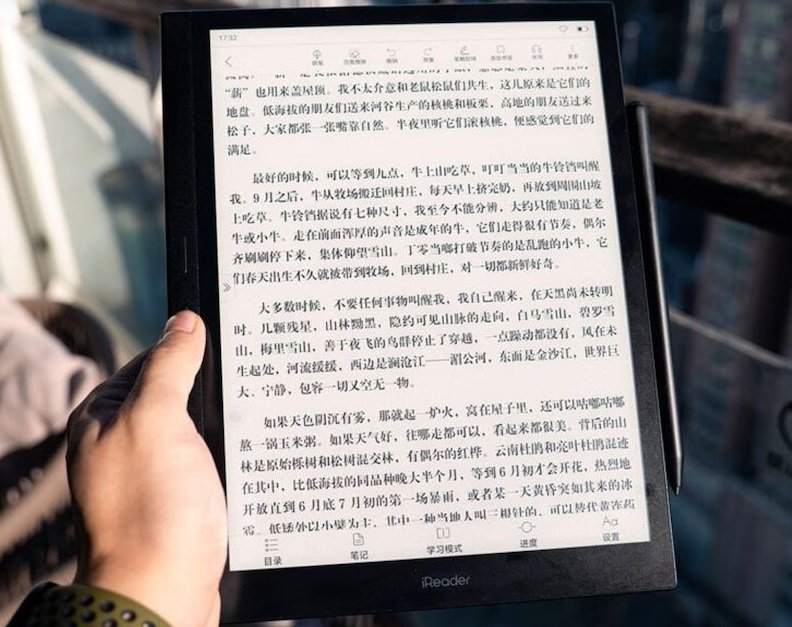
The iReader Smart X3 features a 10.65" screen with an excellent resolution of 2560 x 1920 pixels (i.e. 300 PPP).

This machine has a quad-core processor, 4 GB RAM and 64 GB storage. Naturally, an X-Pen3 stylus is available for this iReader machine.

To make the most of the Carta 1300 screen’s performance, this iReader Smart X3 uses a specialized computing algorithm (and optimized with artificial intelligence) to achieve faster screen refresh.

ireader smart X carta 1300 e ink screen

Of course, all this remains to be proven, since the information is provided directly by the iReader brand. But, if the results are there, this machine could seriously compete with the Kindle Scribe, Kobo Elipsa 2E and other ReMarkable e-reader.

Carta 1300 screen: the future of e-readers?

For the moment, we have little information on the Carta 1300 screen. The E Ink website does not communicate on the subject. So it’s hard to say whether this evolution will eventually replace the Carta 1200 screens.

One thing seems certain: the Carta 1300 screen enables devices with a diagonal of more than 10 inches and a resolution of 300 PPP, while at the same time improving display speed.

We can therefore assume that this technology will be found at least in future evolutions of the Kindle Scribe, ReMarkable or Kobo Elipsa 2E e-readers.

As for the 6", 7" or 8-inch e-readers, it doesn’t seem technically necessary to use this new screen, especially as it’s more expensive than the old version.

For example, the iReader Smart X3 will be available for around $500 to $600, a higher price than competing readers of the same screen size.

How to use a Pocketbook e-reader?

how to use a pocketbook e-reader

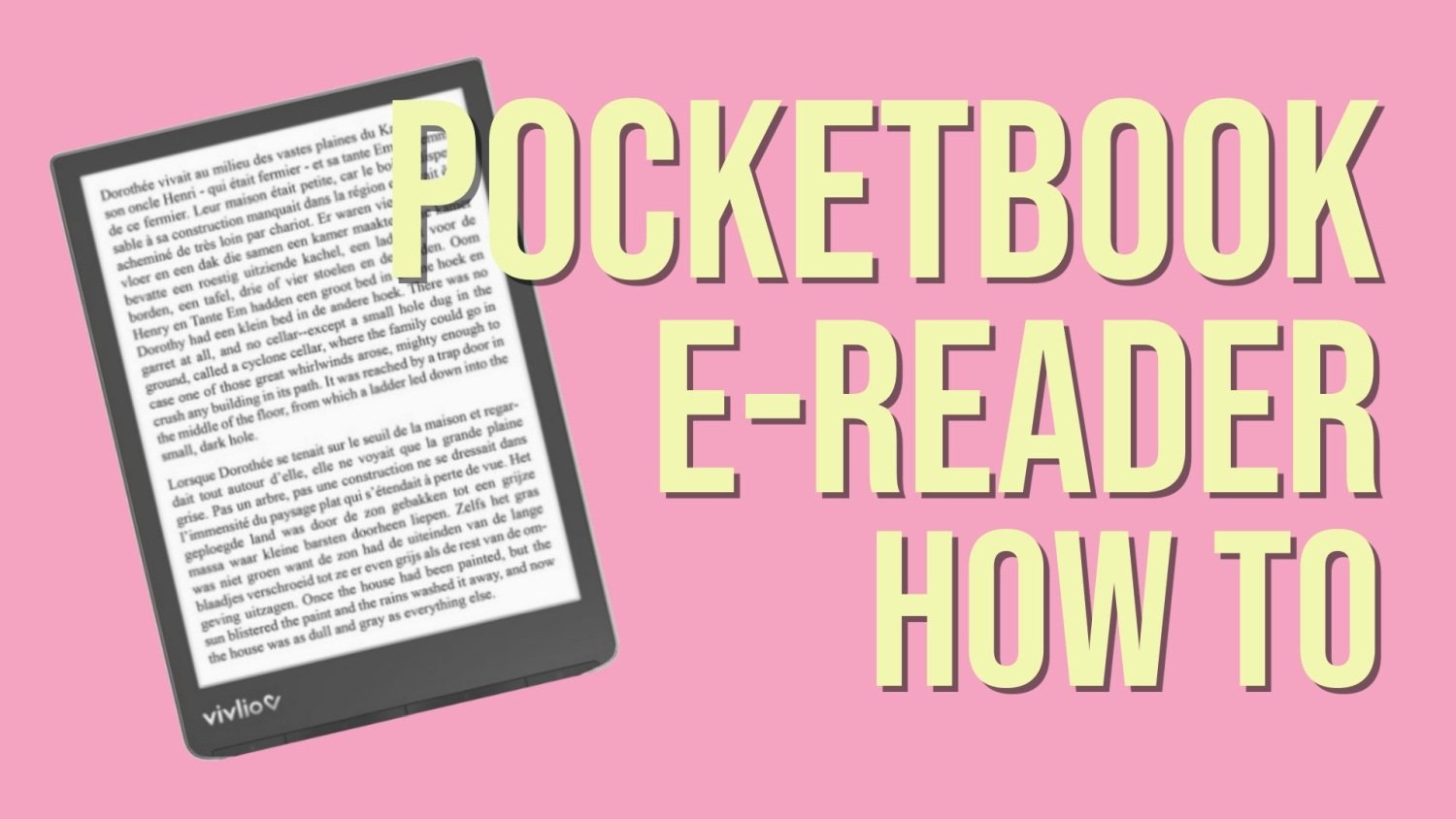
Although e-readers are easy-to-use devices, you’re more likely to come across a Kindle or Kobo model. That’s why we’re focusing on Pocketbook e-readers in this tutorial.

This page will help you get the most out of your e-reader, and is therefore a quick guide for beginner Pocketbook users.

How do I get back to home screen on Pocketbook?

To return to the home screen on your Pocketbook ereader, open the menu by pressing the physical button at the bottom right of the screen.

Then, once the menu is displayed, press the small button at the top left of the screen.

How to exit book on Pocketbook?

To exit a book on Pocketbook, you need to :

  • open the menu : tap the physical button at the bottom right of the screen
  • tap the back button on the top left of the screen

How do I get my Pocketbook to go back to library?

If you are reading a book, you first need to exit (see before).

Then, on home screen, you need to click to the "Library" button at the bottom of the screen.

How to delete books on Pocketbook?

You need to go to the library. (see before)

Then, press down on the cover of the book you want to delete from your Pocketbook e-reader.

A menu appears : you can delete the ebook from your Pocketbook.

How to change font size on Pocketbook?

You need to open a book.

Open the menu by pressing the physical button at the bottom right of the screen.

Then tap on the icons at the bottom of the screen. You can now change the font, thefont size, the margin, etc.

To exit the font menu, you must tap on the screen anywhere above the menu on the text of the ebook.

How to add books on Pocketbook?

There are several ways to add books to your Pocketbook e-reader.

The first is to use the bookstore to buy or download free books. These will be transferred directly to your Pocketbook e-reader. You’ll find the library directly on the e-reader.

The second option is to download free books from other sites: you can find a selection of the best sites for downloading free ebooks here.

Then you need to transfer these ebooks to your Pocketbook e-reader using the Calibre software.

How do I add free books to my Pocketbook library?

You can add free ebooks to your Pocketbook library.

You can download free books from other sites: you can find a selection of the best sites for downloading free ebooks here. Then you need to transfer these ebooks to your Pocketbook e-reader using a software like Calibre.

How do I put EPUB books on my Pocketbook?

Pocketbook e-readers support the EPUB file format very well.

To transfer an EPUB file to your Pocketbook, you can connect the e-reader to your computer and simply copy and paste the EPUBS onto your device.

Can I add a PDF to my Pocketbook?

Yes, it works the same as the EPUB files.